 P4 Software
/
logisticaHQ Client Portal
P4 Software
/
logisticaHQ Client Portal
This page explains how to change an order you already placed, until when you can do it, and what to do when the portal no longer lets you. It is for client users with the Place outbound orders switch.
You can change an order in the portal only while all of these are true:
When all of these are true, the order's page has an Edit order button at the top right. For any other order there is no Edit order button. See Order statuses for every state and whether you can still change it.
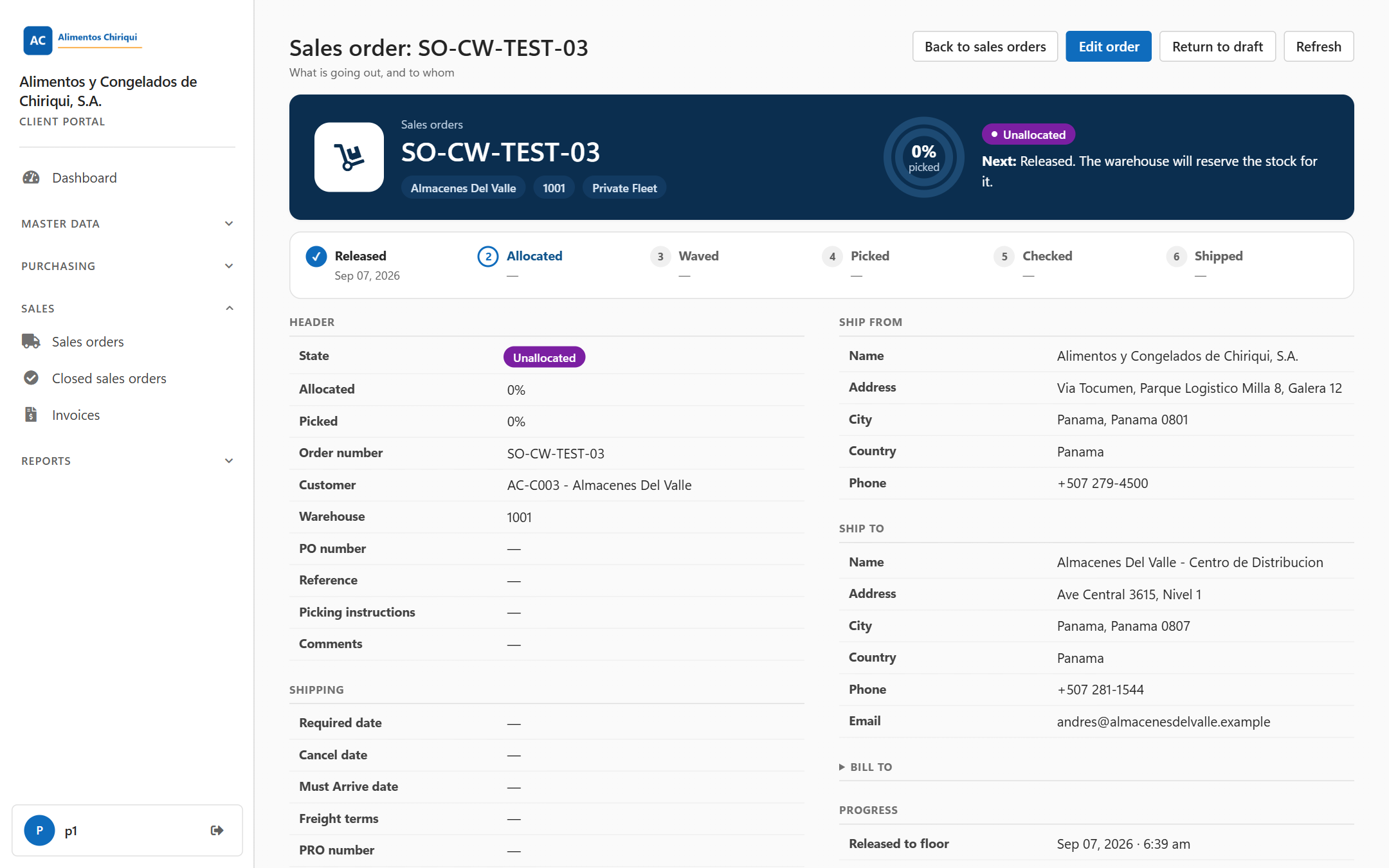
An order that can still be changed has the Edit order button.
When the changes are saved, the message Order saved. appears and the order's page opens with the new values.
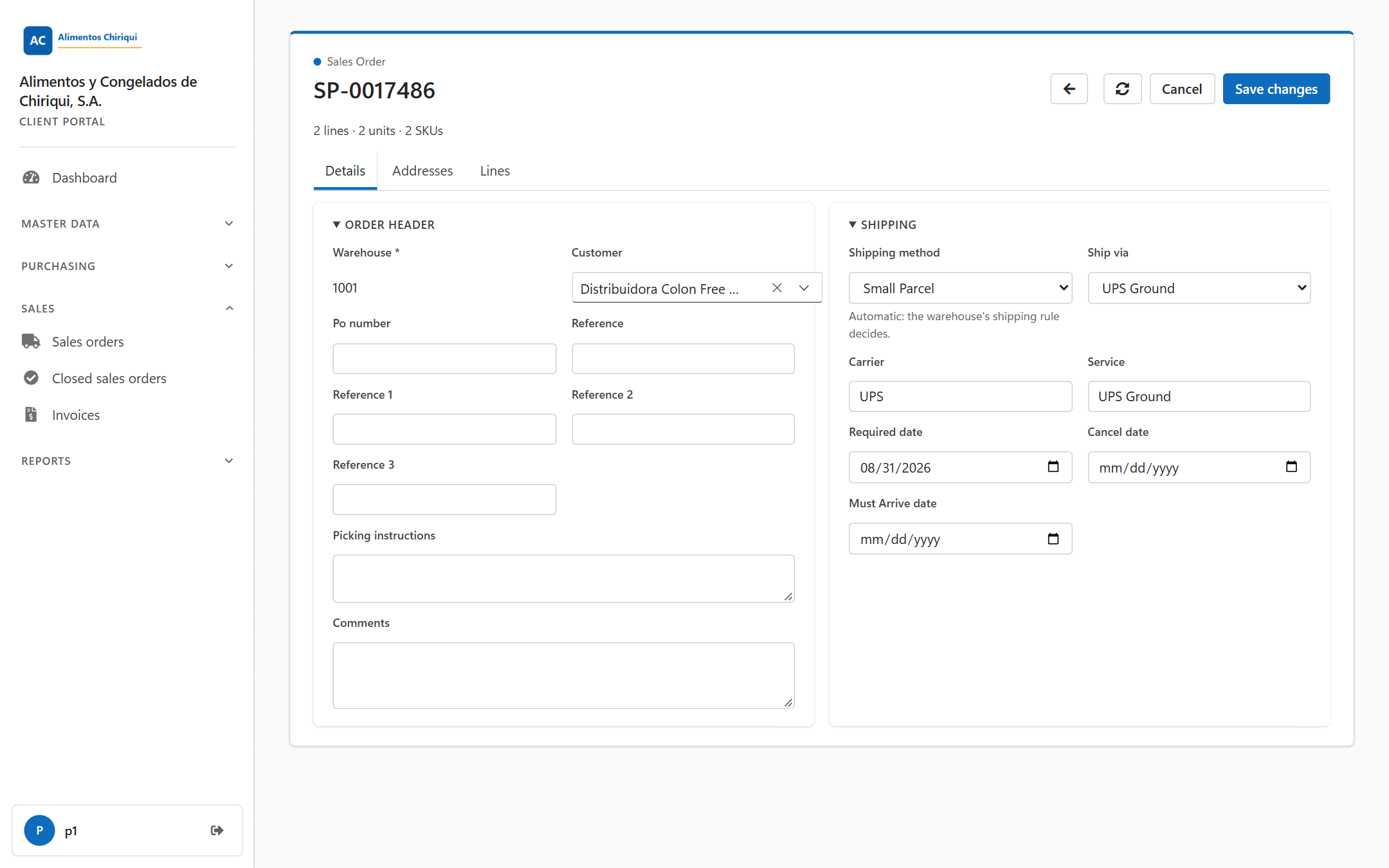
Changing an Unallocated order.
You cannot change the Warehouse (it is shown as plain text), the order number or the state. If the order is for the wrong warehouse, contact your warehouse.
If you empty a box, a date or the Customer and save, that field is cleared on the order.
| Button | What it does |
| Save changes | Saves your changes and opens the order's page. |
| Cancel | Leaves the form without saving, and without asking you to confirm. It does not cancel the order. |
| Refresh (the circular arrow) | Reads the order again and drops any changes you have not saved. |
| The back arrow (Back to orders) | Goes back to the orders list without saving. |
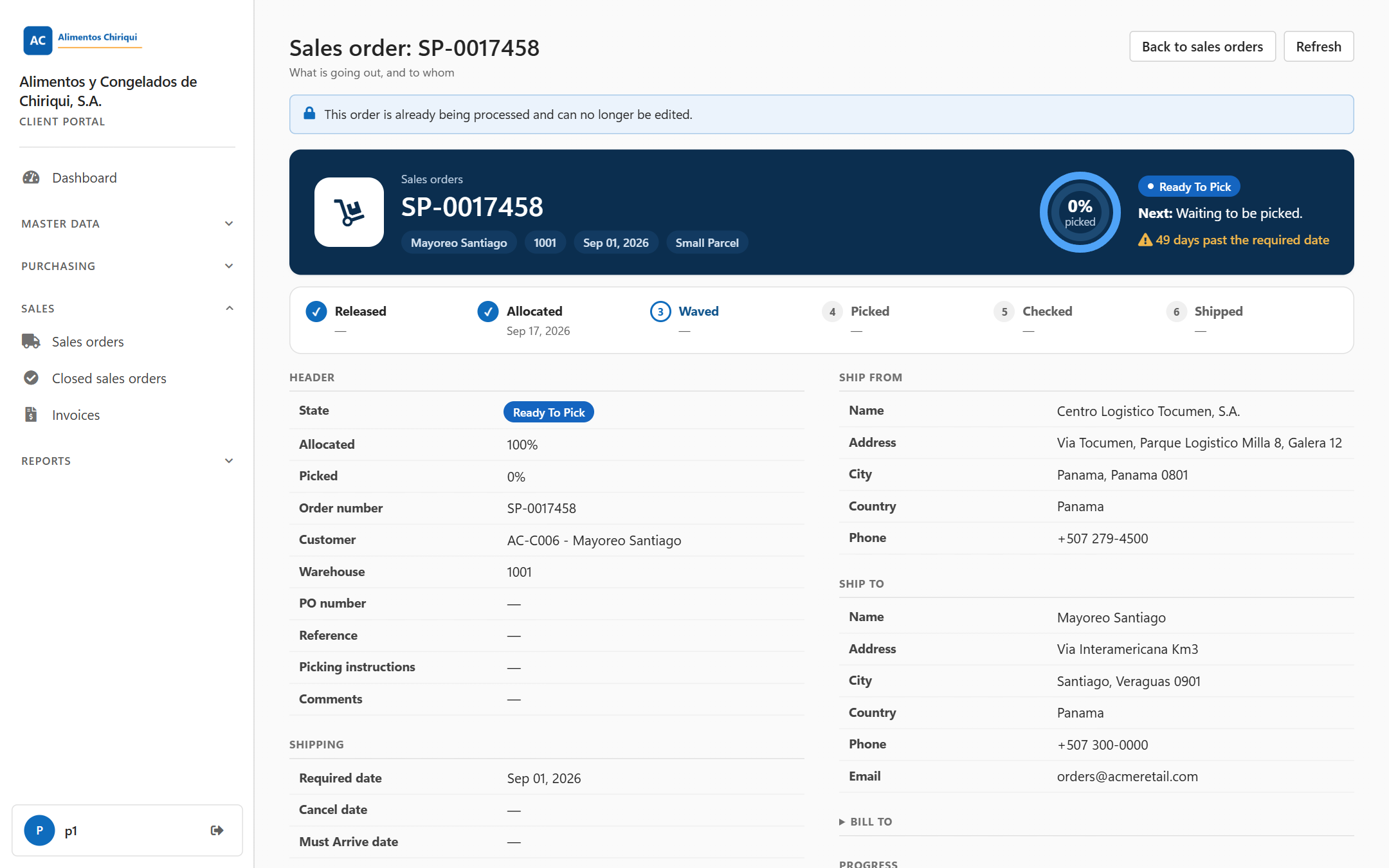
The page that opens instead of the editor for an order the warehouse is already working on.
Two more buttons sit beside Edit order at the top of the order's page. They need the same Place outbound orders switch.
| Button | When it is there | What it does |
| Release order | While the order is Draft. | Asks Release this order? and, once you confirm, sends the order to the warehouse. The order becomes Unallocated and you see Order released. The warehouse then reserves the stock. |
| Return to draft | Only while the order is Unallocated. | Asks Return this order to draft? and tells you The warehouse will stop working on this order until you release it again. Once you confirm, the order is Draft again and you see Order returned to draft. Release it again when it is ready. |
Once the warehouse has reserved stock for the order, only the warehouse can change it. That is every state after Unallocated, for example Held Short, Waved or Being Picked. The page then shows neither button. Contact your warehouse provider.
Neither Release order nor Return to draft is shown, and the portal refuses them if you try, when:
Return to draft is also refused for an order that was already sent to your company's ERP, because a draft can be edited and the order would then differ from the ERP's copy. Contact your warehouse provider if it has to change.
When the portal refuses, a red note under the buttons gives the reason in plain words, and the order stays as it was.
The portal has no button to cancel, delete or suspend an order. To cancel an order, contact your warehouse.
| Message | What it means |
| Order saved. | Your changes were saved. |
| This order is already being processed and can no longer be edited. | The order is past Unallocated, or it is on a truck load, so its page opened instead of the editor. |
| This order was sent automatically by an integration, so it can only be changed in the system that sent it. | The order came from your company's own system. Change it there. |
| That order could not be found. | The order does not exist or is not your company's. |
| Order released. | The order is now Unallocated and the warehouse can start on it. |
| Order returned to draft. | The order is Draft again. Release it when it is ready. |
| "Order [SO-100] is [HeldShort] and cannot be returned to Draft..." or "...cannot be released. Only a Draft order can be released." | The order's state changed while the page was open, for example because a colleague or the warehouse moved it on. Click Refresh to see where the order is now. |
| "Order [SO-100] is on LTL load [L-12] and cannot be released. Ask the warehouse to take it off the load first." | The order is planned on a truck load. Ask your warehouse to take it off the load. |
| "Order [SO-100] is suspended and cannot be released. Contact your warehouse provider." | The warehouse has paused the order. Only the warehouse can start it again. |
| "Order [SO-100] has already been sent to the ERP and cannot be returned to Draft..." | The order was already sent to your company's ERP. Contact your warehouse provider. |
| Select a warehouse., Add at least one line with a product and quantity., the lot messages | See Placing a new order. |
Was this page helpful?