 P4 Software
/
certifyd
P4 Software
/
certifyd
Your branding is printed on every certificate and shown on verification pages and emails. Set it once in Settings › Branding; every certificate you issue afterwards uses it.
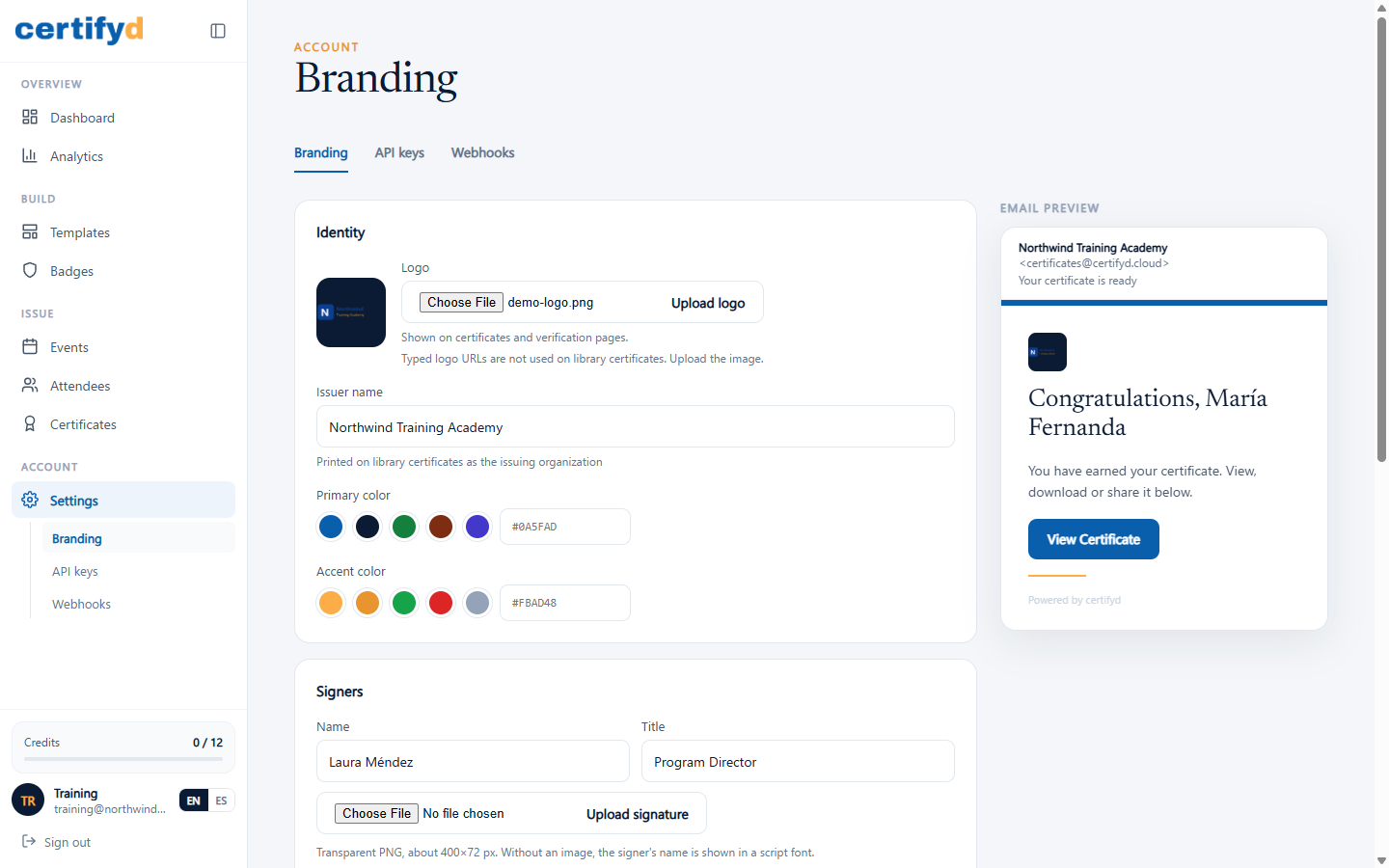
You need either a logo or an issuer name before you can issue certificates from the template library.
Add up to two signers with a Name and Title (for example, "Laura Méndez, Program Director"). Upload a signature image (a transparent PNG about 400 × 72 px) or leave it empty: without an image, the signer's name is printed in a handwriting-style font.
The Email preview on the right updates as you type. Choose Save Branding when you're done.
Was this page helpful?