 P4 Software
/
logisticaHQ-en
P4 Software
/
logisticaHQ-en
LogisticaHQ release 2.56.19
The Totes screen lists every tote and carton that was picked against an order. Use it to see where each carton is in its journey, to print labels and to book carrier pickups.
A tote is a carton or tote that carries picked product for one pick ticket. Every tote has an SSCC-18 code. That code identifies the tote on labels and in scans.
You can find the screen in two places:
Both menu entries open the same screen. The Open and History switch in the header moves you between them.
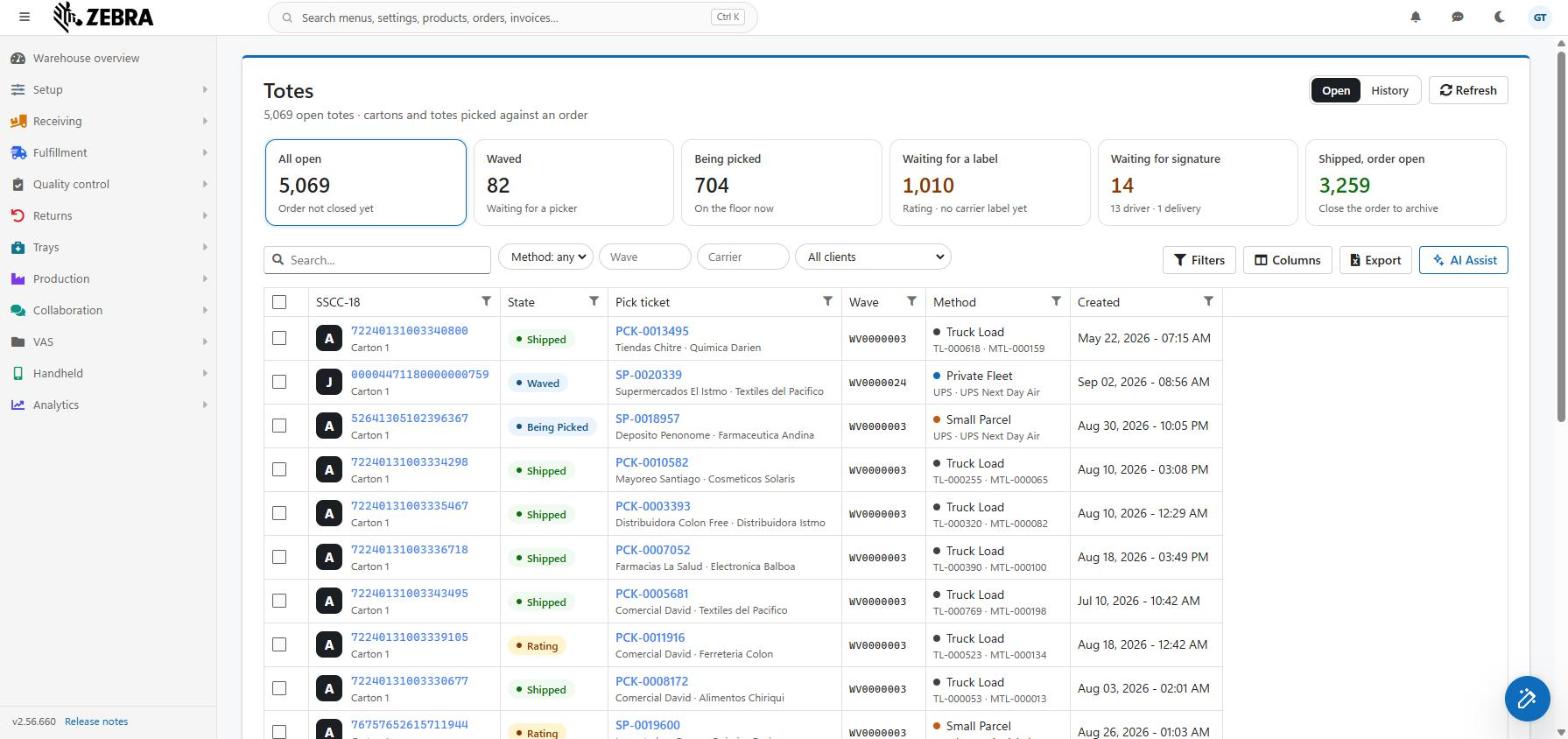
A tote is open while its order is not closed yet. This matters in one case that surprises people.
When an order ships, its cartons do not move to History. They stay under Open until someone closes the order. A shipped carton of an order that is still open is shown under the card Shipped, order open.
History shows the totes of closed orders only.
The header has three parts.
| Part | What it does |
|---|---|
| Title and live line | The title is Totes. Under it, a live line says how many totes you have. On Open it reads "{n} open totes · cartons and totes picked against an order". On History it reads "{n} totes of closed orders". Until the count arrives, the line shows a plain description of the screen. |
| Open / History switch | Moves to the other side of the screen. The side you are on is dark. |
| Refresh | Reloads the list and the numbers on the stage cards. |

The cards under the header count the open totes by where their order is. A click on a card shows only the totes of that stage. A second click on the same card shows every tote again.
The cards, in the order a tote moves through them:
| Card | What the count means | Note on the card |
|---|---|---|
| All open | Every tote of an order that is not closed. This count also includes totes whose order is in a state that has no card of its own, for example an order that waits for QC or for a ship count. | Order not closed yet |
| Waved | Totes of orders that are waved and waiting for a picker. | Waiting for a picker |
| Being picked | Totes of orders that pickers are working on now. | On the floor now |
| Waiting for a label | Totes of orders in the Rating state (Esperando para enviar). A Small Parcel waits here until its carrier label is bought. Shown in amber. | Rating · no carrier label yet |
| Waiting for signature | Totes of orders that wait for a driver signature or a Delivery signature. Shown in amber. | "{n} driver · {n} Delivery" shows how many wait for each kind of signature |
| Shipped, order open | Totes of orders that already shipped, but the order is not closed. Shown in green. | Close the order to archive |
How the cards behave:
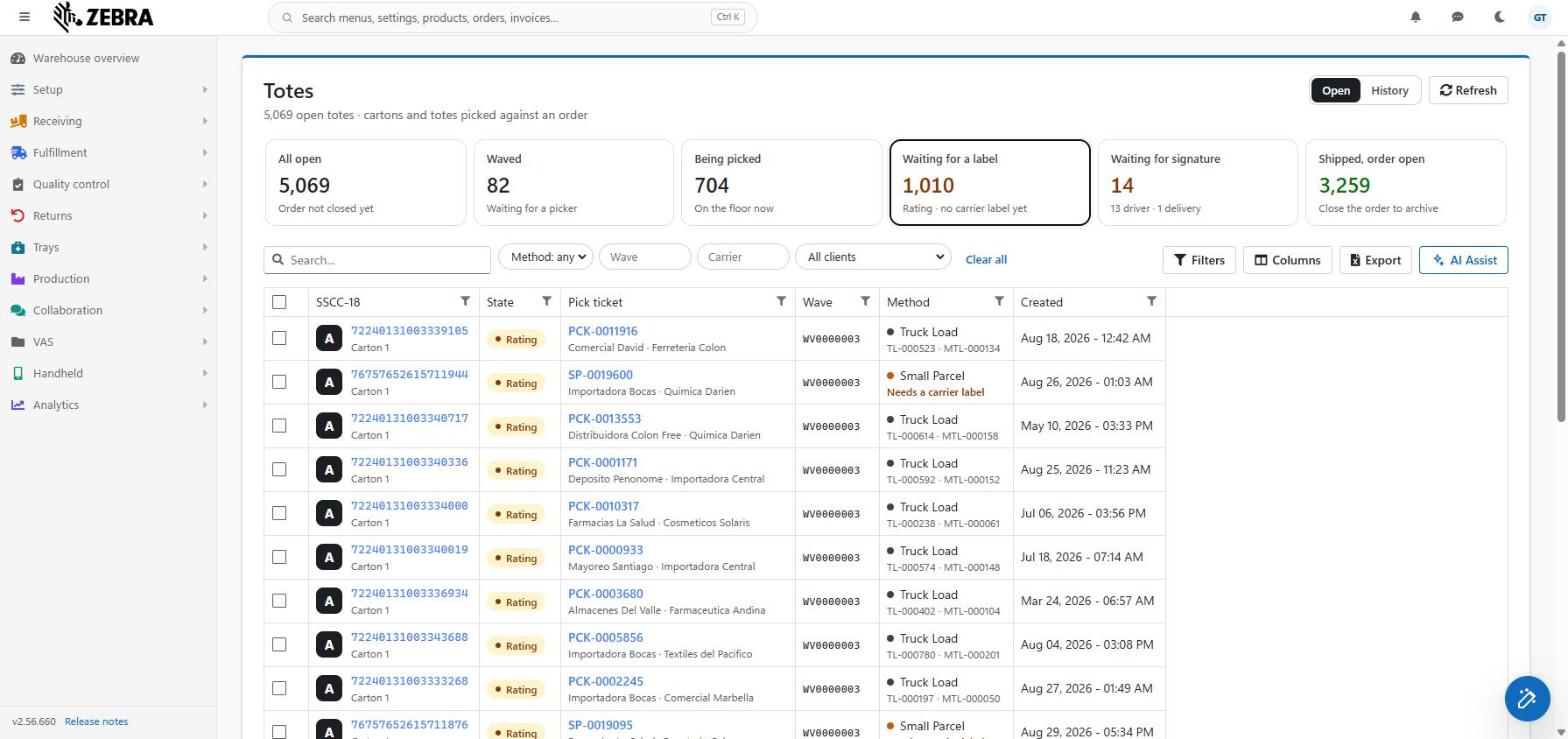
The toolbar stays visible while you tick rows. It holds the search box, four chips, Filters, Columns, Export and AI Assist.
These work as on every LogisticaHQ list.
A chip is on when it holds a value. It is then shown in blue. You set a chip by choosing a value or by typing and then leaving the box or pressing Enter. The list reloads at once.
| Chip | What it does |
|---|---|
| Method: any | A list. Choose Truck Load, Small Parcel, Private fleet or External to show only totes whose order ships that way. |
| Wave | Type part of a wave number. Shows totes whose wave number contains your text. |
| Carrier | Type part of a carrier name. A tote matches if the carrier it shipped with contains your text. Before it ships, the tote matches on the carrier its order asks for. |
| Client | A list of Clients (Cliente 3PL). It is shown only to a 3PL user who is not tied to one client, and only when there are two or more Clients. |
When any card or chip is set, a Clear all link appears. It removes the card and every chip in one click.
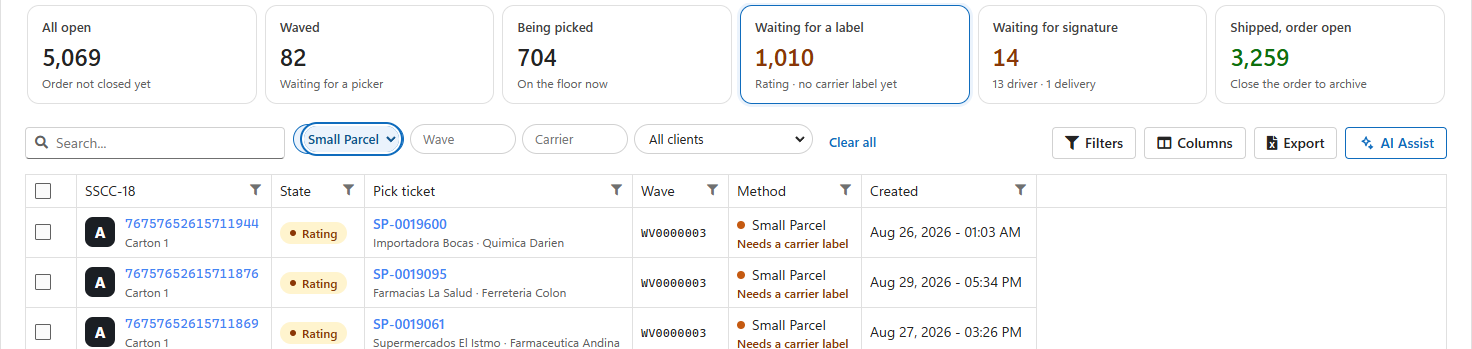
The list has 29 columns. Six are shown by default. The others are under Columns. Every column can be sorted and filtered.
A line under the list reminds you: "Every other column - Size, Appt, LPN, Bin, Overstock, Dock, Tracking #, Pickup manifest, Cost, Warehouse, Shipped and more - is under Columns."
If you already saved your own layout. A user who saved a column layout before this release keeps the old columns. The new layout is not applied over it. To get the new layout, open Columns and use Reset. Your own choices are then replaced by the new defaults.
| Column | What it shows |
|---|---|
| SSCC-18 | A dark tile with the tote's Big text (a dot if there is none). Next to it, the SSCC-18 code as a link to the tote's page. Under the code, a line with the tote type and the carton number, for example "Carton 1". |
| State | The state of the order the tote belongs to, as a colored pill. States that wait for someone, such as Rating and the signature states, are amber. |
| Pick ticket | The pick ticket (Despacho) number as a link to the pick ticket. Under it, the customer's name (or code) and the client, for example "Supermercados El Istmo · Textiles". |
| Wave | The wave number of the order. |
| Method | A colored dot, then the shipping method. Grey is Truck Load, blue is private fleet, orange is a parcel (Small Parcel or external). Under the method there is one line, see below. |
| Created | The date and time the tote was created. |
The second line of the Method cell is chosen in this order:

| Column | What it shows |
|---|---|
| Type | The tote type. |
| Sku | The SKU of the tote. |
| Big text | The Big text of the tote on its own. |
| Carton number | The number of the carton within the order. |
| Size | The name of the carton size. |
| Appt number | The appointment number of the order. |
| Appt date | The appointment date, as "Sep 03, 2026". |
| Truck Load | The Truck Load the tote is on, as a link. |
| Master load | The Master Truck Load of that Truck Load, as a link. |
| LPN | The license plate (LPN) the tote sits on, as a link. |
| Bin | The bin (Ubicación) the tote is staged in, as a link. Empty when there is none. |
| Overstock | The bin of the LPN, as a link. Empty when there is none. |
| Dock | The name of the dock door (Puerta). |
| Tracking # | The tracking number. A click opens the carrier label stored for the shipment. |
| Pickup manifest | The Carrier pickup manifest. A click opens the same carrier label. |
| Pickup date | The date and time of the Carrier pickup. |
| Carrier | The carrier (Transportador) the tote shipped with. |
| Service | The carrier service. |
| Cost | The shipping cost with its currency, for example "$12.50 USD". |
| Client | The client (Cliente 3PL) of the order. A link for administrators only. |
| Customer | The customer (Cliente) code, as a link. |
| Warehouse | The Warehouse code. A link for administrators only. |
| Shipped | The ship date of the Truck Load. |
A click on a tracking number or a pickup manifest does not leave the screen. It opens a window with the carrier label stored for that tote. The window title is the carrier and service, then the tracking number in brackets.
If no label is stored, the window says "No carrier label is stored for this shipment." This happens when someone typed the tracking number by hand, or when the shipment was made outside LogisticaHQ.
If your company has popup QR codes turned on, eleven code columns show a QR code when you point at the code. The columns are SSCC-18, Wave, Pick ticket, Truck Load, Master load, LPN, Bin, Overstock, Dock, Tracking # and Pickup manifest. You can scan the QR code from the screen.
Click a row to see where the tote is without leaving the list. A drawer opens beside the list. On a narrow screen it opens below the list. Press Enter on a selected row to open it with the keyboard.
The drawer shows:
The two print buttons in the drawer print only the tote you are looking at. They ignore the ticks in the list and they do not clear them.
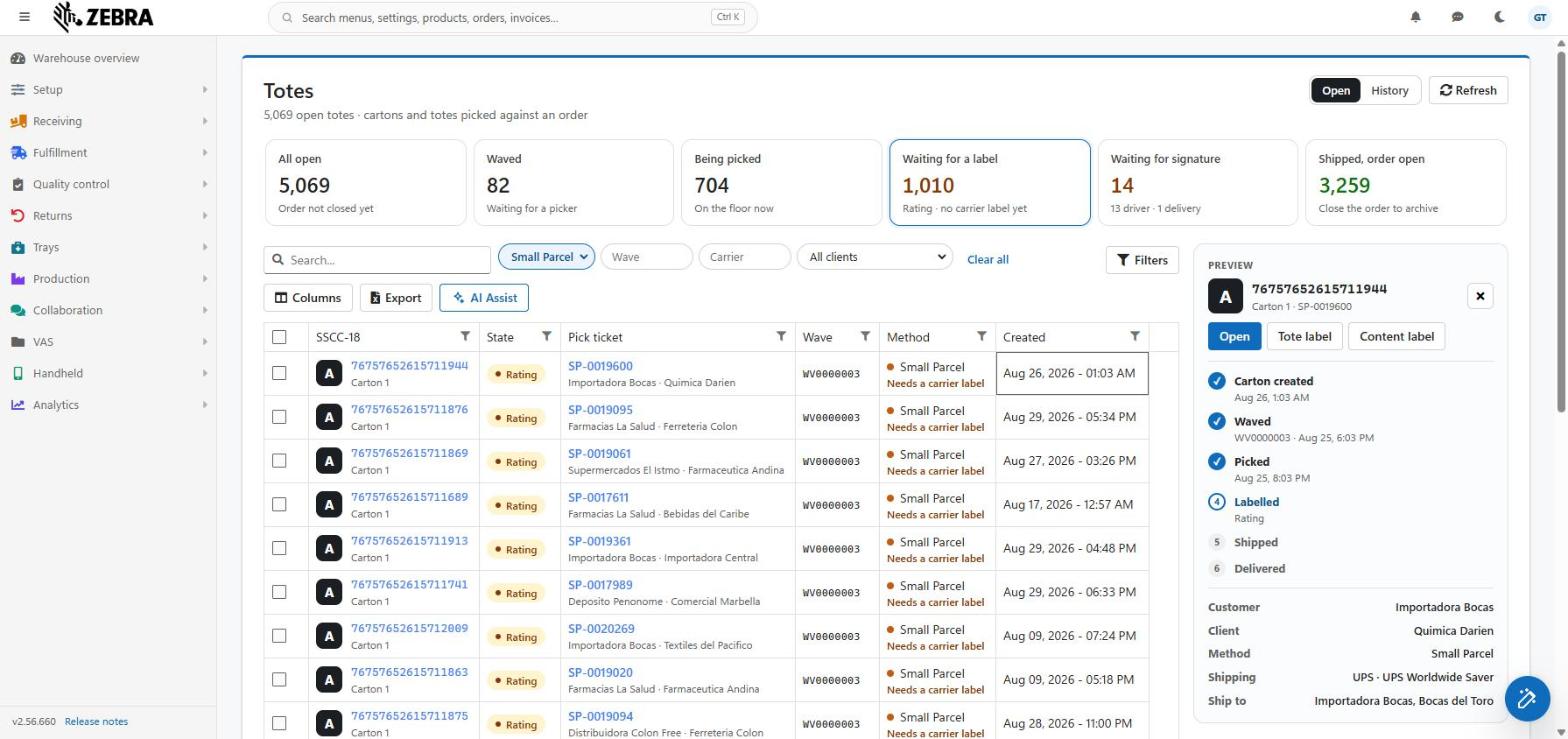
A tote has no state of its own. It moves with its order. The six steps are:
LogisticaHQ looks at the state of the order and at the dates that were recorded. A step is shown as done when either one proves it. A step is never shown as open when a later step is done.
| Step | Counted as done when |
|---|---|
| Carton created | Always, from the moment the tote exists. |
| Waved | The order is waved or further, or it has a waved date. |
| Picked | The order passed picking (for example it is in Rating), or it has a picking completed date. |
| Labelled | The tote has a tracking number (a Small Parcel whose carrier label was bought), or it sits on a Truck Load. A truck-load or private-fleet tote is "labelled" when it is loaded. It never gets a carrier label. |
| Shipped | The order is shipped, or it has a shipped date. A closed order counts as shipped. |
| Delivered | The order has a Delivery confirmation date, or a line of the tote has a delivered quantity. A closed order is not counted as delivered, because an order is closed whether or not anyone confirmed the Delivery. |
The first step that is not done is the current one. Under it you see the order's state. Under a done step you see its date. Under Waved you also see the wave number. When all six steps are done, no step is current.
Tick one or more rows to raise the dark action bar at the bottom of the screen. It is called the dock.
The dock shows:
An action that would take none of the ticked totes is not shown at all. It is never greyed.
When an action takes fewer totes than you ticked, its button shows how many, for example Carrier labels (1). The note tells you why the others are left out. This is the same rule the server applies, so what the dock says is what really happens.
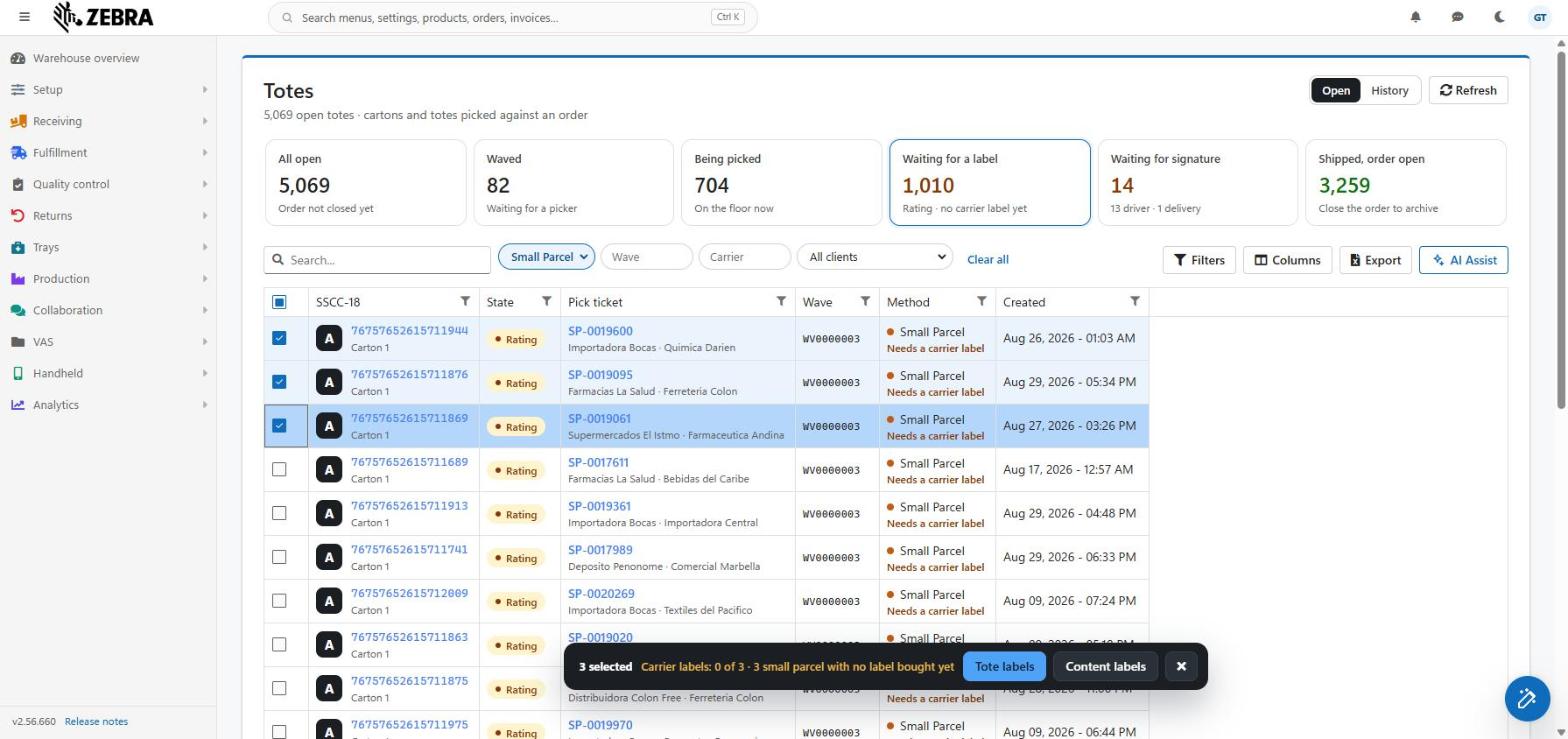
| Action | Takes | Leaves out, and why |
|---|---|---|
| Tote labels | Every ticked tote. | Nothing is left out. The print window also offers the content label. |
| Content labels | Totes that have picked lines, or a cartonization plan. | Totes with nothing picked into them yet. The note says "{n} with nothing picked into it yet". The button is hidden if no tote qualifies. |
| Carrier labels | Totes that have a tracking number. They print the label that was stored with the tracking number. | Truck-load and private-fleet totes never get a carrier label ("{n} Truck Load or private fleet, no carrier label"). Parcel totes whose label was not bought yet ("{n} Small Parcel with no label bought yet"). The button is hidden if no tote qualifies. |
| Carrier pickup | Small Parcel totes that have a tracking number. | Truck Load and private fleet totes. Parcel totes with no label bought yet. Also External totes, even with a tracking number. The note says "Carrier pickup: {n} of {n}, Small Parcel with a label only". The button is hidden if no tote qualifies. |
The list cannot see whether a label is really stored, because a label is large. So when you click Carrier labels, LogisticaHQ asks the server first.
When it works, the ticks are cleared and the list reloads. Be careful: once all totes of an order have a pickup manifest, that order is shipped. It then moves to Shipped, order open.
After a print that really ran, the ticks are cleared. If you cancel the printer window, or the print finds nothing to print, the ticks stay so you can correct the selection.
Click the SSCC-18 code in the list, or Open in the drawer, to open one tote. A link at the top, Totes, takes you back to the list. If the order is closed, that link goes to History.
If the tote cannot be found, the page says "This record could not be found."
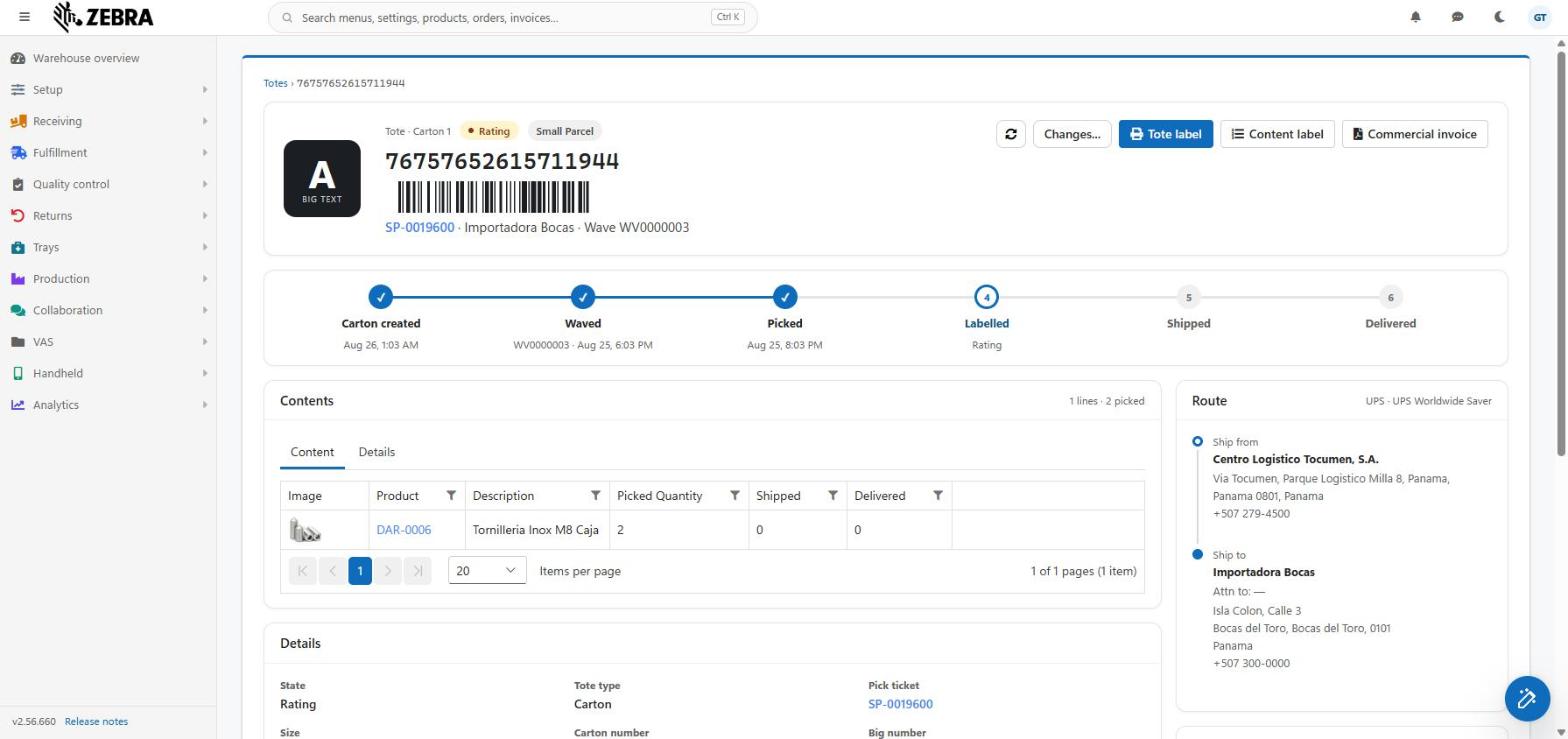
| Item | What it shows |
|---|---|
| Big text tile | A large dark tile with the Big text of the tote and the caption BIG TEXT. |
| Caption | "Tote · Carton 1": the tote type and the carton number. |
| State pill | The state of the order, in color. |
| Method pill | The shipping method, for example Small Parcel. |
| Title | The SSCC-18 code in large type. |
| Barcode | A Code 128 barcode of the SSCC-18 code. You can scan it from the screen. |
| Line | The pick ticket number (a link), the customer, and "Wave {number}". |
Buttons on the header:
| Button | What it does |
|---|---|
| Refresh (arrows icon) | Reads the tote again. |
| Changes... | Opens the history of changes of this tote. |
| Tote label | Prints the tote label. The print window also offers the content label. |
| Content label | Prints the content label. |
| Carrier label | Prints the carrier label. It is shown only when the tote has a tracking number. |
| Commercial invoice | Opens the commercial invoice as a PDF. |
The six steps are drawn as one line of dots, from Carton created to Delivered. The done part of the line is blue. The rules are the ones in "The journey" above.
The caption says how many lines and units are in the carton, for example "3 lines · 24 picked", or "Nothing picked into this carton yet".
There are three cases:
The Content tab has these columns: Image, Product (the SKU as a link; a scan gives the UPC if the product has one), Description, Picked Quantity, Shipped and Delivered.
The Details tab has these columns: Image, Product, Pack size, Quantity, Shipped, Delivered, Serial, Lot, Expiry and Manufacture date. Serial and Lot show a QR code on hover. The expiry date is shown but has no QR code, so no scanner is given a date it cannot read.
Both tabs remember your own column layout.
This card lists the facts of the tote. An empty value is shown as a dash.
State · Tote type · Pick ticket (a link) · Size · Carton number · Big number · Customer · Wave number · Po Number · Route number · Container · SSCC-18 (with a QR code) · Staging location (the bin, as a link; shown only if the tote has one).
A timeline from Ship from to Ship to. The title shows the carrier and service.
The address is read from the pick ticket. LogisticaHQ uses the geocoded address when the order has one. Otherwise it uses the typed lines: address, city, state or province and postal code, and country.
A drawing of the carton, and the figures: Length, Width, Height (each with its unit), Weight (with its unit) and Cube (the volume as the server stored it). The title shows the carton size name. These figures are only shown. You cannot change them here.
| Row | What it shows |
|---|---|
| Method | The shipping method of the order. |
| Carrier · service | The carrier and service the tote shipped with. If none, the ones the order asks for. |
| Tracking number | The tracking number as a button. A click opens the stored carrier label. If there is no tracking number yet, a parcel tote shows "After the label prints". Any other tote shows a dash. |
| Cost | The amount and its currency. Shown only for a parcel tote that has a tracking number. |
| Truck Load | The Truck Load as a link, or "Not loaded". |
| Bill of lading | Shown only when the tote is on a Truck Load. A click exports the bill of lading. |
The Manual ship button is shown only for a parcel tote (Small Parcel or external) that has no tracking number yet. Use it when the parcel was shipped outside LogisticaHQ.
If the server accepts it, the page reloads and the tote now has a tracking number. If the server refuses, the window stays open and shows the reason, so nothing you typed is lost. No label is printed by this action.
This page has no Save button, no autosave and no editable box. It never changes the tote while you look at it. The only action that changes data is Manual ship. The other buttons print or open documents.
| You ticked... | Carrier labels | Content labels | Carrier pickup |
|---|---|---|---|
| A Small Parcel tote with a tracking number and picked lines | Yes | Yes | Yes |
| A Small Parcel tote with no label bought yet | No | Only if it has content | No |
| A truck-load or private-fleet tote | No | Only if it has content | No |
| An External tote with a tracking number | Yes | Only if it has content | No |
| A tote with nothing picked and no cartonization plan | Only if it has a tracking number | No | Only if Small Parcel with a tracking number |
Was this page helpful?