 P4 Software
/
logisticaHQ-en
P4 Software
/
logisticaHQ-en
LogisticaHQ release 2.56.19
ABC code: every product is ranked A to F by the value picked, each night, and the ABC code row lets you choose a code by hand. How it works: ABC codes.
The Product details page is the one place where you see and edit everything about one product: how it is identified and scanned, how the Warehouse tracks it, how big it is, how it ships, and where its stock and orders are.
You find it under Setup › Products. Click a SKU in the product list to open it.
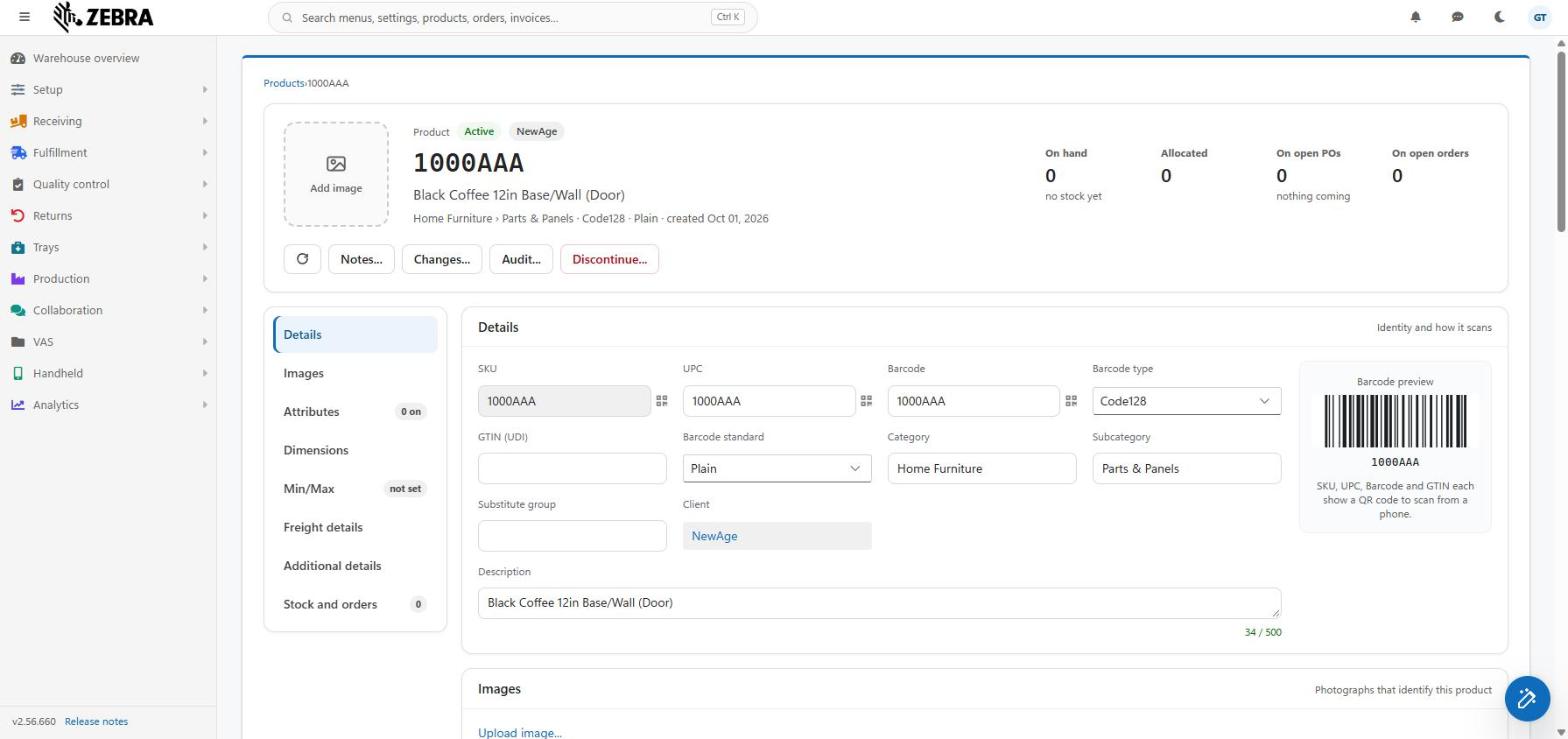
| Item | What it shows |
|---|---|
| Image tile | The product's image. A click on it jumps to the Image card. If the product has no image and you may enter data, the tile is an Add image button that uploads a PNG or JPEG exactly as the card does (the button is disabled while an upload runs). For other Users it is an empty tile. |
| Caption | "Product". |
| State chip | Active (green) or Discontinued (red). |
| Client chip | The client (Cliente 3PL) that owns the product, if it has one. |
| Title | The SKU. |
| Description | The description of the product, if there is one. |
| Detail line | The category and subcategory with an arrow, then the barcode type, the barcode standard and "created {date}", for example "Cabinetry › Hinges · Code128 · Plain · created Oct 01, 2026". Parts that are empty are left out. |
The figures are worked out from the three tabs of the Stock and orders card. There is no separate calculation behind them.
| Figure | How it is calculated | Note under the figure |
|---|---|---|
| On hand | The sum of the quantity of every inventory row. | "{n} available" (on hand minus allocated), or "no stock yet" when it is zero. |
| Allocated | The sum of the allocated quantity of every inventory row. | None. |
| On open POs | For each open purchase order, what this product still has to receive: its ordered quantity minus its received quantity. A negative result counts as zero for that order, so an over-receipt on one order does not hide what another still brings in. The total quantity of the order is not used, because it would count other Products too. | "on {n} POs", or "nothing coming" when it is zero. |
| On open orders | The ordered quantity of this product on the open Pick tickets (despachos). | "on {n} orders". |
A figure shows a dash until its data has arrived.
| Button | What it does |
|---|---|
| Refresh (arrows icon) | Reads the product, its image, the category lists and all three tabs again. Shown for live Products only. |
| Notes... | Opens the notes of the product. |
| Changes... | Opens the history of changes of the product. |
| Audit... | Opens the Audit screen of the product. |
| Discontinue... | A red outlined button, shown for live Products only. See "Discontinue a product". |
When a product is discontinued, a red banner says "Product has been discontinued!". The page then changes:
When the server has done it, LogisticaHQ takes you to the product list. A discontinued product cannot be made active again from this page.
The list on the left names each card. Click one to scroll to it. The card receives the keyboard focus. The list does not follow your scrolling. It is a list of jump links, not a position marker.
| Entry | Badge |
|---|---|
| Details | None. |
| Image | A number (1) when the product has an image; nothing when it has none. |
| Attributes | "{n} on": how many switches are on. |
| Bill of material | The number of components. Only when Bill of material is on. |
| Packsizes | The number of Packsizes. Only when Packsize controlled is on. |
| Dimensions | None. Not shown for decimal Products. |
| Min/Max | "{n} set", or "not set" if no Warehouse has a value. |
| Freight details | None. |
| Additional details | None. |
| Stock and orders | The total of the rows of the three tabs. |
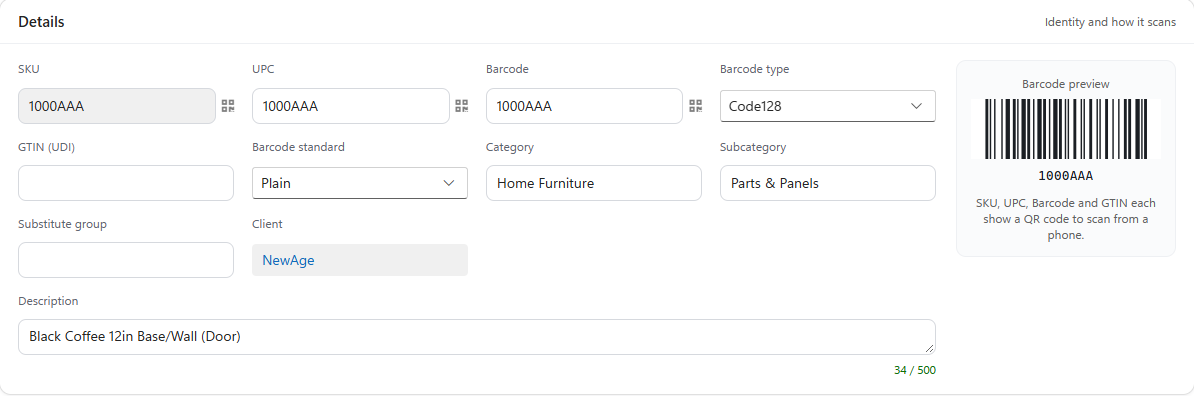
The caption is "Identity and how it scans". The boxes are on the left. A barcode preview is on the right.
| Field | What to know |
|---|---|
| SKU | Read-only. A SKU is changed by the import, never here. Scannable. |
| UPC | The UPC. Scannable. |
| Barcode | The barcode value. Scannable. |
| Barcode type | One of Code128, EAN13, UPCA, ITF14. |
| GTIN (UDI) | The GTIN. Scannable. |
| Barcode standard | One of Plain, Gs1, Hibc. |
| Category | Choose from the list, or type a name that is not in it. A new name is created when you save. Users who may not enter data cannot change it. |
| Subcategory | Choose from the subcategories of the chosen category, or type a new name. It is disabled until a category is chosen, and then says "Choose a category first." If you change the category, the subcategory is cleared, because the old one cannot belong to the new category. |
| Substitute group | A free text that groups Products that can replace each other. |
| Client | Shown only when the product belongs to a client. A link for administrators. Read-only. |
| Description | Up to 500 characters. Users who may not enter data cannot change it. |
If a product has a category or a subcategory that is no longer in the list, LogisticaHQ still shows it. It never clears a value you did not touch.
On a discontinued product all of these boxes are read-only.
The preview draws the barcode that a scanner would read. It encodes the Barcode value, or the SKU if the product has no barcode of its own. The code is also written below the bars.
The card is titled Image and its caption reads "The photograph that identifies this product. Uploading a new one replaces it." A product keeps one image. Uploading a new image replaces the one that was there; it never adds a second.
| Control | What it does |
|---|---|
| Upload image... (link above the picture) | Opens your computer's file picker, which offers PNG and JPEG files. The upload starts as soon as you choose the file, with no Update needed. While it runs the picture dims and the link and the Remove button are disabled. When it finishes, the new image replaces the old one on the card and in the header tile, and the old one is deleted from the System. Shown only to Users who may enter data, and only for a live product. |
| The picture | The image as stored, in a 140 by 140 frame. |
| Remove (cross, in the dark bar along the bottom of the picture) | Deletes the image at once. Nothing asks you to confirm and it cannot be undone. The button is always visible on the picture; hovering only darkens its bar. Shown for a live product, to any user who can open the screen. |
| Zoom (magnifier, beside the cross) | Opens the full-size image in a window titled with the product's SKU. If the file cannot be loaded, the window says "No image is stored for this record." |
What the upload accepts:
Before this version a product could end up with more than one stored image. If yours has, the card lists all of them, each with its own Remove and Zoom. Removing one deletes only that one. The next upload deletes all of them and leaves the new one.
On a discontinued product you cannot upload or remove the image. You can still see it and zoom into it.
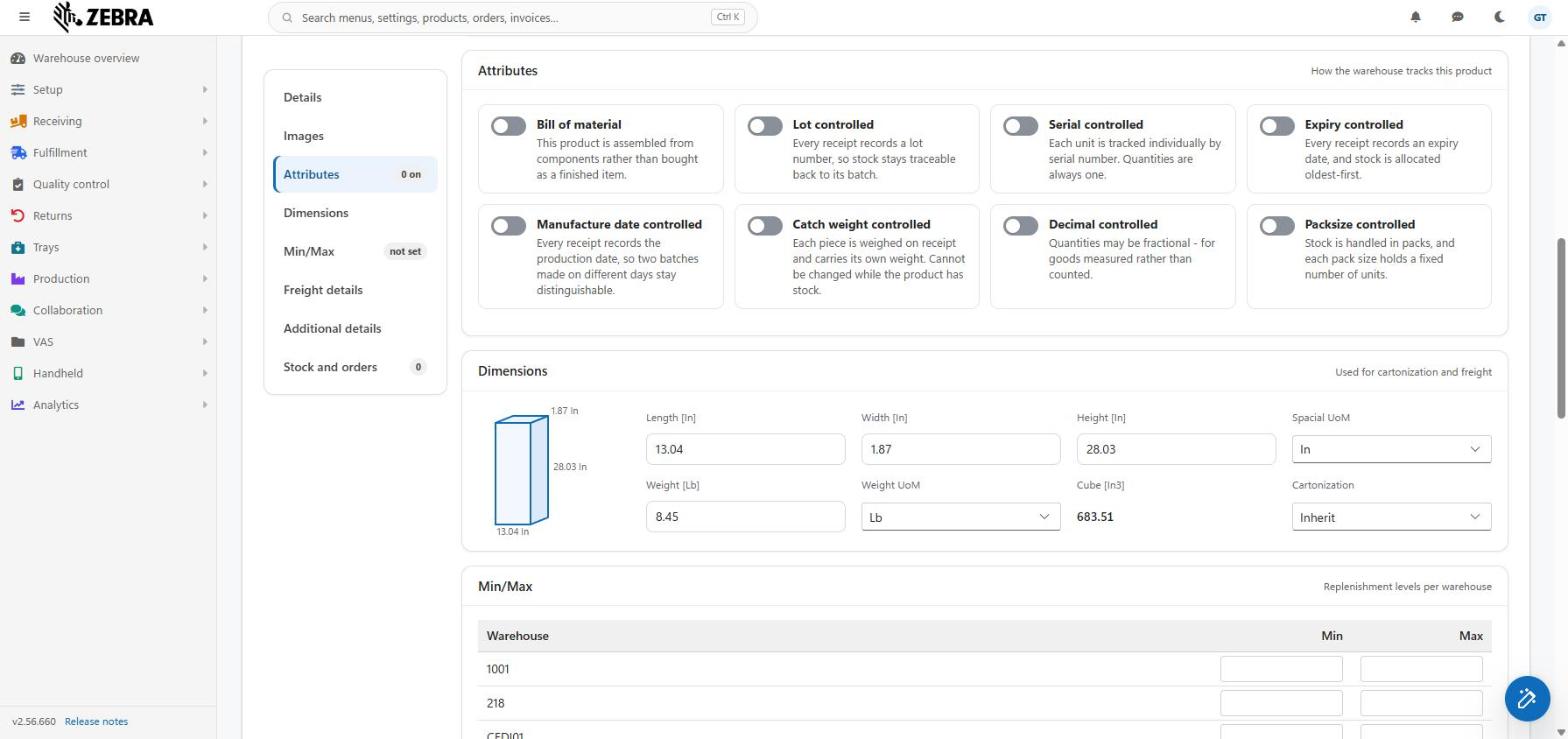
The caption is "How the Warehouse tracks this product". Each attribute is a switch with a short explanation. A switch that is on tells you what it adds to the page.
Users who may not enter data see the switches but cannot change them.
| Attribute | What it means | What it adds when on |
|---|---|---|
| Bill of material | This product is assembled from components rather than bought as a finished item. | The BOM Workflow box and the Bill of material card. |
| Lot controlled | Every receipt records a lot number, so stock stays traceable back to its batch. | The Lot pattern box. |
| Serial controlled | Each unit is tracked individually by serial number. Quantities are always one. | The Serial pattern box. |
| Expiry controlled | Every receipt records an expiry date, and stock is allocated oldest-first. | The Inbound allowance and Outbound allowance boxes. |
| Manufacture date controlled | Every receipt records the production date, so two batches made on different days stay distinguishable. | Nothing extra. |
| Catch weight controlled | Each piece is weighed on receipt and carries its own weight. The screen says it cannot be changed while the product has stock. | Nothing extra. |
| Decimal controlled | Quantities may be fractional, for goods measured rather than counted. | The Units of measure box. |
| Packsize controlled | Stock is handled in packs, and each pack size holds a fixed number of units. | The Packsizes card. |
To prevent mistakes, a switch is not offered while another one that conflicts with it is on. To see it, switch the other one off first.
| Switch | Not offered while this is on |
|---|---|
| Bill of material | Decimal controlled |
| Serial controlled | Decimal controlled, Packsize controlled |
| Decimal controlled | Packsize controlled, Serial controlled, Bill of material |
| Packsize controlled | Decimal controlled, Serial controlled |
| Box | Shown when | What to know |
|---|---|---|
| BOM Workflow | Bill of material is on. | A list of Workflows. |
| Lot pattern | Lot controlled is on. | Optional format the scanned lot must match. Leave empty to accept any lot. |
| Serial pattern | Serial controlled is on. | Optional format the scanned serial must match. Leave empty to accept any serial. |
| Inbound allowance | Expiry controlled is on. | Days of shelf life a Delivery must still have left, or it is refused at Receiving. |
| Outbound allowance | Expiry controlled is on. | Days of shelf life stock must still have left, or it is not allocated to an order. |
| Units of measure | Decimal controlled is on. | Kg, Gr, Lb, Oz, L, Ml, M, Cm, Mm, In or Ft. |
Shown only when Bill of material is on. The caption is "The components it is assembled from; a quantity saves as you type".
The table has the columns Image, Sku (a link to the component), Quantity and UOM (a product without a unit shows "Ea").
If a quantity is refused, the row stays on the screen with the reason against it. The page is not reloaded, so none of your other unsaved edits are lost.
Shown only when Packsize controlled is on. The caption is "The packs it is handled in".
| Column | What it shows |
|---|---|
| Name | The name of the packsize. A link that opens the edit window. |
| Barcode | The barcode of the packsize. Scannable. |
| Eaches | How many units the pack holds. |
| Cube | Length × width × height of the pack, with the product's length unit and "3", for example "24 Cm3". |
| Weight | The weight of the pack with its unit. |
| Cartonization | The cartonization rule: Inherit or PreBoxed. |
The row with Eaches equal to 1 is the product itself. It is shown, but its name is not a link and it cannot be removed.
Row buttons:
Add (Users who may enter data) opens the Packsize window ("Create packsize"). The fields:
| Field | Rule |
|---|---|
| Name | Required. |
| Description | Optional. |
| Eaches | Required. How many units are in the pack. |
| Barcode | Optional. |
| Barcode type | Code128, EAN13, UPCA or ITF14. |
| Length, Width, Height | With the unit of the product's dimensions in the label. |
| Weight | With the weight unit. |
| Cartonization | Inherit (the default) or PreBoxed. |
A packsize is saved by its own window, at the moment you confirm. It does not wait for Update. If the server refuses, the reason is shown in the window.
Not shown for decimal controlled Products. The caption is "Used for cartonization and freight".
A drawing of a box shows the length, width and height you typed on its edges. A dash is shown until you type a value.
| Field | What to know |
|---|---|
| Length, Width, Height | The unit is shown in the label, for example "Length [Cm]". |
| Spacial UoM | The length unit: M, Cm, Mm, In or Ft. |
| Weight | The unit is shown in the label. |
| Weight UoM | Kg, Gr, Lb or Oz. |
| Cube | Not a box you type in. It is length × width × height, shown in the length unit cubed. It stays empty until all three are filled in. |
| Cartonization | Inherit, PreBoxed, SingleSku or MultiSku. Users who may not enter data cannot change it. |
The caption is "Replenishment levels per Warehouse". The table has one row for every Warehouse, whether or not the product has levels there. Each row has Min and Max. Leave both empty for "not set".
Unlike Bill of material and Packsizes, the Min/Max table is saved with Update. It counts as an unsaved change like any other box.
The caption is "Shipping, customs and the commercial invoice".
| Field | What to know |
|---|---|
| Hazardous material | Yes or no. |
| NMFC code | National Motor Freight Classification code. |
| Freight class | Choose from the list of freight classes. |
| Pallet type | The pallet the product should ship on. Pickers and sorters are told to use it. Whoever finishes the pallet confirms the pallet actually used. Shown only if your company has pallet types. Leave it empty to use the company default. The hint names that default. |
| Country of origin | Free text. |
| HTS code | Harmonized Tariff Schedule code. |
| Unit cost | Not below 0. The declared unit value for the commercial invoice when the order line has no sales price. |
| Commodity description | Free text for customs. |
This card shows the Product info fields (1 to 10) that hold a value. The other fields are folded away. Click Show all 10 to see them all. A line under the boxes explains: "Only the Product info fields that hold a value show here; the rest fold into Show all." Show all stays on until you reload the page. The folding is decided from the last saved value, so a box you are emptying does not vanish while you type.
Below the boxes, the user fields your company defined for Products. They save on their own, with their own autosave.
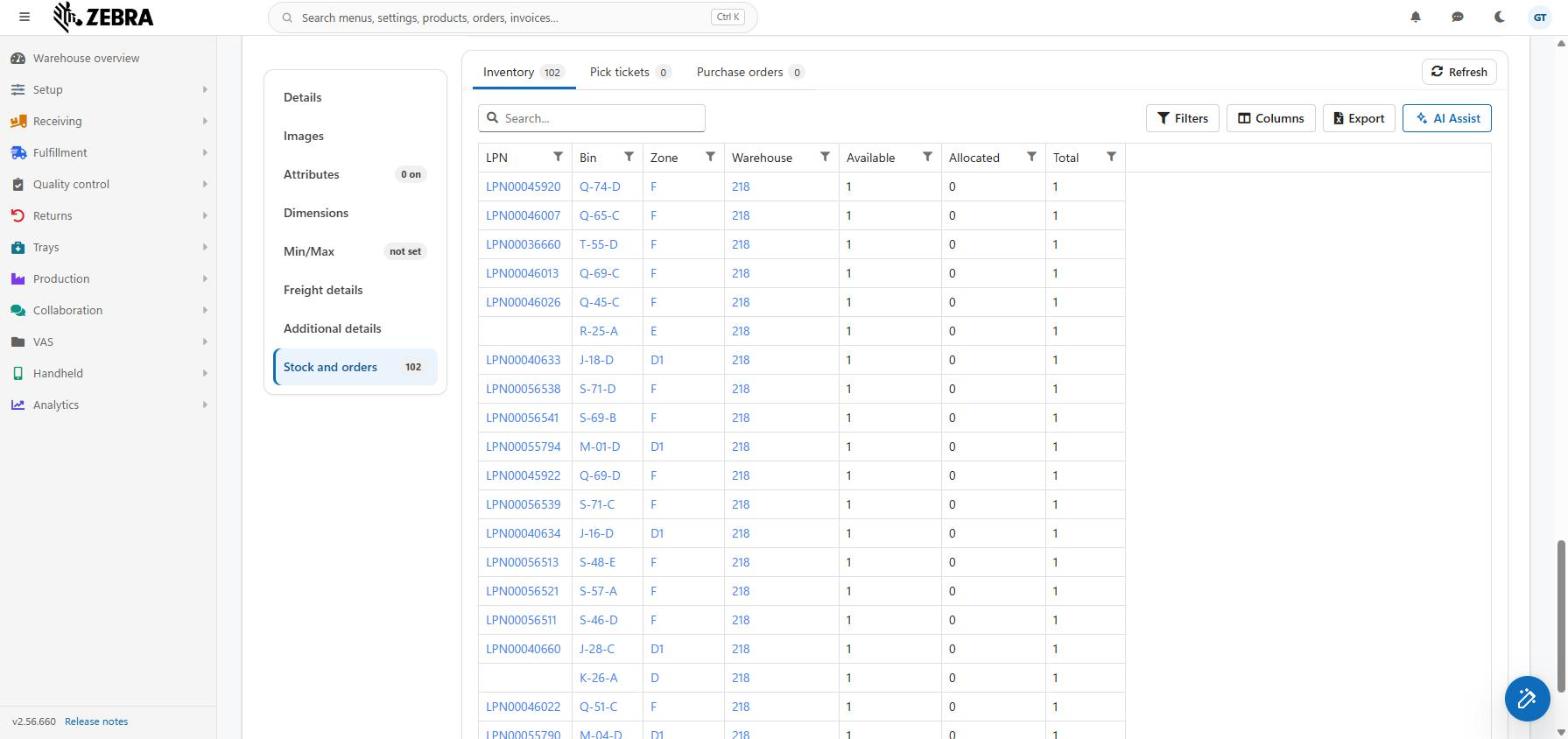
Three tabs, each with the number of rows. The three tabs load when the page opens. The counts are on the tabs and also add up in the section list.
Each tab has its own Refresh button, a search box, Filters, Columns, Export and AI Assist.
A tab with no rows shows a plain message instead of an empty table.
| Tab | Counts | Empty message |
|---|---|---|
| Inventory | Rows of stock. | "No stock of {SKU} yet. It appears here, by LPN, bin, zone and Warehouse, as soon as the first receipt is put away." |
| Pick tickets | Orders, not lines. A pick ticket appears once per line of this product, but the tab counts it once. | "Not on any open pick ticket. Orders that include this product show here with their state, wave and Allocation." |
| Purchase orders | Open Purchase orders. | "Not on any open purchase order. Purchase orders bringing this product in show here with their vendor and quantity." |
Inventory columns: LPN, Bin (Ubicación), Zone, Warehouse, Available, Allocated, Total. LPN, Bin, Zone and Warehouse are links.
Pick tickets columns: State, Pick ticket number, Customer, Shipping, Route, Wave, Allocated %, Warehouse, Ordered, Lines, Total, PoNumber, Pick Tag1 to Pick Tag5 and Pick Info 1 to Pick Info 10.
Purchase orders columns: State, Purchase order number, Vendor, Warehouse, Lines, Quantity, PO Tag1 to PO Tag5 and PO Info 1 to PO Info 10.
All columns of the three tabs are shown by default. Each tab remembers your own column layout.
This page does not offer the actions that exist on the Pick tickets list and on inventory rows (for example moving stock). Use those screens for them.
Most of this page saves with Update.
A dark save bar rises at the bottom of the page only when something has changed. It says "1 unsaved change" or "{n} unsaved changes" and names the changed fields, using the same names as the boxes. It has two buttons:
| Button | What it does |
|---|---|
| Update | Sends all your changes to the server, reads the product again, and shows the message "Saved". The boxes are locked while it runs. |
| Discard | Puts every box and the Min/Max table back to the last saved values. |
What Update saves: Details (except the SKU), Attributes, Dimensions, Min/Max, Freight details and Product info fields.
If the server refuses, the bar stays, your typing stays, and the reason is shown. You can fix it and press Update again.
Some things save by themselves, and Discard does not undo them:
| You can... | Users who may enter data | Other Users |
|---|---|---|
| See everything | Yes | Yes |
| Change Category, Subcategory, Description, Cartonization | Yes | No |
| Switch attributes on or off | Yes | No |
| Upload or replace the image | Yes (live product) | No |
| Remove the image | Yes (live product) | Yes (live product): the screen offers the cross to every user |
| Add components and Packsizes; remove Packsizes | Yes | No |
Was this page helpful?