 P4 Software
/
logisticaHQ-en
P4 Software
/
logisticaHQ-en
LogisticaHQ release 2.56.19 (the list); the details page was updated in release 2.64.52
A purchase order (orden de compra, PO) tells the Warehouse what is coming in, from which vendor, and how much. Receiving checks the Delivery against the PO and counts every unit in.
This guide covers two screens:
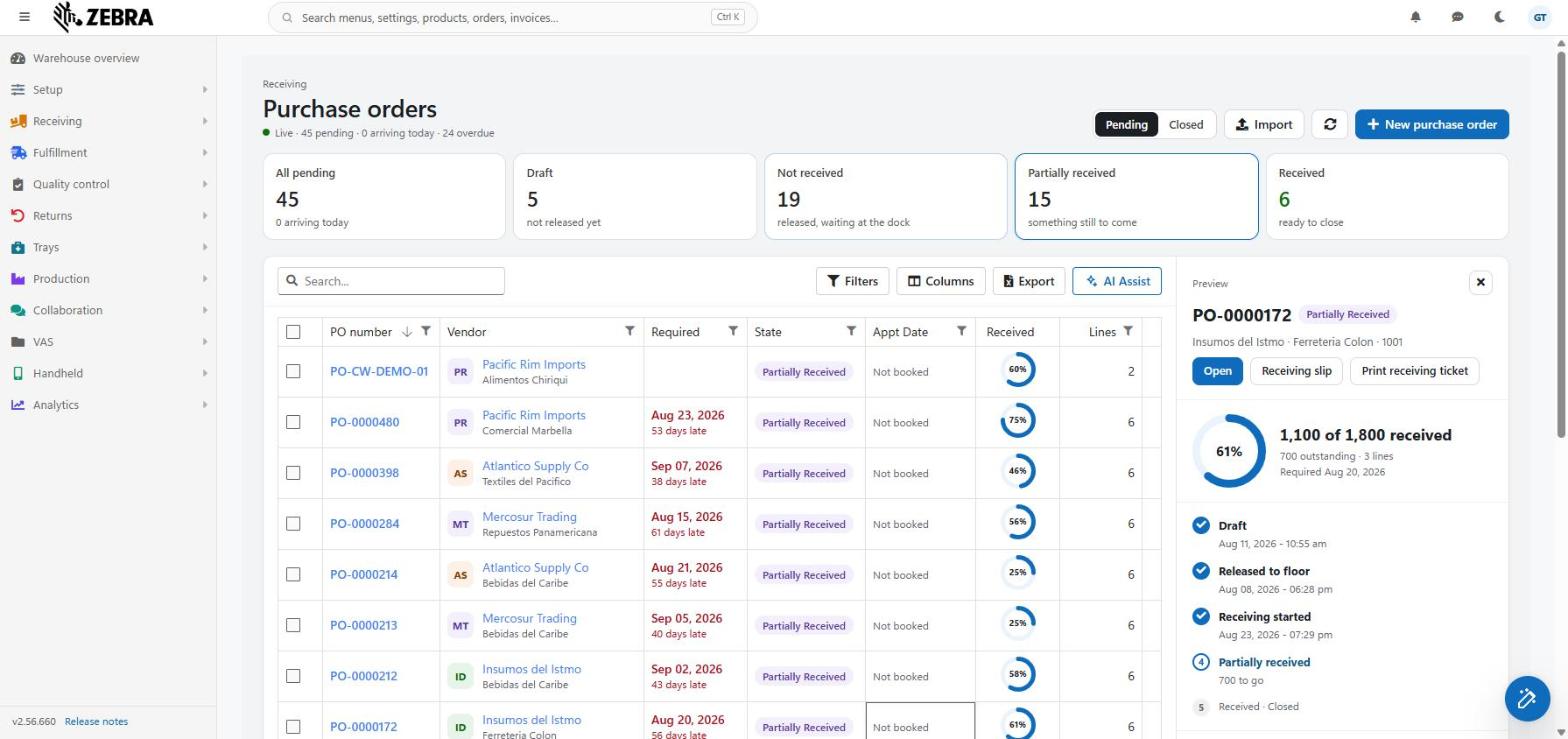
You find the list in Receiving. It has two menu entries, Pending POs and Closed POs. Both open the same screen. A Pending / Closed switch in the header moves you between them.
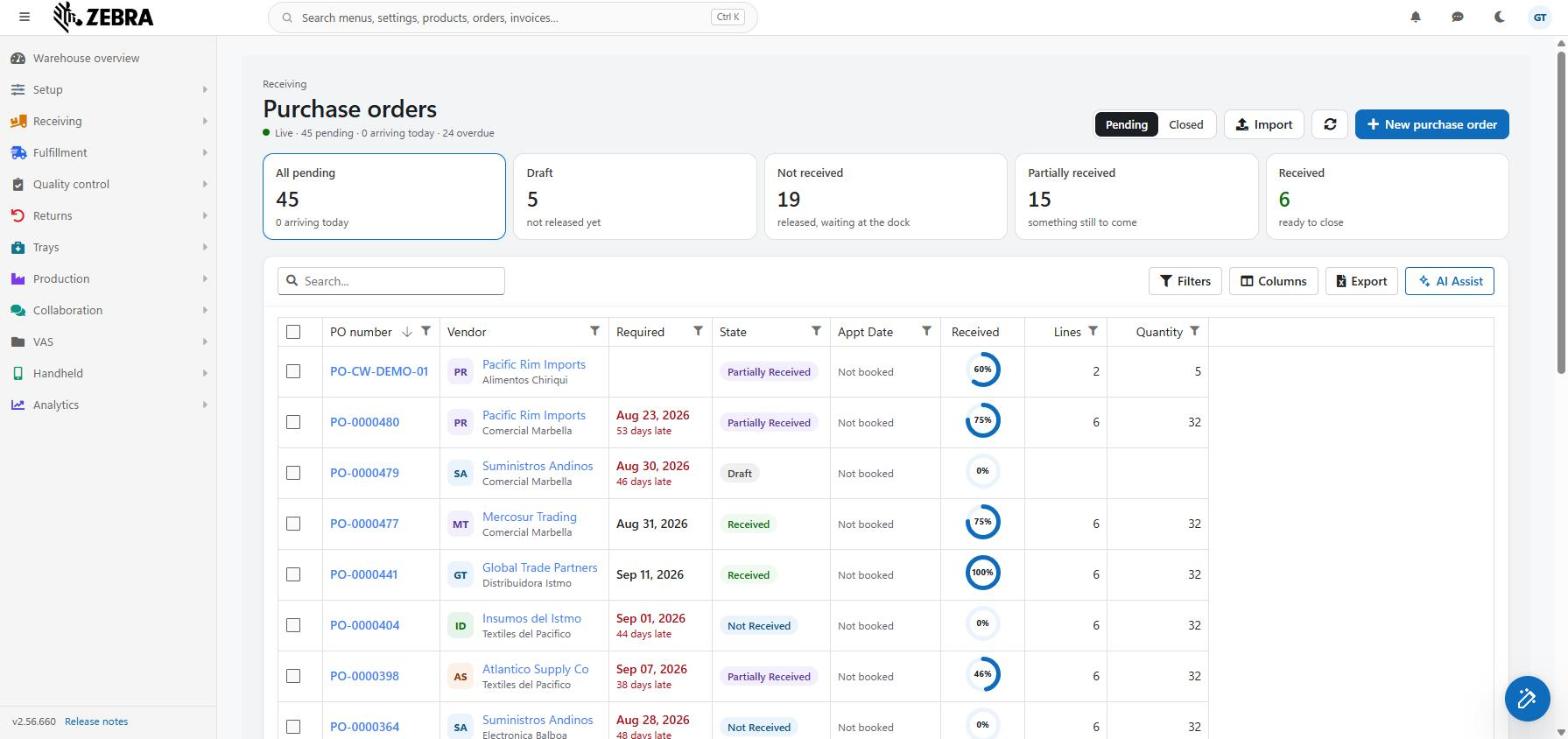
An order walks through six steps. The list preview and the details page both draw these steps from the order's state, so they never disagree.
| Step | State | What it means |
|---|---|---|
| 1. Draft | Draft | The order is being written. Lines and header fields can change. Nothing can be received yet. |
| 2. Released to floor | Not received | The order was released. It waits at the dock. |
| 3. Receiving started | Not received | The first scan happened, but nothing is counted in yet. |
| 4. Partially received | Partially received | Some of the ordered quantity has arrived. Something is still to come. |
| 5. Received | Received | Everything arrived. The order is ready to close. |
| 6. Closed | Closed | The order is finished. |
Every step before the current one counts as done. An order that was received in one go still passed through "Partially received". A closed order shows its last step as done, because there is nothing left to wait for.
The step captions are dates. They come from the order's own dates, but the step itself follows the state. For example, Closing an order stamps the Receiving-completed date even if the order was only part received. So the date alone would not tell the truth.
| Part | What it does |
|---|---|
| Caption Receiving and title Purchase orders | Where you are. |
| Live line | On Pending: "Live · 45 pending · 3 arriving today · 2 overdue". The "overdue" part appears only when at least one order is overdue. On Closed: "Live · 464 closed". |
| Pending / Closed switch | Moves to the other side of the screen. |
| Import | Loads orders from an Excel file (.xlsx). Shown only on Pending, and only to Users who may enter data. It is disabled while an import runs. |
| Refresh (arrows icon) | Reloads the rows and the numbers on the cards. |
| New purchase order | Creates an order. Shown only on Pending, and only to Users who may enter data. |

LogisticaHQ creates the order as a Draft and opens its details page. If the server refuses the order, the reason is shown inside the window and nothing is lost.
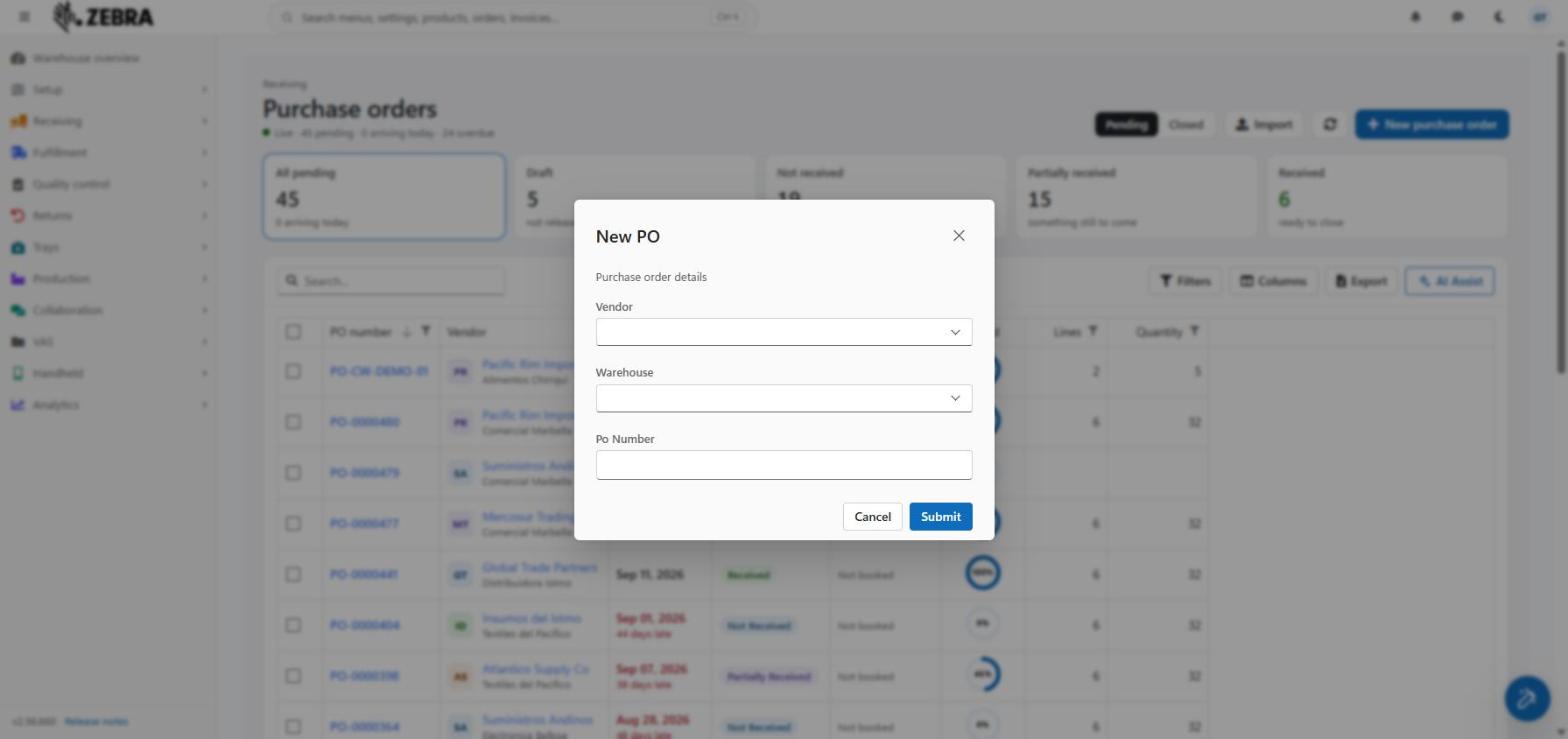
The server checks the whole file first. It saves nothing while an order number already exists, or while one number appears with two different headers. If every problem is a Draft of the same client, the result window offers Update existing drafts. That sends the same file again and updates those drafts.
The list reloads when the import ends, whatever the result. Any orders that were created are already there.
The cards count your orders by stage. A click on a card filters the list to that stage and starts from the first page.
On the Pending side:
| Card | What the count means | Note on the card |
|---|---|---|
| All pending | Every order that is not closed. It includes Draft, Not received, Partially received and Received. | "{n} arriving today" |
| Draft | Orders not released yet. | not released yet |
| Not received | Orders that were released and wait at the dock. Nothing is received. | released, waiting at the dock |
| Partially received | Orders where something is still to come. | something still to come |
| Received | Orders fully received. Shown in green. | ready to close |
On the Closed side there is one card, Closed, with the note "all Closed Purchase Orders".
Good to know:
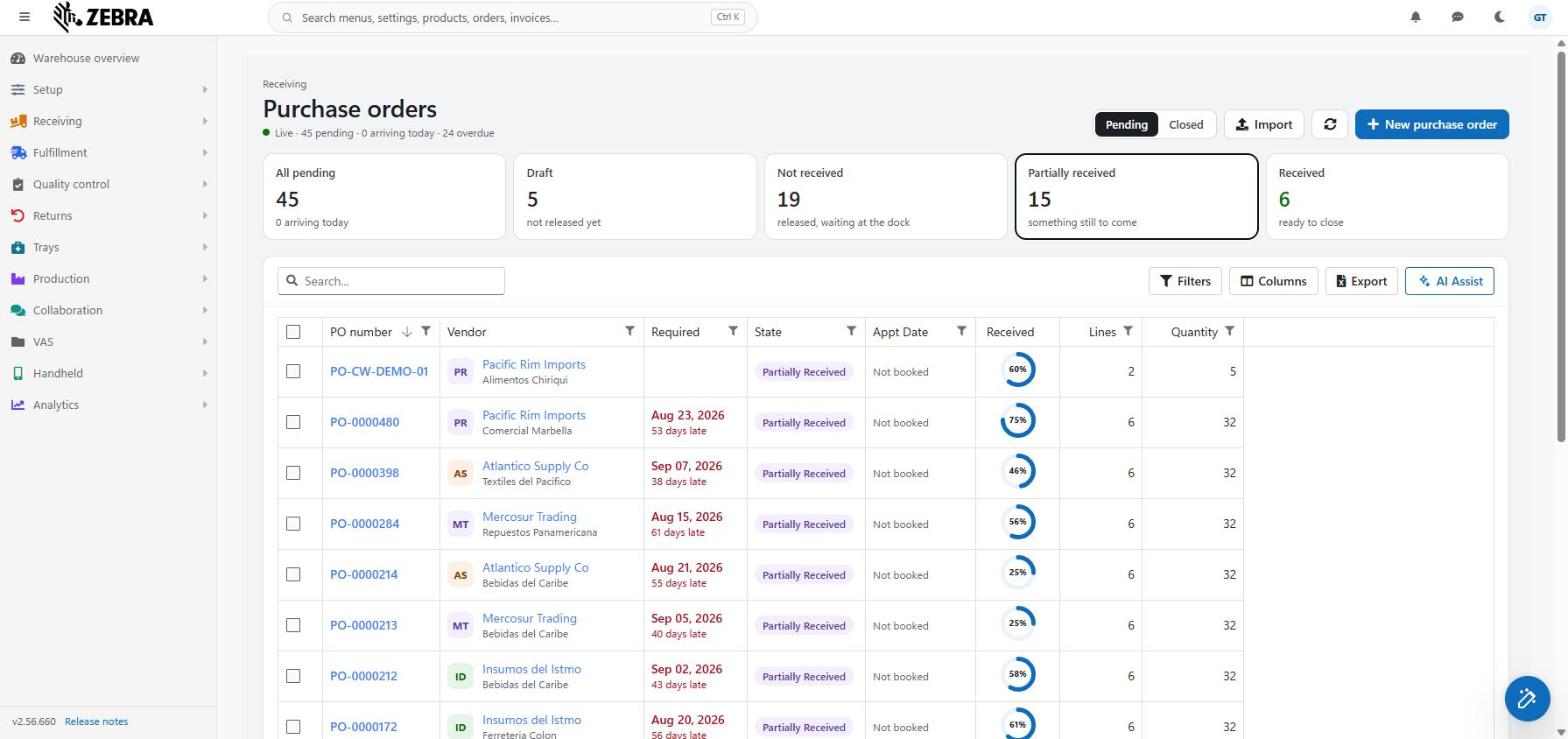
The toolbar has Search, Filters, Columns, Export and AI Assist. They work as on every list. This list has no extra chips.
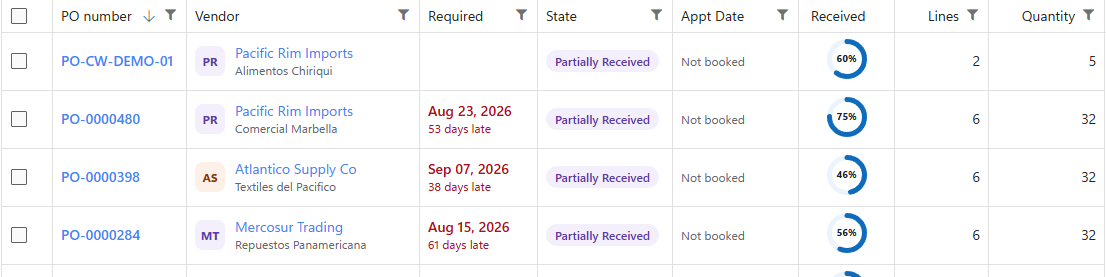
Eight columns show by default. Many more are under Columns. On the Closed side, the Upload column also shows by default if your company has the upload controls turned on.
If you already saved your own layout. A user who saved a column layout before this release keeps the old columns. To get the new layout, open Columns and use Reset.
Shown by default
| Column | What it shows |
|---|---|
| Upload | Only on Closed, and only if your company has the upload controls on. A green check means uploaded. A warning triangle means the upload failed. Point at it to read the message. A question mark means pending. |
| PO number | The PO number as a link to the order. Under it, "Container {x}" or, if there is no container, "Ref {x}". If you have popup QR codes on, pointing at the number shows a QR code. |
| Vendor | A small tile with the vendor's two initials, the vendor name (a link for administrators) and, under it, the client. |
| Required | The required date. Under it: "today", "tomorrow", "in 4 days" or "3 days late". It turns red when the order is late. An order is late only while it is still outstanding (Draft, Not received or Partially received). For a Received or Closed order, a past date is history and nothing is shown under it. |
| State | The stage as a colored pill. If the order has a tag 1, it is shown under the pill. |
| Appt Date | The appointment day and dock hour, for example "Oct 15 · 2:00 PM", with the dock door under it. If there is none, it says "Not booked". |
| Received | A ring with the share of the ordered quantity that was received, for example 50%. It is worked out from the order's lines. It cannot be sorted or filtered. A line under the list explains it: "Ring: share of the ordered quantity received." |
| Lines | The number of lines. |
| Quantity | The total ordered quantity. |
Hidden by default
| Column | What it shows |
|---|---|
| Reference | The Reference number of the order. |
| Container | The container number. |
| Client | The client (Cliente 3PL). A link for administrators only. |
| Warehouse | The Warehouse code. A link for administrators only. |
| Designation | The user the order is assigned to. |
| Dock | The dock door (Puerta). |
| Appt Number | The appointment number. |
| Started | The date Receiving started. |
| Completed | The date Receiving finished. |
| Cancel | The cancel date. |
| PO Tag1 to PO Tag5 | The five tags. Each shows a QR code on hover. |
| PO Info 1 to PO Info 10 | The ten info fields. |
| Your own fields | If your company defined its own fields for purchase orders, they are added at the end. They are for display only. |
Some captions may show your company's own names for the tag and info fields.
Click a row to see an order without leaving the list. A drawer opens beside the list.
| Part | What it shows |
|---|---|
| Header | The PO number, its state pill, and a line with the vendor, the client and the Warehouse. The X closes the drawer. |
| Open | Opens the details page of the order. |
| Receiving slip | Opens the Receiving slip as a PDF in a new tab. Shown for Partially received, Received and Closed orders. |
| Print Receiving ticket | Prints the Receiving ticket. Shown for Not received and Partially received orders. |
| Ring | The share received, with a line "{received} of {ordered} received", then "{n} outstanding · {n} lines" and, if there is one, "Required {date}". |
| Steps | The steps that are done, and the current one, each on its own line with its caption. The steps still to come are folded into one line, for example "Received · Closed". A partially received order says "{n} to go". |
| Lines | A heading with the number of lines, and the first five lines: SKU, description, "received / ordered unit" and the lot if there is one. Open the order to see the rest. |
The ring and the figures are summed from the lines, so they match the numbers on the details page.
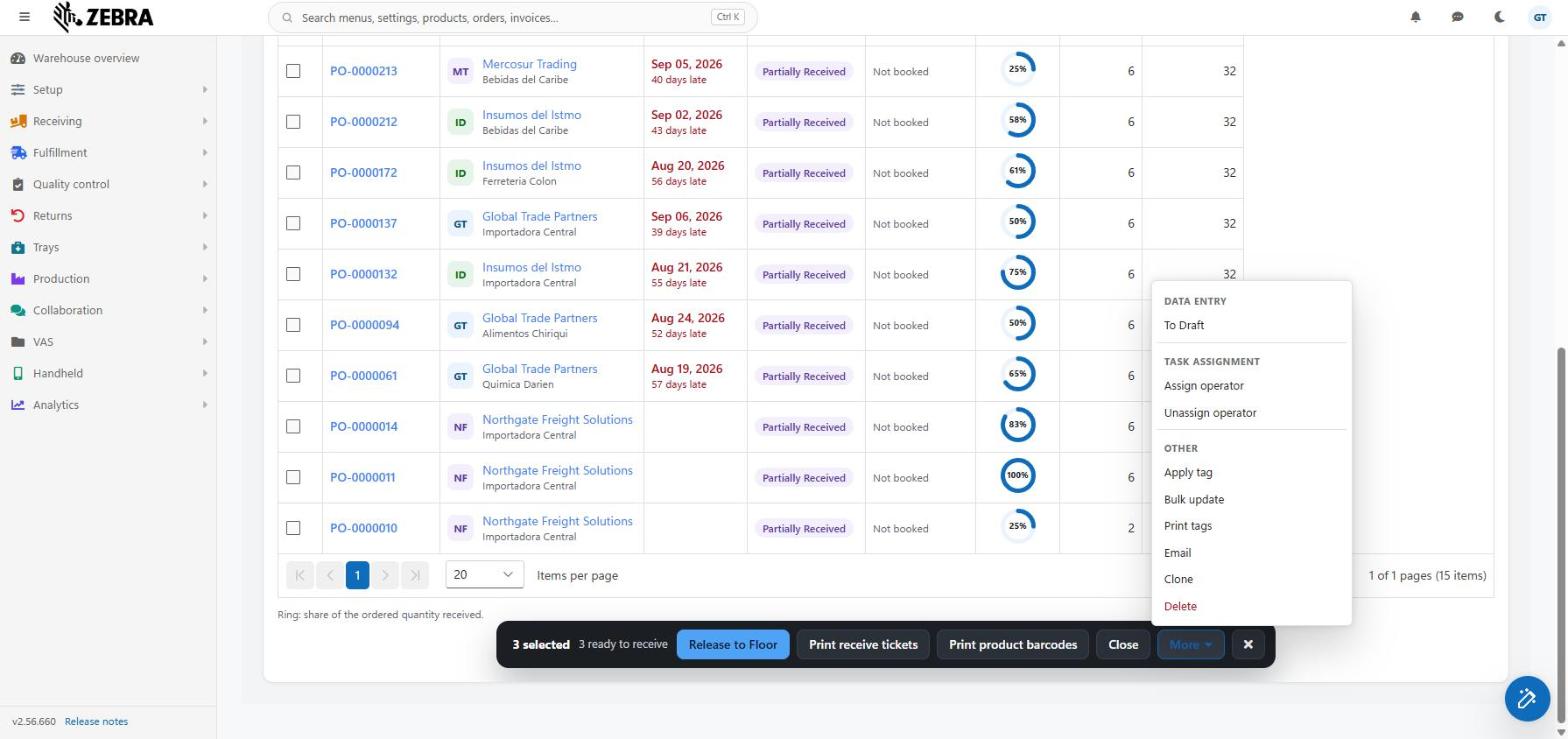
Tick one or more orders to raise the dark action bar at the bottom of the screen.
The bar shows how many orders are ticked, for example "3 selected", and one line that says what they are, before you press anything:
The buttons depend on the side you are on.
| Side | Buttons in the bar |
|---|---|
| Pending | Release to Floor (blue; only for Users who may enter data), Print receive tickets, Print product barcodes, Close, More |
| Closed | Email, Re-Upload, More |
The X clears the selection. The More menu holds every other action, in groups:
| Group | Actions |
|---|---|
| Data Entry | To Draft (Pending only; Users who may enter data) |
| Task assignment | Assign operator, Unassign operator |
| Other | Apply tag, Bulk update, Print tags, Mark uploaded (Closed only), Email (Pending side only; on the Closed side it is a button in the bar), Clone, Delete (Pending only; Users who may enter data; shown in red) |
Every action keeps its own rule. The difference in this release is that no action skips an order without telling you. Before anything is sent, LogisticaHQ names the orders it will leave out, and why.
| Action | Takes | Leaves out, with the reason shown |
|---|---|---|
| Release to Floor | Draft orders that have at least one line and a quantity. | Orders that are not Draft ("already released"). Drafts with no lines or no quantity ("has no lines or quantities to release"). The server would refuse the whole batch for one such order, so it is named up front. |
| To Draft | Not received and Received orders that are not Warehouse transfers. | Warehouse transfers; orders already Draft; orders with Receiving started (Partially received); Closed orders. |
| Close | Partially received and Received orders. | Draft ("is Draft: release it first"); Not received ("nothing received yet"); Closed. |
| Print receive tickets | Not received and Partially received orders. | Draft; Received ("fully received"); Closed. |
| Print product barcodes | Any order that is not closed. | Closed orders. |
| Apply tag | Any order that is not closed. | Closed orders. |
| Closed orders. | Orders that are "not closed yet". | |
| Clone | Any order that is not a Warehouse transfer. Users who may enter data only. | Warehouse transfers. |
| Delete | Draft orders only. | Any other order ("only a Draft can be deleted"). |
| Re-Upload | Closed orders whose upload failed. | Orders not closed; closed orders whose upload did not fail. |
| Mark uploaded | Closed orders not yet marked as uploaded. | Orders not closed; orders already uploaded. |
| Assign operator / Unassign operator | Every ticked order, in any state. | Nothing. |
| Bulk update | Every ticked order, in any state. | Nothing. |
| Print tags | Every ticked order. | Nothing. |
How the left-out orders are shown:
After an action the ticks are cleared, and the rows and the card counts reload. A print clears the ticks only when something was really printed.
Click a PO number to open the details page. The link Purchase orders at the top takes you back to the list: Pending, or Closed for a closed order.
If the order cannot be found, the page says "This record could not be found."
This page saves as you type. There is no Save button and no Discard.
The top of the page stays in view while you scroll, so the order number, its state and its buttons are always at hand.
The buttons point at the next step. At most one button is filled in blue: the one the office should press for the order's state. Up to two related buttons stand beside it. Every other action is under More. The sentence after Next: always matches the blue button. While the dock is receiving, no button is blue, so nobody is invited to do the dock's work.
| State of the order | Blue button | Beside it | Next: |
|---|---|---|---|
| Draft | Release to floor | Print product barcodes | Release it to the floor so the dock can receive it. Lines, dates and the appointment can still change. |
| Not received or Partially received, waiting for the truck | Print Receiving ticket, or Start receiving when Labor is on and no job holds the order | Print product barcodes (and Print Receiving ticket beside Start receiving) | Waiting for the truck. Print the receiving ticket for the dock. With a booked appointment the sentence adds the time. With Labor on, it says to start the receiving job so a crew is on the dock. |
| The dock is receiving (Partially received, or Not received with the first scan in) | None | Print Receiving ticket, Receiving slip | The dock is receiving. Nothing to do here until it is all in. It adds how much is still to come. When quality control holds pallets it says a supervisor must decide on them. |
| Received | Close | Receiving slip | Everything is in. Close the order to finish it. If lines arrived short, it says so and asks you to check them first. |
| Closed, upload failed | Re-upload | Receiving slip, Backorder | Send the purchase order to the host system again. |
| Closed | None | Receiving slip, Backorder | Nothing left to do: the order is closed. |
A button is drawn only when its own rule offers it, as before. Every question on this page has Confirm and Cancel. After a state change the page reads the order again, even if the server refused, because a refused move may still have changed something.
| Group | Actions |
|---|---|
| Move the purchase order | Release to floor, Start receiving, To Draft, Re-open for Receiving, Re-upload, and Close on a Received order. |
| Create from this purchase order | Clone and Backorder. |
| Purchase order documents | Print Receiving ticket, Print product barcodes, Email and Receiving slip. |
| Use with care | Close on a Partially received order. It says how many units are still outstanding and asks before it closes, because a closed order cannot be received again. |
An action that is on the bar is not repeated in its group. On a phone, the buttons are in a bar at the bottom of the screen.
A row of flags under the steps says what needs a look on the order, most urgent first. Each flag is a button: press it and the page takes you to the place that explains it. A flag shows only while it is true, so an order with nothing to say shows no row.
| Flag | It shows when | A press goes to |
|---|---|---|
| {n} days past the required date, or The required date has passed | The order is still waiting for goods and its required date is before today. | The required date. |
| The upload to the host system failed | The upload of the order was refused. | The Upload failed section, opened. |
| Quality control: {n} on hold, or {n} waiting | Pallets of the order are on an inbound quality control hold, or waiting for inspection. | The Quality control tab. |
| {n} lines short | Receiving is finished or the order is closed, and lines arrived below what was ordered. | The lines, showing only the lines with a problem. |
| Over received on {n} lines | More was received than ordered on some lines. The flag adds how many units over. | The lines, showing only the lines with a problem. |
| Arrival evidence is required and none is recorded yet | The order requires arrival evidence, can still be received and has no arrival recorded. | The Arrivals tab. |
| Attachments: {n} from the office, {n} from the client | The order has files. The flag is amber when the client attached any. | The Attachments tab. |
| {n} notes | The order has notes. | The Notes tab. |
| Receiving job running, or planned | A labor job holds the order. | The link to the job. |
| Dock appointment | A dock appointment manages the order. The flag shows its number. | The appointment number. |
One row above the lines gives the figures of the whole order, summed over all lines, not only the lines on the page. They update after each line change.
| Figure | What it shows |
|---|---|
| Lines | The number of lines. |
| Units ordered | The units ordered. |
| Received | How many units arrived. |
| Outstanding | How many units are still to come. Amber while the order is released and units are missing. |
The title shows "{n} lines · {n} ordered".
Only lines with a problem. When you press a flag about short or over received lines, a chip Only lines with a problem appears above the table, because the lines with a problem may be on another page. Press the chip to show every line again.
Columns
| Column | What it shows |
|---|---|
| Line | The line number. |
| Image | A small picture of the product. |
| Product | While the order is a Draft, a product lookup. It offers only the Products of the order's client. After release, the SKU as a link, with the description under it. |
| Description | The product description. |
| Packsize and Packs | Shown only when your company enters orders in packs and at least one line is packsize controlled. Choose the packsize in the list and type the number of packs. |
| Quantity | The ordered quantity. Editable in a Draft. For a line that is entered in packs, it is the packsize's units times the packs, and it is read-only. |
| Received, Outstanding, Progress | Shown only after release. Outstanding is ordered minus received. Progress is a bar with the percentage received. |
| UoM | The unit of measure. A product without one shows "Ea" (each). |
Status of a line. Under Progress, each line shows a chip in words as well as colour, over its bar: Fully received, {n} to go (some received, the dock is still working), Over received by {n}, Short by {n} (receiving is finished or the order is closed) or Not received yet. A line that took in too much, or that came in short once receiving was over, is tinted.
When a line has receipts, the Received number is a link. Click it to see each receipt under the line: the serial number and lot (each with a QR code on hover), then the quantity ("{n} pack(s) of {x}", or the units, or the decimal quantity with its unit), then "expiring {date}" and "made {date}" if the product tracks them, and the weight with three decimals for a catch weight product. If there are more receipts than fit, it says "and [n] more...".
Receipts open by themselves only on a problem line. The receipts under a line start closed. They open on their own only on a line that is short or over received. Click a line's Received number to open or close its receipts, or use Expand all lines and Collapse all lines above the table (shown only when a line has receipts). Your choice of Expand all lines is remembered for you.
Row buttons. In a Draft the button is Edit. After release it is View. Both open the Line details window with the SKU and description (read-only), the Lot (for lot-controlled Products) and the ten PO Line info fields. After release everything is read-only and there is no Submit.
Only in a Draft:
How lines save. A line is saved about a second after your last change. Choosing a product saves at once, and the cursor moves to the packsize box (if the line has one) or to the quantity box. Before saving, LogisticaHQ checks that a product is chosen and that the quantity is at least 1 (above 0 for decimal Products). If not, the message appears under that line.
Duplicate SKUs. Your company chooses what happens when a SKU is already on the order:
The tabs under the lines carry a count where there is something to count. The tab that opens first is the first one that has something to read, never an empty form. Pallets and Quality control never open by themselves.
| Tab | Shown when | What it holds |
|---|---|---|
| Arrivals | The order is released, or it already has arrivals or arrival photos. | The arrival photos, then the arrivals the dock recorded (read-only): Arrived, Driver (with the driver ID in brackets), Vehicle, Seal, Signature and Photos. Click a signature or a photo to enlarge it. A red cross deletes a photo, except on a closed order. |
| Pallets | The order was received onto license plates or into bins. | The figures of the order's license plates, and under them the plates themselves. See "The Pallets tab". |
| Attachments | Your role may read them. | The documents attached to the order, such as a vendor invoice, a signed delivery note or a customs form, in any state of the order, closed included. See "Attachments". |
| Notes | Your role may read them. | The notes, with the client's notes marked. Add or edit notes... opens the editor. |
| Activity | Your role may read the history. | The latest changes, newest first, with a link to every change. |
| Quality control | The order has inbound quality control inspections. | Each inspection of the order's pallets, with its state, plate and hold reason, linking to its record. |
| More details | Always. | The PO info fields, the fields your company added for purchase orders, and the value-added services. |
The tab lists the license plates the order was received onto. Above the list, the figures: license plates received onto, with a pallet type, without a pallet type, units put away, and units received without a plate.
| Column | What it shows |
|---|---|
| License plate | The plate code, as a link. A plate that no longer exists is shown without a link. |
| Pallet type | The pallet type recorded when it was received. |
| Bin | The bin where the plate is, as a link. |
| Status | Put away on a shelf, In a hold bin, In a receiving bin, Plate not in a bin, or Plate no longer exists. |
| Units | The units this order received onto the plate, not what the plate holds now. |
| Received by, Received at | Who received it first and when. A user tied to one client does not see who. |
If the order was received onto more plates than one read returns, a line under the list says "Showing {n} of {m} license plates". The list also includes plates that no longer exist, so it can hold more plates than the Pallets count.
Attach the documents of a purchase order in any state, closed included. Press Add attachment..., tick Share with client first if the client should see the file, and choose the file. Without the tick the file is internal.
Beside the lines, in a column on the right, are the cards of the order. When the body is not wide enough for the column, the Order card moves above the lines and the other cards follow the tabs. The PO number and the state are not repeated in the cards, because the order bar shows them.
| Card | What is in it |
|---|---|
| Comments | A one-line preview of the comments, with a dot when there are comments, and the button Open comments. The comments open in a panel on the right, where you edit them; Close comments closes it. Comments are always editable, to the very end, a closed order included. |
| Order | Client (a link for administrators), Parent order (on a back order, a link to the original), Outbound Transfer (on the receiving side of a warehouse transfer, a link to its pick ticket), Warehouse, Container, Reference and Assigned to. Container and Reference are editable in a Draft and locked after release. Under it, a folded Upload failed section appears only when the upload to your system failed: open it to read the server's message. Assigned to: click Assign... to choose a user, or Remove. On a closed order it only shows the name, or "Not assigned". |
| Vendor | The vendor's name and code, and, when the vendor record has them, its contact, e-mail, phone and expiry allowance in days. Hidden on a warehouse transfer. |
| Appointment | Carrier (editable in a Draft), the appointment Number, Scheduled (day and hour) and Dock door. Number, Scheduled and Dock door are editable while the order is Draft or Not received, and locked after that. When a dock appointment manages the order, a row says so and the three fields are read-only: change them by moving the appointment on the dock schedule. |
| Require arrival evidence | A folded section with its answer on the heading line. A yes/no: when on, the driver, vehicle, seal, signature and a photo must be recorded before the order can be received. Set it before releasing the order. Once receiving has started it is locked, and the page shows On or Off with the reason "Locked: Receiving has started". |
| Purchase order dates | Required date and Cancel date (editable in a Draft, locked after release). From release on, a lower part lists each date that exists: Released, Started Receiving, Finished Receiving, Closed and Uploaded, and Time at the dock, from the first scan to the end of Receiving, for example "5 min", "2 h 10 min" or "3 d 4 h". |
| Documents | The documents of the order that its state allows: the receiving slip and e-mail of a finished order, the receiving ticket while it can still be received, and the product barcodes until it is closed. Each is the same action the bar offers. If none applies, the card says "No documents for this purchase order yet". |
| Item | Draft | Not received | Partially received / Received | Closed |
|---|---|---|---|---|
| Lines: add, remove, change product and quantity | Yes | No | No | No |
| Container, Reference | Yes | No | No | No |
| Required date, Cancel date, Carrier | Yes | No | No | No |
| Appointment number, Scheduled, Dock door | Yes | Yes | No | No |
| Require arrival evidence | Yes | Yes, until Receiving starts | No | No |
| Comments, PO info | Yes | Yes | Yes | Yes |
| Photos: delete | Yes | Yes | Yes | No |
| Assign or remove the assigned user | Yes | Yes | Yes | No |
Was this page helpful?