 P4 Software
/
logisticaHQ-en
P4 Software
/
logisticaHQ-en
Every company has its own way of talking. Your team may call the refrigerated zone "zona fría", count an order as late only after two days, or call dock door 3 "the big door". LogisticaHQ cannot know any of that. Teach the assistant is where an administrator writes these things down as short company facts. The AI assistant reads them with every question your team asks, so it understands your words and follows your rules.
Facts belong to your company only. No other LogisticaHQ customer's assistant ever sees them.
Only administrators can see, add, change or delete facts. The menu entry is hidden from everyone else, and the server refuses their changes. A user who is not an administrator who opens the screen sees only Only administrators can teach the assistant. Every user benefits from the facts, because the assistant uses them when it answers anyone in the company.
Go to Setup > System > Teach the assistant. The header reads Setup · AI assistant above the title Teach the assistant, with the line The words and rules your company uses that the System does not know. The assistant reads them for your company only. Only administrators can change them.
You also arrive here from Answers to review when you click Add a company fact, Add a lookup rule or Add an instruction on an answer that went wrong. The form is then already filled from that answer (see Teach from an answer).
The screen has two parts: the list of facts on the left and the form on the right. On a narrow window the form sits under the list.
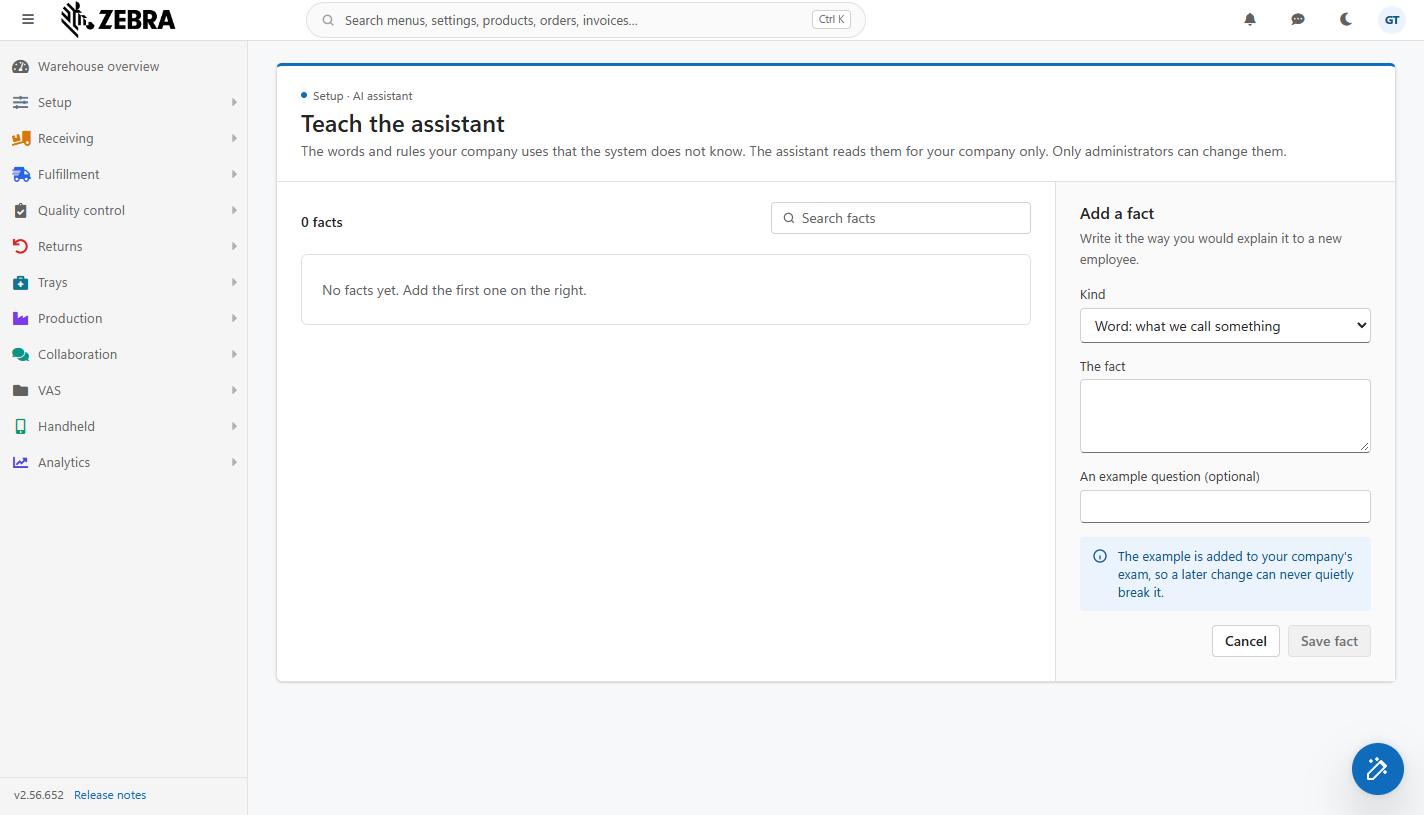
The Teach the assistant screen, here with no facts yet, and the empty Add a fact form on the right.
| Kind | As the form offers it | Use it for | Examples |
| Word | Word: what we call something | Names your team uses for things that have a different name in LogisticaHQ: Zones, product families, customer groups, document types, nicknames. | "Zona fría" means the zone COLD-01, where all refrigerated Products are kept. "Los de Colón" are the Customers whose city is Colón. |
| Rule | Rule: how we count or decide | How your company counts, measures or decides something, and which list or field the assistant should read for it. | An order is late when its required date is more than 2 days in the past and it is not shipped. When we say "stock" we mean available quantity, not on-hand. |
| Place | Place: our Warehouses, Zones, doors | Your physical places and what they are used for. | Door 3 is the big door, used for all container unloading. Warehouse MAIN is Tocumen; Warehouse WH2 is Colón Free Zone. |
The kind is shown as a coloured pill beside each fact in the list. It helps you and the assistant read the fact the right way, but all three kinds are used the same way: they are sent with every question.
Save fact stays greyed out until The fact has some text, and while the fact or the example is longer than 300 characters. Cancel empties the form without saving.
| Field | Required | Description | Limits and rules |
| Kind | Yes | Word, Rule or Place, as described above. Starts on Word. | One of the three. |
| The fact | Yes | The fact itself, in plain words. Write it as you would explain it to a new employee: name the thing as your team says it, then say what it is in LogisticaHQ terms (the zone code, the customer, the field, the status). | Up to 300 characters; while the text is longer, Save fact stays greyed out. A fact is kept on one line: line breaks become spaces, and the characters < and > are replaced by similar-looking marks. If you need more than 300 characters, split it into two facts. If you try to save spaces only, you see Write the fact. |
| An example question (optional) | No | A question your team really asks that this fact should answer, for example How many pallets are in zona fría? | Up to 300 characters; while it is longer, Save fact stays greyed out. The example is added to your company's exam, so a later change can never quietly break it. See What the example question does. |
When a fact has an example question, that question is sent to the AI assistant exam. The next time an administrator opens the exam screen, the question appears at the top under Waiting for what the answer must say, marked Company fact. It is not asked until an administrator completes it by saying what the answer must contain; the exam then checks it every time it runs, so if a later change ever breaks this fact, the exam shows it.
The example is copied into the exam once. Changing the example or the fact afterwards does not change the exam's copy, and deleting the fact does not remove it from the exam; change or remove the question on the exam screen instead.
When you click Add a company fact (kind Word), Add a lookup rule or Add an instruction (both kind Rule) on Answers to review, this screen opens with:
Read and rewrite the fact before saving: what a user typed in a hurry is rarely the clearest fact. When saved, the fact remembers the question it came from and who asked it; the list shows From a fixed answer · a.gomez asked "..." under it, even after the original answer leaves Answers to review at 90 days. Then go back to Answers to review and click Mark fixed.
If the answer can no longer be read (it is more than 90 days old), the form simply opens empty.
Above the list, the count reads 1 fact or 12 facts. Facts are listed oldest first, which is also the order in which they are sent to the assistant. Each fact shows its kind pill, its text, and a line saying where it came from and how much it is used:
Used counts how many questions the fact was sent with. A fact that stays at 0 for a long time is probably never reaching the assistant (see the limits below).
Search facts filters the list as you type. It looks in the fact, its example question and the question it came from; capitals do not matter. No fact matches your search. means nothing matched. When the company has no facts yet, the list shows No facts yet. Add the first one on the right.
If another administrator deleted the fact while you were editing it, saving shows This fact was deleted. Refresh the list. Reload the page.
| Limit | Value | Consequence |
| Facts per company | 200 | The 201st is refused with Your company already has 200 facts. Delete or combine some before adding more. |
| Length of a fact | 300 characters | Save fact stays greyed out until the text is short enough. Split a long fact into two. |
| Length of an example question | 300 characters | Save fact stays greyed out until the example is short enough. |
| Facts sent with one question | About 6,000 characters in total | Important. Each question carries as many facts as fit in about 6,000 characters, taken oldest first. Once that space is full, newer facts are left out of the question without any warning. With short facts (around 100 characters) roughly 50 to 60 fit; with long ones far fewer. Keep facts short, delete facts that are no longer true, and combine overlapping ones, so the facts you add later still reach the assistant. Watch the used count: a recent fact stuck at 0 is a sign the space is full. |
Facts add a little to the size, and so the cost, of every question your team asks. A tidy list of facts that are all true and all needed gives the best answers.
| What you see | Why | What to do |
| Only administrators can teach the assistant. | Your user is not an administrator. | Ask an administrator. |
| The facts could not be read. Try again in a minute. | The list could not be loaded. | Wait a minute and reload the page. |
| The assistant still gets it wrong after you saved a fact. | The fact is unclear, it is past the 6,000-character space, or the question needs data the assistant cannot read. | Make the fact more specific (name the list, field or code), check its used count, and test by asking the question again. Add the question to the exam so you know when it works. |
| Save fact is greyed out. | The fact is empty, the fact or the example is longer than 300 characters, or a save is in progress. | Type the fact. |
Was this page helpful?