 P4 Software
/
logisticaHQ-en
P4 Software
/
logisticaHQ-en
The LogisticaHQ AI assistant answers your team's questions about your data and about how to use LogisticaHQ. Sometimes it gets an answer wrong, or it says it does not know. Answers to review is where an administrator sees every one of those answers, finds out why it went wrong, fixes the cause, and tells the person who asked that it is fixed. Fix the cause once and the assistant answers that kind of question correctly from then on.
This screen is part of the assistant's learning loop, which has three administrator screens that work together:
Only administrators. The menu entry is hidden from everyone else, and the server refuses their requests even if they type the address. A user who is not an administrator who opens the screen sees only the message Only administrators can review the assistant's answers.
The list holds the questions of every user in your company, with each person's username, so treat it as you would any other administrator report.
Go to Setup > System > Answers to review. The screen's header reads Administration · AI assistant above the title Answers to review, with the line Every answer a user marked wrong, every "I don't know" and every report. Fix the cause once and the assistant gets it right from then on.
If you are an administrator and the menu entry is missing, sign out and sign in again so the menu is reloaded.
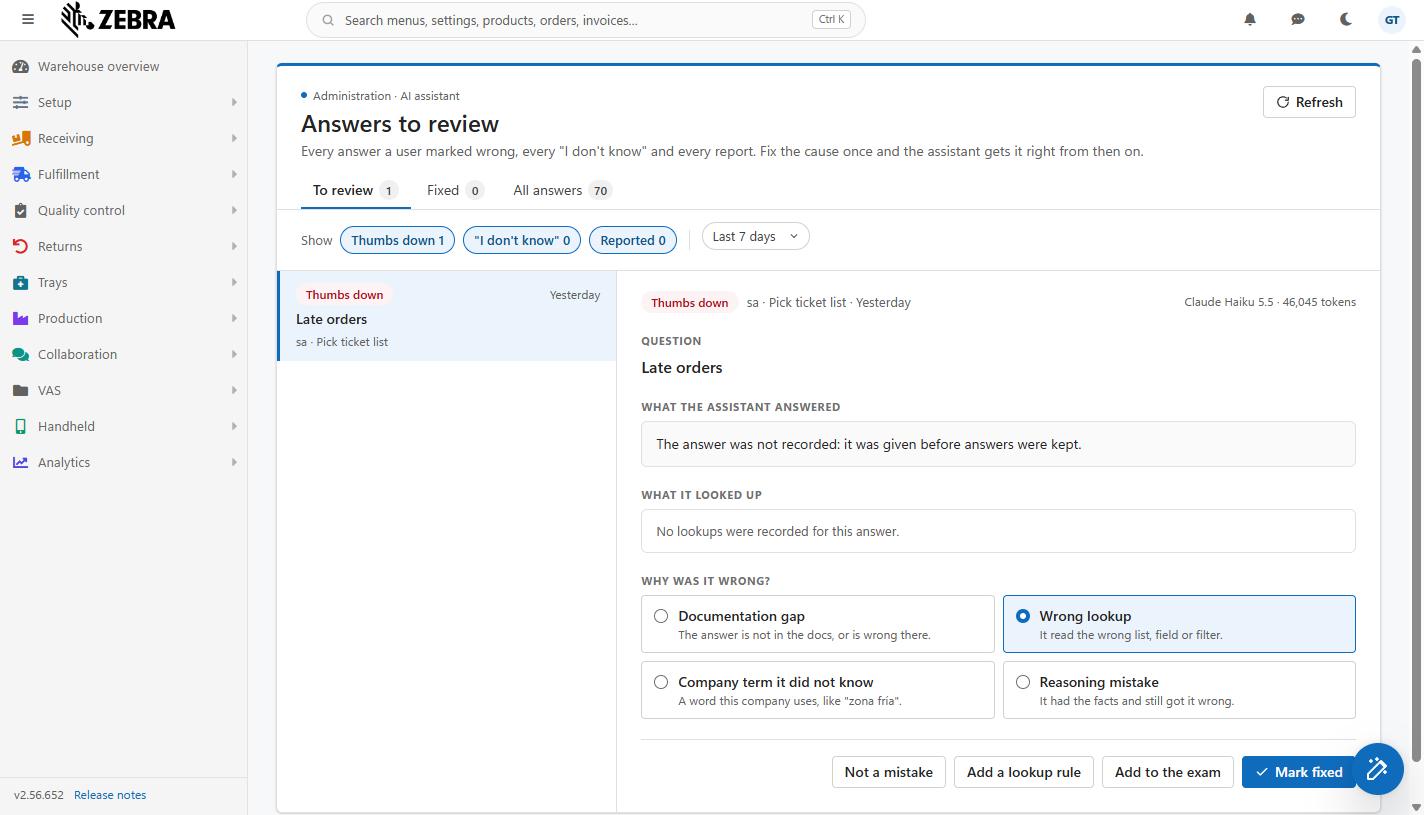
The Answers to review screen: the tabs with their counts, the Show chips, the period, the list on the left and an open answer on the right.
Each time someone asks the assistant a question, LogisticaHQ keeps the question, the answer, what the assistant looked up, which AI model answered and how many tokens it used. An answer is flagged, and so appears under To review, when any of these happens:
| Flag | How it happens | Pill shown in the list |
| Thumbs down | The person who asked clicked the thumbs-down (Not helpful) button under the answer. They may also have typed a short note in What was wrong? (optional), up to 200 characters. | Thumbs down (red) |
| "I don't know" | The assistant gave up: it said it did not know, found no answer, or ran out of steps before finishing. Nobody has to click anything for this flag; LogisticaHQ sets it automatically. | I don't know (amber) |
| Reported | The person who asked clicked Report this answer, chose what is wrong with it and, optionally, wrote the right answer. See How Users report an answer below. | Reported (red) |
When an answer carries more than one flag, the pill shows the strongest: Reported first, then Thumbs down, then I don't know. Answers nobody flagged show Helpful (green) when the person clicked the thumbs-up button, or Answered (grey) otherwise; you see those only on the All answers tab.
Questions asked by the AI assistant exam never appear here: the exam grades its own answers.
How long answers are kept: 90 days. After that an answer leaves the list for good. What you taught from it stays: a company fact keeps a copy of the question it came from, and a question sent to the exam is copied into the exam.
Under every answer in the assistant panel, the person who asked sees Helpful, Not helpful and Report this answer. Report opens a short form:
Only the person who asked a question can report it. Reporting the same answer again replaces the earlier report. When you mark the answer fixed, the word Fixed appears under that answer in the person's conversation.
Encourage your team to use Report rather than only the thumbs-down button: the reason and the right answer make the fix much faster.
| Tab | What it lists | The number beside it |
| To review | Flagged answers that nobody has reviewed yet. This is your work queue. It opens first. | How many flagged answers in the chosen period are still waiting. |
| Fixed | Answers an administrator marked fixed. | How many answers in the period were marked fixed. |
| All answers | Every answer the assistant gave in the period: all flagged answers, all reviewed answers, and the newest 300 answers that nobody flagged. Use it to spot-check answers that nobody complained about. | How many questions the assistant answered in the period, in total (this can be more than the list shows, because unflagged answers are capped at 300). |
Answers marked Not a mistake leave To review and do not appear under Fixed; you still find them under All answers.
Next to Show are three chips, Thumbs down, "I don't know" and Reported, each with how many answers on the open tab carry that flag. All three are on when the screen opens (highlighted in blue). Click a chip to turn it off and hide the answers that carry only that flag; click again to turn it back on. An answer with two flags stays visible while either of its chips is on. Answers with no flag at all (on the All answers tab) are always shown, whatever the chips say.
Example: to work only on reports, turn off Thumbs down and "I don't know".
The period list offers Last 7 days (the default), Last 30 days and Last 90 days. Changing it reloads the list and the tab counts. 90 days is the longest, because answers are kept for 90 days.
Refresh, at the top right, reads the list again. Use it when you have had the screen open for a while and Users may have flagged new answers. The answer you had open stays open if it is still on the list.
Each row shows the pill, when it was asked (the time for today, Yesterday, the weekday within the last week, otherwise the date), the question as the user typed it, and the user's name and the screen they asked it on, for example a.gomez · Pick tickets. Unknown user means the user has since been deleted. Newest answers come first. Click a row to open it on the right. When the open tab is empty you see Nothing to review in this period. Every answer was fine. (To review), No answers were marked fixed in this period. (Fixed) or The assistant answered no questions in this period. (All answers).
On a narrow window or a tablet, the list sits above the open answer instead of beside it.
The right-hand side shows everything about the open answer, from top to bottom:
| Part | What it tells you |
| Pill and who, where, when | Why the answer is on the list, the user, the screen and when it was asked. |
| Model and tokens (top right) | Which AI model answered, for example Claude Haiku 5.5, and how many tokens the answer used. Long lookups use more tokens. |
| Review status (green line) | Only on a reviewed answer: Marked fixed by r.tosco on 10/14/2026 (Company term it did not know), or Marked not a mistake by ... on .... |
| Question | The question exactly as typed. |
| What the assistant answered | The full answer. An amber box under it shows anything the assistant said it could not confirm, which is often where the mistake is. Very old answers may read The answer was not recorded: it was given before answers were kept. |
| What the user said was wrong | Only when the user said something: the report's reason in bold and, in quotes, the right answer they wrote, or the note they typed with the thumbs down. |
| What it looked up | Every step the assistant took, numbered: the tool it used (for example a search of a list or of the documentation), what it searched for, and what came back. Read this to see whether it looked in the wrong list, used the wrong filter, or found nothing. No lookups were recorded for this answer. means it answered without looking anything up. |
| Why was it wrong? | The four causes to choose from, described next. |
If an answer cannot be opened (it was just deleted after 90 days, or the connection dropped), you see This answer could not be opened. Press Refresh and try again.
Under Why was it wrong? are four cards. Pick the one that matches; the fix button at the bottom changes its words to match your choice. LogisticaHQ preselects a likely cause so you can often go straight to the fix: Company term it did not know when the user reported It did not understand a word we use; Wrong lookup when the user reported wrong numbers or the wrong list, or gave a thumbs down; Documentation gap for everything else, including "I don't know" answers. Always check the preselection against what you read.
| Cause | When to choose it | Fix button | What the fix button does |
| Documentation gap | The answer is not in the docs, or is wrong there. A how-to question the assistant could not answer, or answered from a page that is out of date. | Open the doc page | Opens, in a new browser tab, the documentation page the assistant found while answering, or the documentation's home page when it found none. Check the page; if the answer really is missing or wrong in the documentation, tell your LogisticaHQ contact which page and what is missing. Meanwhile, a company fact can often cover the gap for your company. |
| Wrong lookup | It read the wrong list, field or filter. For example it counted all orders when you meant only open ones, or searched Customers when you meant Clients. | Add a lookup rule | Opens Teach the assistant with a new fact of the kind Rule, already filled from this answer. |
| Company term it did not know | A word this company uses, like "zona fría". An internal name for a zone, a product family, a customer group or a process. | Add a company fact | Opens Teach the assistant with a new fact of the kind Word, already filled from this answer. |
| Reasoning mistake | It had the facts and still got it wrong. The lookups were right but the conclusion was not, for example it added the wrong numbers or misread a date. | Add an instruction | Opens Teach the assistant with a new fact of the kind Rule, already filled from this answer, so you can tell the assistant how your company counts or decides. |
When Teach the assistant opens from an answer, the form shows From an answer: a.gomez asked "...". The answer's question is filled in as the example question, and the right answer the user wrote (or their thumbs-down note) is filled in as the start of the fact. Rewrite the fact in your own words before you save it; see Teach the assistant for how to write a good one. Then come back to Answers to review to mark the answer fixed.
The buttons at the bottom of the open answer:
| Button | What it does | Result |
| Mark fixed (blue) | Records that the cause is fixed, with the cause card that is selected, your username and today's date. | Message Marked fixed. The user will see "Fixed" under the answer. The answer moves from To review to Fixed, the next answer opens, and the user sees Fixed under the answer in their conversation. |
| Not a mistake | Takes the answer off the list without a fix: the answer was right, or the question could not be answered. | Message Taken off the list. The answer stays visible under All answers with Marked not a mistake by ... on .... The user is not told. |
| Back to review | Shown instead of Not a mistake on an answer already reviewed. Undoes the review. | Message Back on the list to review. The answer Returns to To review, and the user no longer sees "Fixed". |
| Add to the exam | Sends the question to the AI assistant exam, so this mistake is caught if it ever comes back. | Message Added to the exam. The button changes to Added to the exam and is greyed out; an answer can be sent once. The question waits at the top of the exam screen until you say what its answer must contain. |
| The fix button | Its words follow the selected cause (Open the doc page, Add a lookup rule, Add a company fact or Add an instruction). See the table above. | Opens the documentation or Teach the assistant. It does not mark the answer fixed. |
While a change is being saved, all buttons are greyed out for a moment so nothing is sent twice.
Mark fixed only after the fix is in place. The user reads "Fixed" as "ask again and it will be right". Saving the company fact (or confirming the documentation change) first, then clicking Mark fixed, keeps that promise.
| What you see | Why | What to do |
| Only administrators can review the assistant's answers. | Your user is not an administrator. | Ask an administrator to review, or to give your user administrator rights in Setup > System > Users. |
| The answers could not be read. Try again in a minute. | The list could not be loaded, usually a short connection problem. | Wait a minute and click Refresh. |
| The menu entry is missing for an administrator. | The menu was loaded before your rights changed. | Sign out and sign in again. |
| An answer a user mentioned is not on the list. | It is older than the period, older than 90 days, it was asked by the exam, or the user did not flag it. | Choose Last 90 days and look under All answers. |
| The user says they do not see "Fixed". | The answer was marked Not a mistake, or put back with Back to review. | Open it under All answers and check the green status line. |
Was this page helpful?