 P4 Software
/
logisticaHQ-en
P4 Software
/
logisticaHQ-en
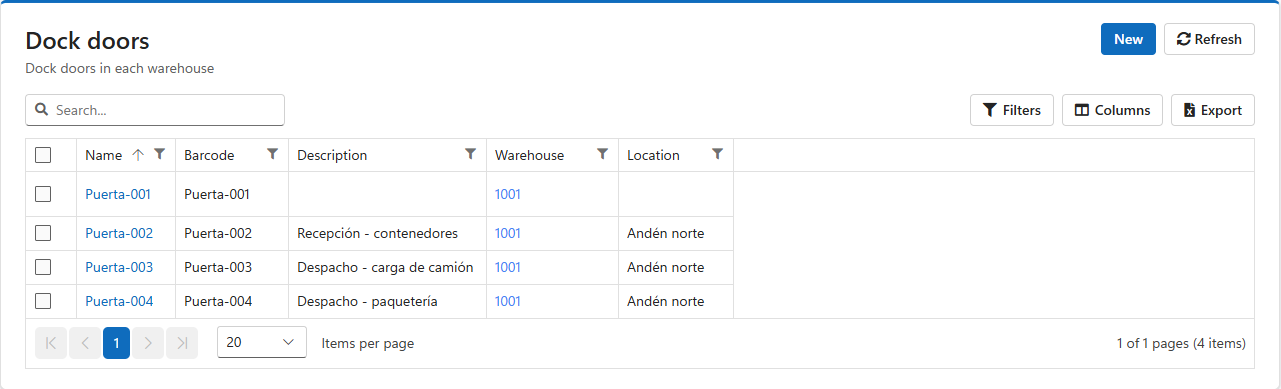
A dock door is a loading door of a Warehouse. Giving each door a barcode lets operators stage pallets and Totes at the right door and load the right truck: the Handheld records exactly which door each shipment went to, and refuses a door that does not exist.
Open Setup > Warehouse > Dock doors.
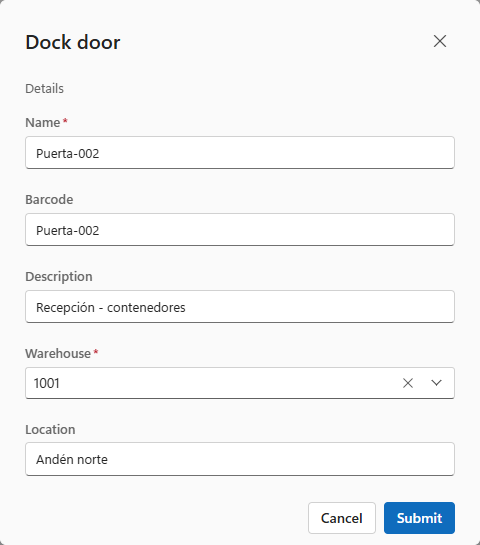
| Field | Use |
| Name | Required. How the door is shown on Truck loads, orders and Handhelds, for example Door 3. |
| Barcode | What operators scan to stage or load at this door. It is printed on the door label. |
| Description | What the door is used for, for example Receiving - containers or Shipping - parcel. Printed on the label. |
| Warehouse | Required. The Warehouse the door belongs to. |
| Location | A note on where the door is, for example North dock. |
| Pack slip printer | Optional. The printer where packing slips of orders shipped through this door print when they print by themselves (on shipping or on the carrier label). The picker shows each printer's name and the machine its Print agent runs on. Blank = the user, the Warehouse, the customer, the client or the company decides. See Automatic printing of pack slips and BOLs. |
| BOL printer | Optional. The printer where bills of lading of Truck loads, Master truck loads and LTL loads at this door print when they print by themselves. A BOL printer here also switches automatic BOL Printing on for LTL loads at this door. Blank = the next level decides. |
The Handheld finds a door by its barcode or its name, so give every door a name and barcode no other door uses.
Tick the doors and click Print. Choose the printer and the number of copies. The label shows the door's name, barcode and description. Put each label where it is easy to scan from a forklift and cannot be confused with the next door's.
Tick the doors and click Delete, then confirm.
Was this page helpful?