 P4 Software
/
logisticaHQ-en
P4 Software
/
logisticaHQ-en
There are three ways in:
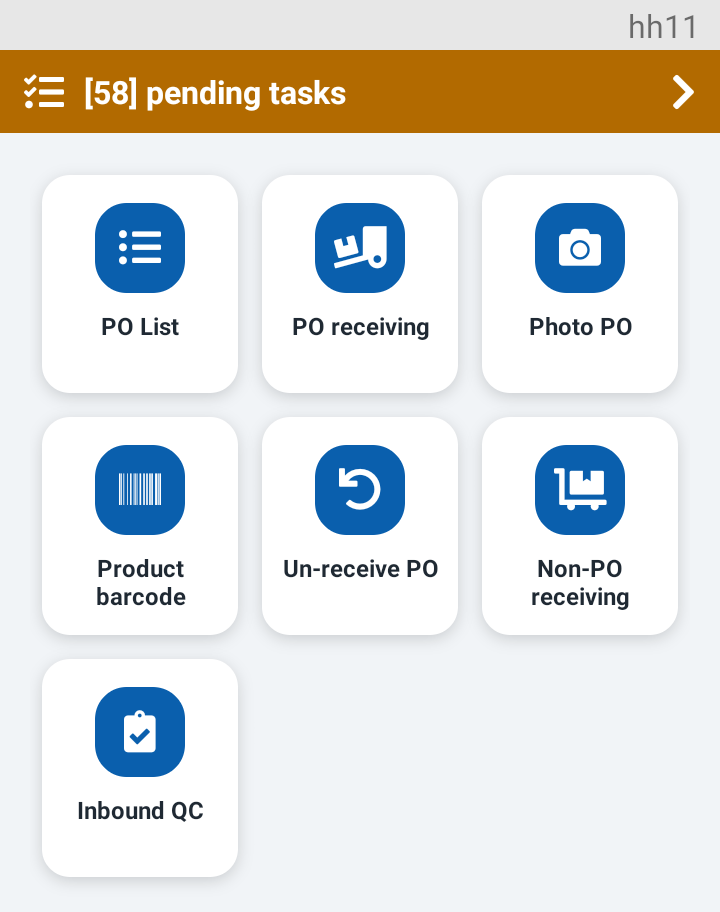
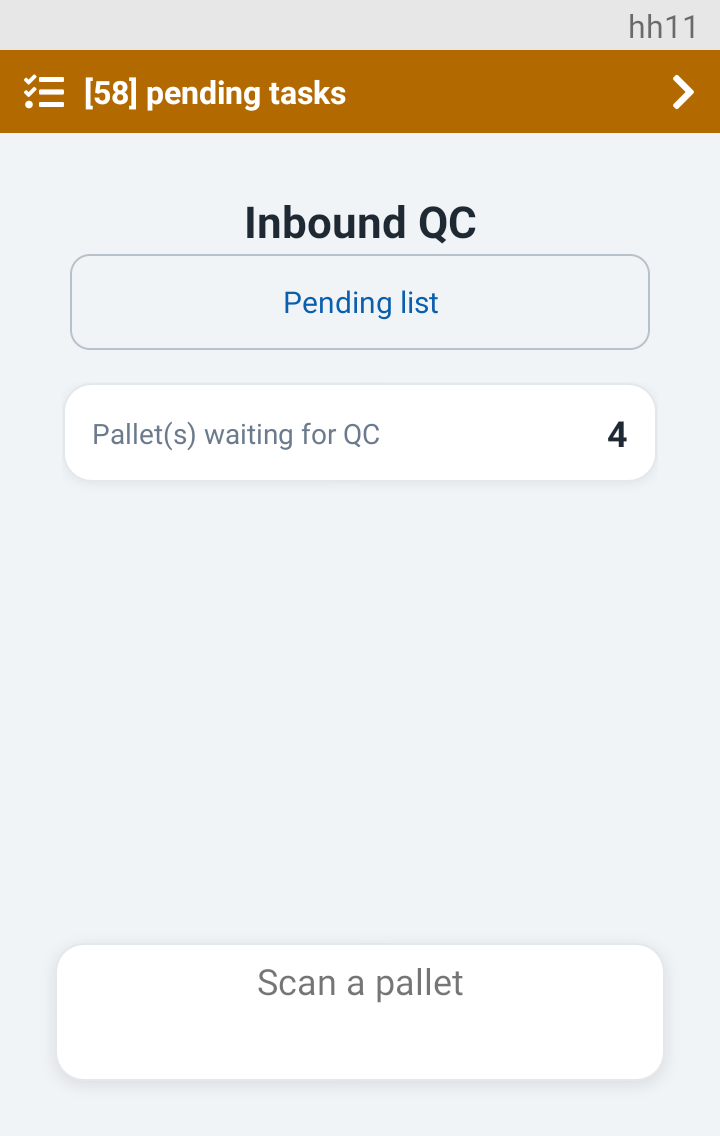
Tap Pending list to see the pallets you can inspect. The oldest are first. The list holds the pallets waiting for QC and the pallets you started yourself. A pallet that another inspector started is not listed.
| On each row | What it is |
|---|---|
| Pallet number (LPN) | The title of the row. |
| PO number and vendor | For example PO-0000611 - IQC-TEST Vendor. |
| Product and quantity | What is on the pallet. |
| At [bin] | Where the pallet waits now. |
| A reason line, when there is one | Why this Handheld cannot open the pallet, for example that the app needs an update. |
| Tag at the right | Yours if you started it. Otherwise its state: Pending or In Progress. |
Tap a row to open it. The prompt says Select a pallet. If nothing is waiting, the Handheld says Nothing is waiting for QC.
A pallet that is on hold and not yet in quarantine is not in this list. Scan its label instead. See Hold and quarantine.
If another inspector opens the pallet first, a red card says [LPN] was just taken by another inspector - scan a different pallet. Scan another pallet.
Every screen of the inspection starts with a card about the pallet:
| Line | Meaning |
|---|---|
| The pallet number in large type, for example IQCTEST0002 | The pallet (LPN). |
| PO row, for example PO-0000611 | The purchase order. |
| From row, for example IQC-TEST Vendor | The vendor. |
| Product and lot | What is on the pallet. |
| Step row and Of row, for example 2 and 4 | Where you are: step 2 of 4. The total is the longest path through the checks. It can change if the workflow sends you back to an earlier step. |
| Attempt row, for example 2 | Shown only when the pallet is being inspected again after an earlier inspection. |
When the workflow asks the same step again, the step title carries the tag Asked again. Answer it again. This is normal after a repair or a recount.
Your office builds the inspection, so the questions, the limits and the order are theirs. The Handheld draws each check the same way every time.
A card shows the title, the question and any help text. Under it is the label Answer and the answers your office chose, usually Yes and No.
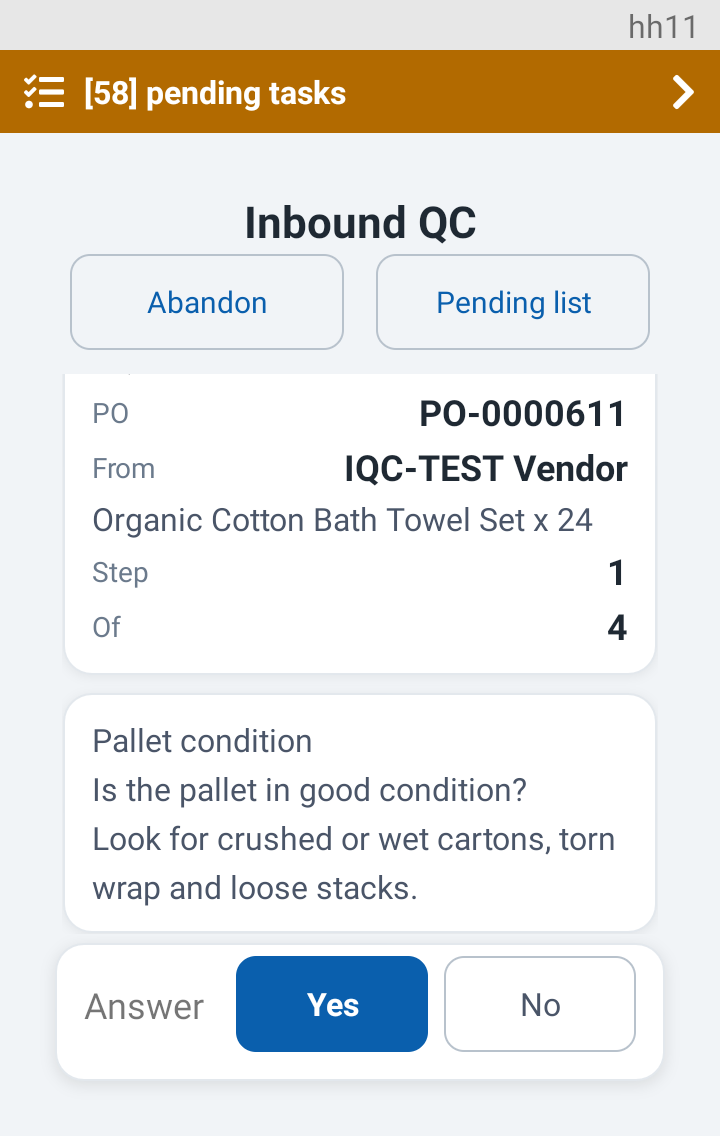
A question about the lot and expiry date works the same way. Compare the lot and date written in the question with the label on the cartons, then answer.
A photo step opens the camera. The first time, Android asks for permission to use the camera. Choose While using the app.
A readings step asks for one number per position, for example the temperature at the top, middle and bottom of the pallet.
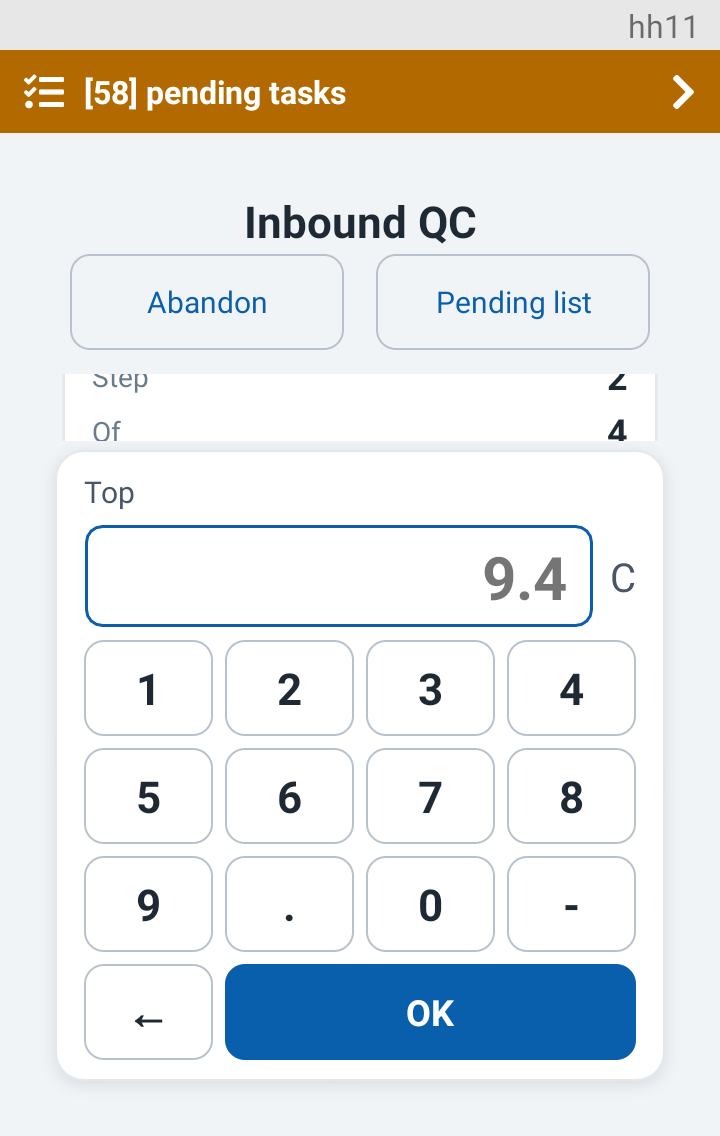
The keypad has the digits, a point, a minus key and a back arrow:
After each value, a card repeats it, for example Top: 9.4 C. When all positions are done the Handheld asks for the photos the step needs, and then for an optional Note (optional). Then it sends the answer.
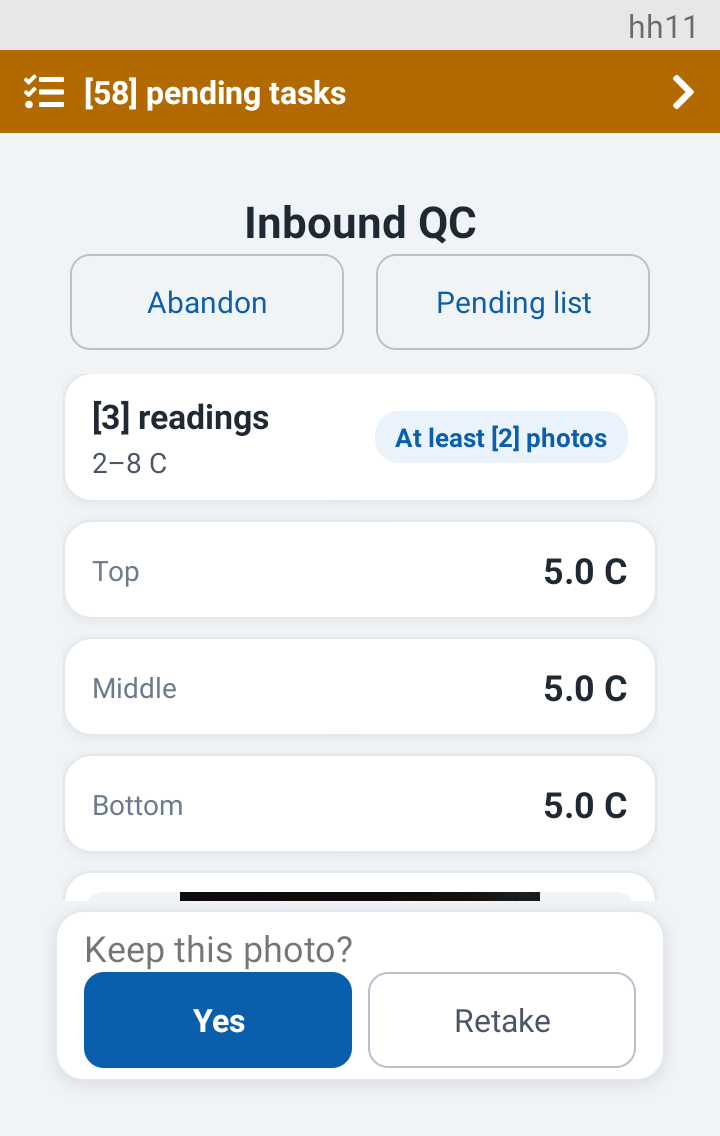
The Handheld does not judge the numbers. It sends exactly what you typed. The server decides if the reading is good. A reading outside the limit is not an error message: the inspection moves on and the pallet is put on hold. See Hold and quarantine.
This step checks that the Products on the pallet are the ones expected. The first row shows the step title and how many Products are done ([0] of [2] verified). Under it is one row per product and lot:
| On a product row | Meaning |
|---|---|
| SKU and description | The product. |
| Lot [lot] | The lot, when there is one. |
| Expected [24] | The quantity the order says should be on the pallet. |
| To check | Not done yet. |
| [1] of [8] counted | You scan this product several times. This is how many scans are counted. |
| Verified [24] | Done. Done rows move to the bottom. |
At Scan a product... scan a product label.
Some rows ask Quantity instead of counting scans. The box is filled with the expected quantity. Count the product and correct the number if it differs.
When a barcode cannot be read, tap Pick from list (the step must allow it). The Handheld lists the Products on the pallet under Pick the product. Tap the one in your hand. Done rows are greyed out and cannot be chosen again. Tap Scan instead to go back to scanning. You can also just scan: the scan stays active under the list.
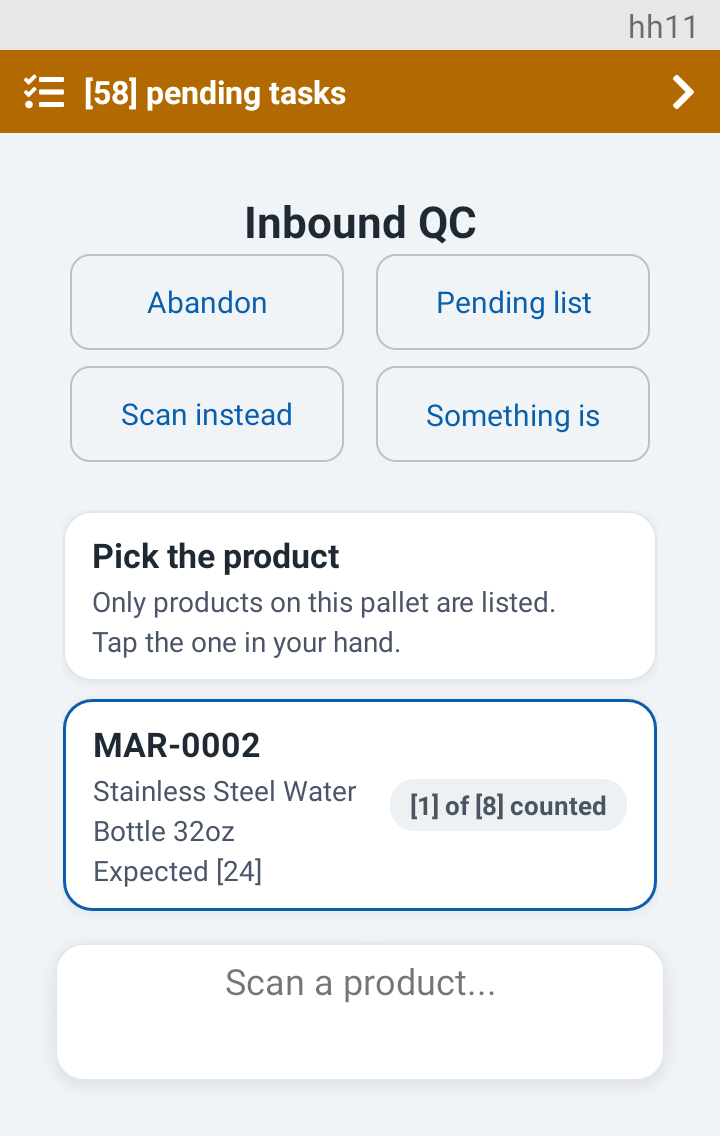
While you are on Verify Products, Something is wrong is at the top of the screen. Tap it when what you see does not match the order: a product is not on the pallet, or the count is clearly off. If your office wants a reason, you choose a Defect code first. The inspection then follows the exit your office set for a wrong count, which is usually a hold.
Tap Abandon at the top to stop without finishing. The Handheld says Pallet [LPN] handed back and Returns to the scan prompt. The pallet goes back to the list for you or another inspector.
You can stop at any step: put the Handheld down, close the app, or restart it. Scan the pallet again, or tap it in the pending list. The inspection opens at the step where you stopped, because the server keeps your place. The only things not kept are readings you typed and did not send.
| Message | What to do |
|---|---|
| This pallet needs a newer version of the app - tell your supervisor | Your Handheld app is too old for this inspection. Update the app. The pallet is handed back. |
| Nothing to inspect on this pallet | Tell your supervisor. The inspection has nothing for you to answer. |
| This question has no answers - tell your supervisor | The office built a question with no answer buttons. Tell your supervisor. The pallet is handed back. |
| [LPN] was just taken by another inspector - scan a different pallet | Scan another pallet from the list. |
| [LPN] is on hold - it waits for the office | The pallet is on hold and there is nothing more to do on the Handheld. A supervisor decides on the web. |
| Nothing is waiting for QC | The pending list is empty. Nothing to do. |
Next. See what happens when the last check is answered in Hold and quarantine.
Was this page helpful?