 P4 Software
/
logisticaHQ-en
P4 Software
/
logisticaHQ-en
LogisticaHQ release 2.56.19
Product categories organise your catalogue. A category groups Products, for example "Cabinetry". A subcategory divides a category, for example "Hinges" inside "Cabinetry". Every product can carry one category and one subcategory.
This guide covers two screens:
You find them under Setup › Products › Product categories.
A product stores the name of its category and subcategory. It does not store a link. Two things follow, and both appear in this guide:
Names are compared without regard to capital letters or extra spaces. "Cabinetry" and " cabinetry" count as the same category.
| Part | What it does |
|---|---|
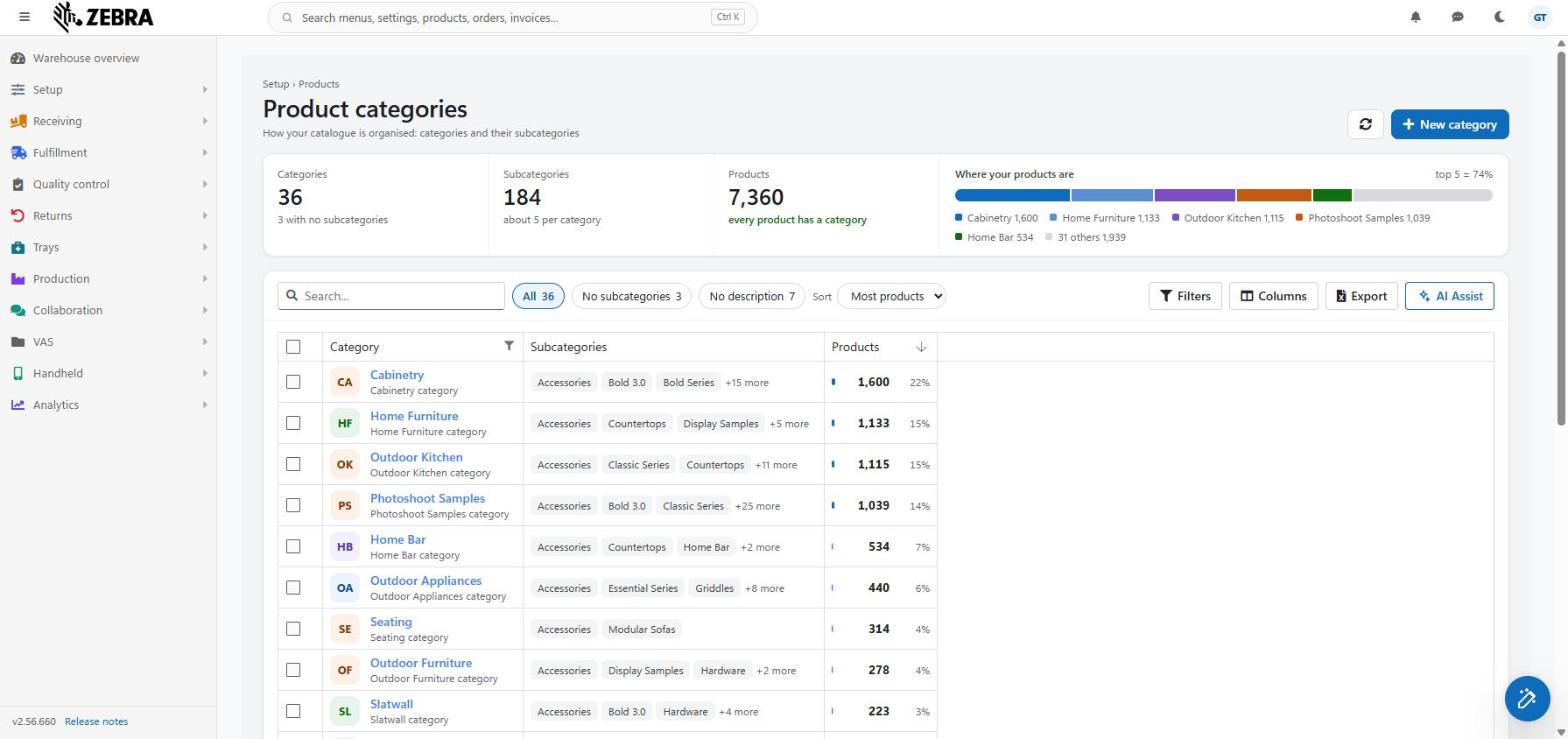
| Caption Setup › Products, title Product categories | Where you are. The subtitle says "How your catalogue is organised: categories and their subcategories". |
| Refresh (arrows icon) | Reads the categories and the product counts again. If a preview is open, it follows the reload. It closes if its category no longer exists. |
| New category | Opens a blank category page. Shown only to Users who may enter data. |
Under the header, a strip gives you the totals. The three figures:
| Figure | What it shows | Note under it |
|---|---|---|
| Categories | How many categories you have. | "every category has subcategories", or "{n} with no subcategories". |
| Subcategories | The total number of subcategories. | "about {n} per category". |
| Products | The total number of Products in the catalogue. | "every product has a category" (green), or "{n} Products have no category" (amber). |
The Products figure shows a dash until the counts are known.
Next to the figures there is a bar that shows where your Products are. It appears once the counts are known, and only if your catalogue has at least one product.

In the toolbar there are three quick filters. Each shows how many categories it holds. A click on a filter narrows the list at once.
| Filter | Shows |
|---|---|
| All | Every category. |
| No subcategories | Categories that have no subcategory. Use it to find categories to complete. |
| No description | Categories whose description is empty. |
The Sort list has two choices:
| Choice | Order |
|---|---|
| Most Products | The category with the most Products first. This is the default. |
| Name A-Z | By name. |
You can also click a column header to sort the list another way.
The toolbar also has Search, Filters, Columns, Export and AI Assist. The search box reads "Search a category or subcategory". It finds a category by its own name or by the name of any of its subcategories. Export writes the subcategories of each category in one column.
The list reads all categories at once. Searching, filtering and sorting then happen on your screen.
Three columns are shown by default. The Description column is hidden, because the description already appears under the name. You can show it under Columns.
If you already saved your own layout. A user who saved a column layout before this release keeps the old columns. For example, a saved layout that shows Description keeps showing it. To get the new layout, open Columns and use Reset.
| Column | What it shows |
|---|---|
| Category | A colored tile with the category's initials. The color depends on the name, so a category keeps its color whatever the sort or filter. Next to it, the name as a link to the category page. Under the name, the description, or "Add a description" in italics if there is none. |
| Description | The description on its own. Hidden by default. |
| Subcategories | The first three subcategories as tags, then "+{n} more". A category with none says "No subcategories yet" in amber. This column cannot be sorted or filtered, but the search box reaches its names. |
| Products | A bar against the category with the most Products, the number of Products, and the share of all Products, for example "22%". A share under 1% shows one decimal ("0.3%"), and under a tenth of a percent it shows "<0.1%", so a category that is not empty never reads "0%". A dash shows when the counts cannot be read. |
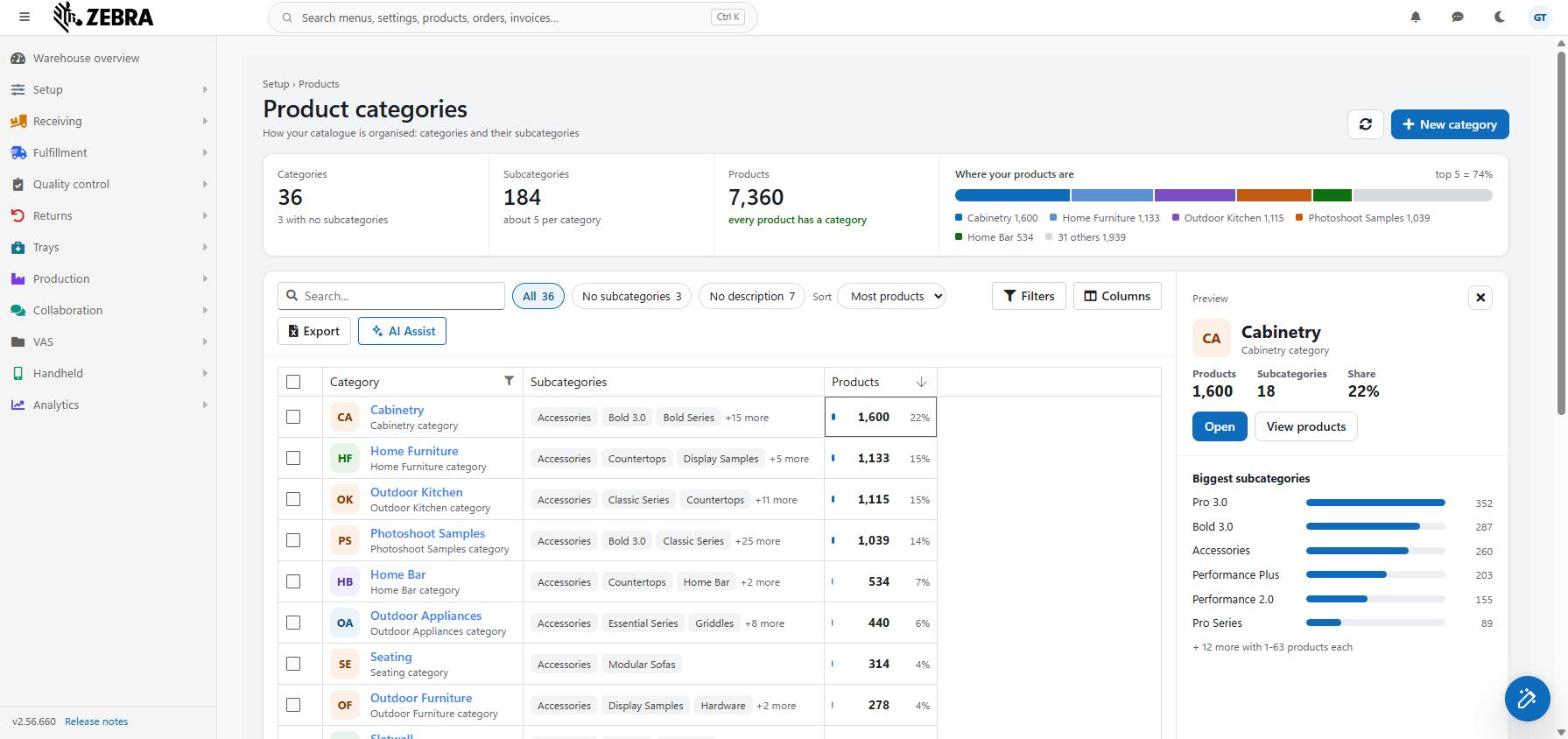
Click a row to open a drawer beside the list. The drawer shows:
| Part | What it shows |
|---|---|
| Header | The tile, the name and the description. The X closes the drawer. |
| Products | How many Products carry the category. |
| Subcategories | How many subcategories it has. |
| Share | Its share of all Products. |
| Open | Opens the category page. |
| View Products | Opens the product list, searched for the category's name. This is a text search, not an exact filter. A product whose SKU or description contains the name is shown too, so the button does not promise "these N Products". |
| Biggest subcategories | The six subcategories with the most Products, as bars with their counts. If there are more, one line sums them up, for example "+ 12 more with 1-63 Products each". A subcategory that no product carries counts 0. |
If the category has no subcategory, the drawer says "No subcategories yet". While the counts load it says "Loading...". If the counts cannot be read, the names are shown with a dash.
The subcategory counts are read when you open the drawer, only for that category. This matters because the same subcategory name can exist under several categories ("Accessories" sits under many).
Tick one or more categories to raise the dark action bar at the bottom.
The bar shows how many are ticked, for example "2 selected". Its note lists the names of the first three ticked categories, then "+{n} more". If Products still use any ticked category, the note adds in amber how many: "1 product still uses them" or "{n} Products still use them". You know this before you press anything.
The buttons:
| Button | What it does |
|---|---|
| Delete... | Deletes the ticked categories. Shown only to Users who may enter data. |
| X | Clears the selection. |
What Delete does
Good to know:
Click a category name, or Open in the drawer, to open it. New category opens the same page with nothing filled in. The link Product categories at the top takes you back to the list.
| Part | What it shows |
|---|---|
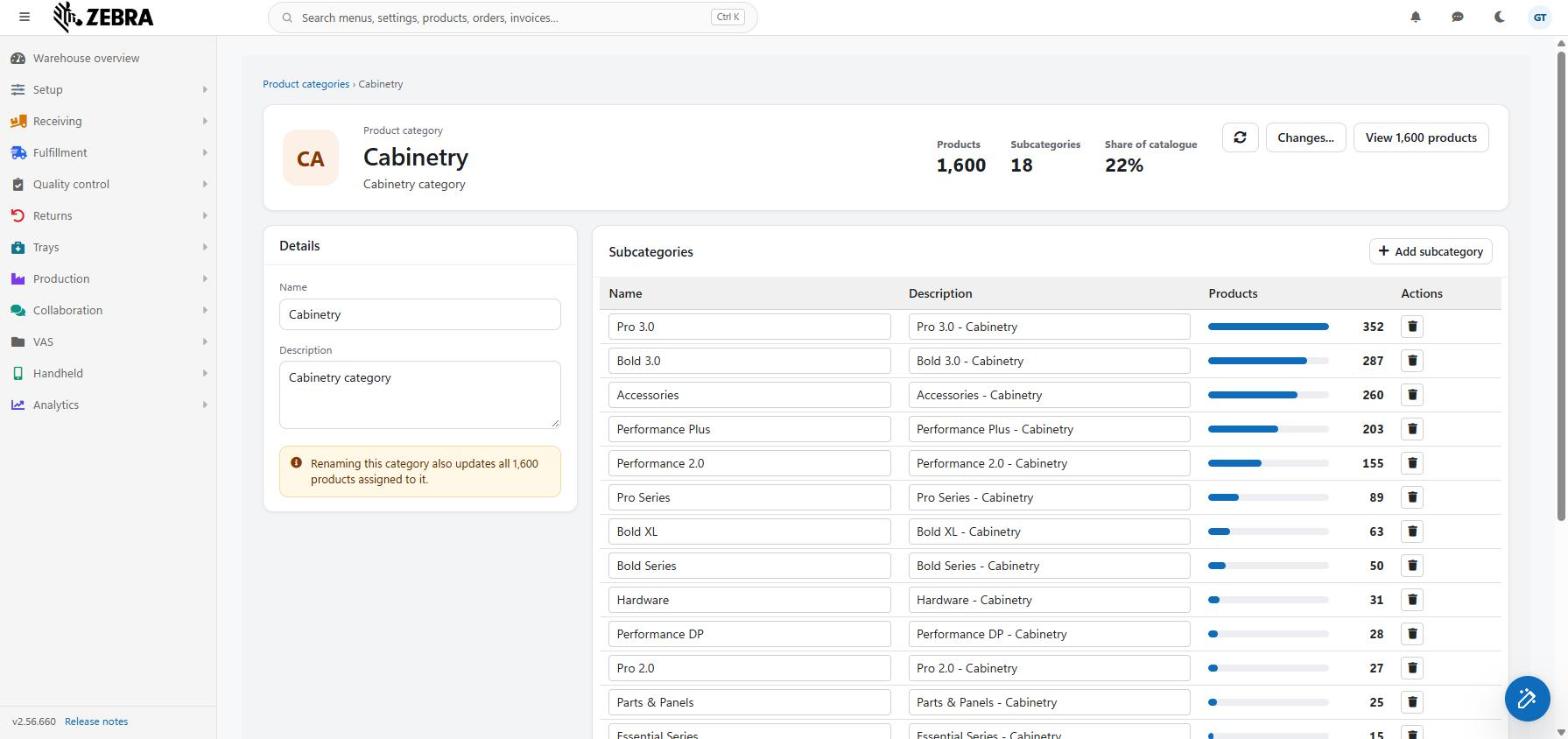
| Tile and title | The tile with the initials, the caption "Product category", the name, and the description. The title is the saved name. A name you are still typing does not retitle the page. A new category reads "New category". |
| Products | How many Products carry the category. |
| Subcategories | How many saved subcategories it has. |
| Share of catalogue | Its share of all Products. |
| Refresh (arrows icon) | Reads the category again. |
| Changes... | Opens the history of changes. Not shown for a new category. |
| View {n} Products | Opens the product list searched for the category's name. It reads "View 1 product" for one product, and "View Products" while the count is unknown. Not shown for a new category. |
| Field | Rule |
|---|---|
| Name | Required. A blank name is refused by the server: "Category name is required". |
| Description | Optional. |
Under the boxes, for a saved category, a note warns you: "Renaming this category also updates all {n} Products assigned to it." It uses the real number of Products, and says "the 1 product" for one. While the count is unknown it shows the general sentence "Renaming this category also updates every product assigned to it." It is left out when no product carries the category.
Users who may not enter data see the boxes as read-only.
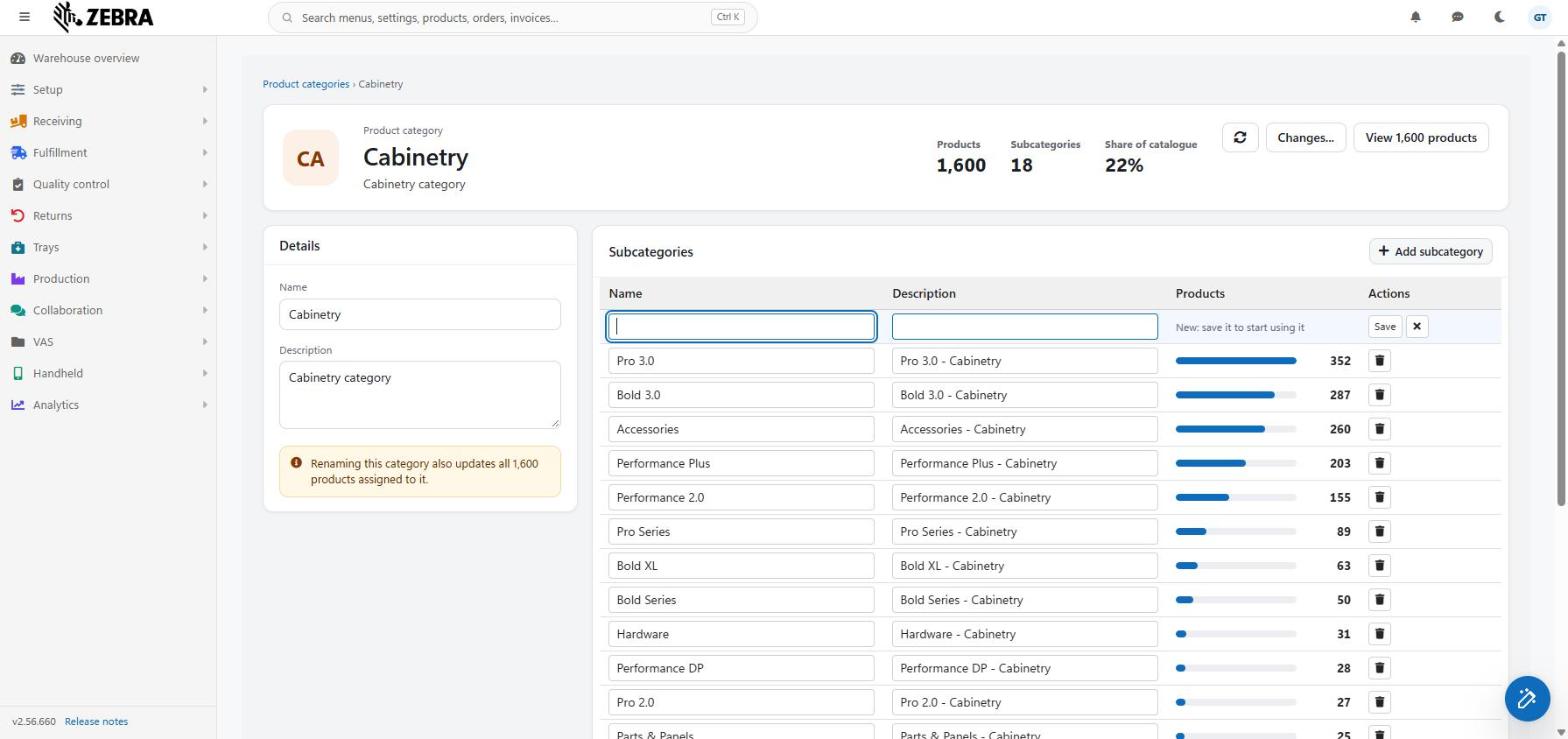
The title row has Add subcategory. It is shown only to Users who may enter data, and only for a category that was already saved. A new category says "Save the category before adding subcategories."
The table shows each subcategory with:
| Column | What it shows |
|---|---|
| Name | The name. Editable. |
| Description | The description. Editable. |
| Products | A bar and the number of Products of this category that carry the subcategory. A new row says "New: save it to start using it". |
The rows are sorted by number of Products, the biggest first, and by name when equal. A note under the table says: "Sorted by Products. Renaming a subcategory also updates its Products. A subcategory still used by Products cannot be deleted until those Products are moved."
An empty category says "No subcategories. Products in this category will have no subcategory to choose."
Each subcategory row saves by itself. Nothing is sent as you type.
Renaming a subcategory updates the Products of this category that carry it, in the same step.
Deleting a subcategory
Users who may not enter data cannot edit any box or see Add, Save or Delete.
A dark save bar rises at the bottom only while Name or Description differ from what was loaded. It says "1 unsaved change" or "{n} unsaved changes" and names the changed fields. The buttons:
| Button | What it does |
|---|---|
| Update | Saves the name and description, then reads the category again. If you renamed it, the page then shows the effect on the Products. |
| Discard | Puts the Name and Description back to the saved values. |
Good to know:
| You want to... | Allowed when |
|---|---|
| Rename a category | Always, for Users who may enter data. All its Products take the new name. |
| Delete a category | No product uses it. |
| Delete several categories | No product uses any of them. |
| Rename a subcategory | Always, for Users who may enter data. Products of that category take the new name. |
| Delete a subcategory | No product of its category uses it. |
| Add a subcategory | The category was saved first. |
Was this page helpful?