 P4 Software
/
logisticaHQ-en
P4 Software
/
logisticaHQ-en
Only PO receiving reports pallets, and only pallets (LPNs). A plain bin is never reported. LogisticaHQ waits until you have moved on from a pallet. That way it never stops a pallet you are still filling.
| What you do | What LogisticaHQ does |
|---|---|
| Scan a different pallet at Scan to Bin/LPN... (a new pallet also asks for its bulk bin at LPN Bulk bin...) | Reports the pallet you just left. This happens after those scans and before the pallet type question. |
| Scan the same pallet again for another product | Nothing. A pallet you keep filling is not left yet. |
| Scan a plain bin | Nothing. Bins are never reported. |
| Finish with Complete | Reports the last pallet, after All documents completed! |
| Leave the Receiving screen without finishing | Sends the reports it still owes quietly, in the background. No card appears. |
Your receipt is already saved. The goods are received onto the pallet before the report is sent. The card never undoes or blocks a receipt. It only decides what happens to the pallet next.
Your office decides which pallets need QC. If the pallet does not need an inspection, no card appears and you keep Receiving. If your company has not turned inbound QC on, you never see a card.
The card is a few lines. The first message comes from the server in your language, so your wording can differ from the picture.
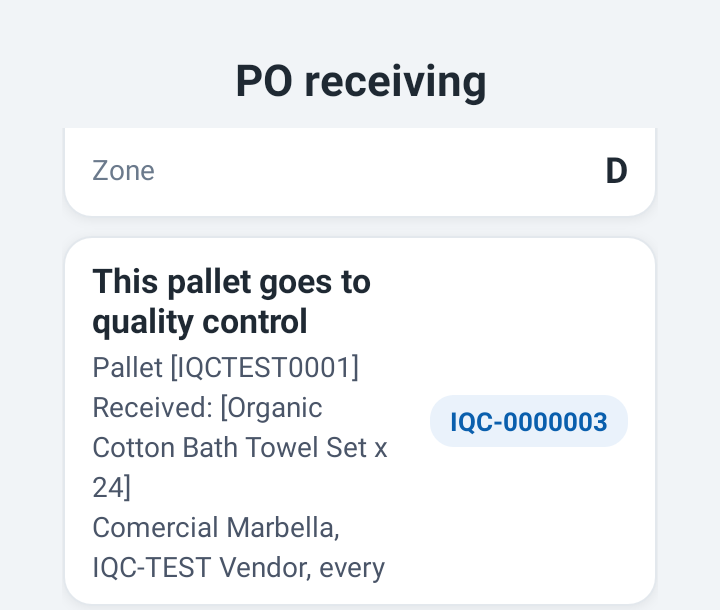
| Line | What it tells you |
|---|---|
| Title, for example This pallet goes to Quality control | Why the card appeared. |
| Blue tag, for example IQC-0000003 | The inspection number. |
| Pallet [IQCTEST0001] | The pallet (LPN). |
| Received: [product x quantity] | What is on the pallet. |
| Lot [lot] | The lot or lots on the pallet. Left out when there is no lot. |
| A line from the QC rule | Which rule picked this pallet, for example the client and vendor it applies to. |
| Workflow name and [4] steps | The inspection your office built, with its steps listed one per line: 1. Pallet condition - Look for crushed or wet cartons... |
| A last message, for example Until QC is done the pallet is not put away | What the pallet cannot do until the inspection is finished. |
The steps shown are the ones your office set up. The picture is a test workflow with four steps.
Under the card is the Quality control prompt with two buttons.
| Button | What happens |
|---|---|
| Start inspection | The Inbound QC screen opens on this pallet and the Receiving screen closes. When the inspection ends you can open PO receiving again. |
| Leave it in [bin] for QC later or Leave it for QC later when no bin is known | Receiving carries on with your next pallet. The pallet waits in the QC list, shown as At [bin], until someone inspects it. |
You scan the new pallet before you receive onto it. If you press Start inspection at that moment, the product you keyed for the new pallet is not received. The Inbound QC screen shows this note first:
When you press Start inspection after Complete, there is no note. Everything is already received.
Sometimes the pallet cannot be started from here. It may already be on hold, it may have been rejected, or it may contain a step this version of the app cannot show. The card then has one OK button. The message above it says why. Press OK and keep Receiving.
Non-PO receiving and RMA receiving never report pallets. But a pallet that is under inspection takes only purchase-order receipts. If you scan such a pallet there, a red card says:
Pallet [IQCTEST0001] is in Quality control. Use another pallet.
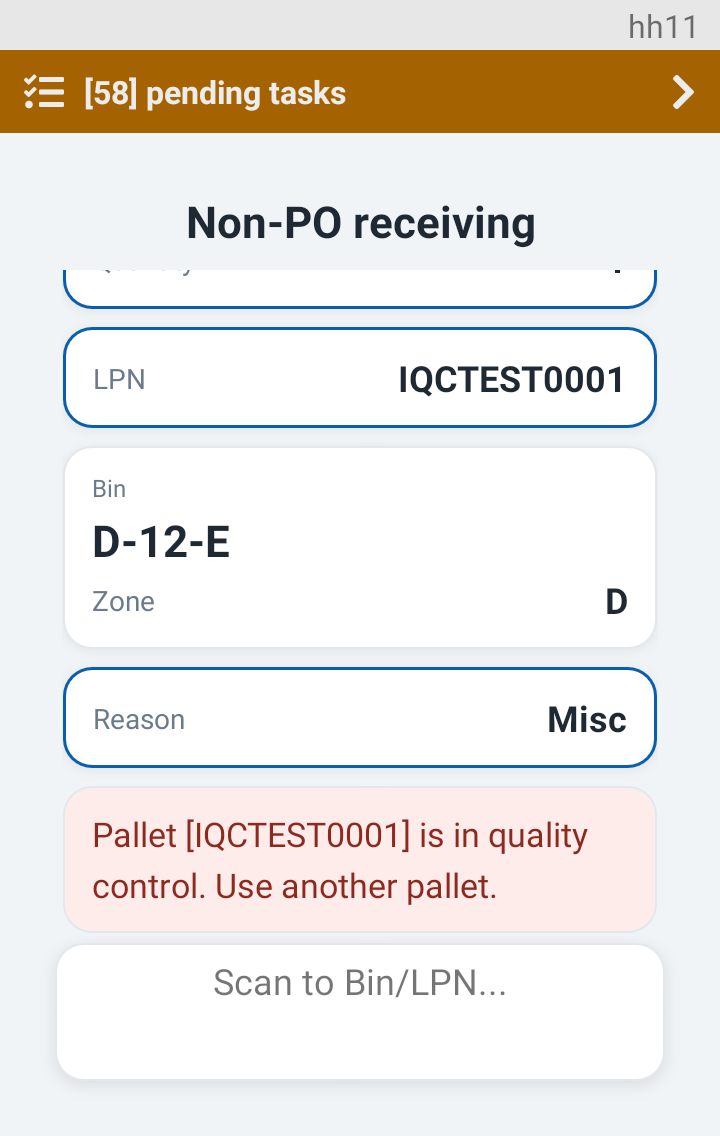
The Handheld then asks again for a bin or pallet (Scan to Bin/LPN...). You do not start over:
Next. Choose Start inspection and continue with Inspecting a pallet, or read what comes after a failed check in Hold and quarantine.
Was this page helpful?