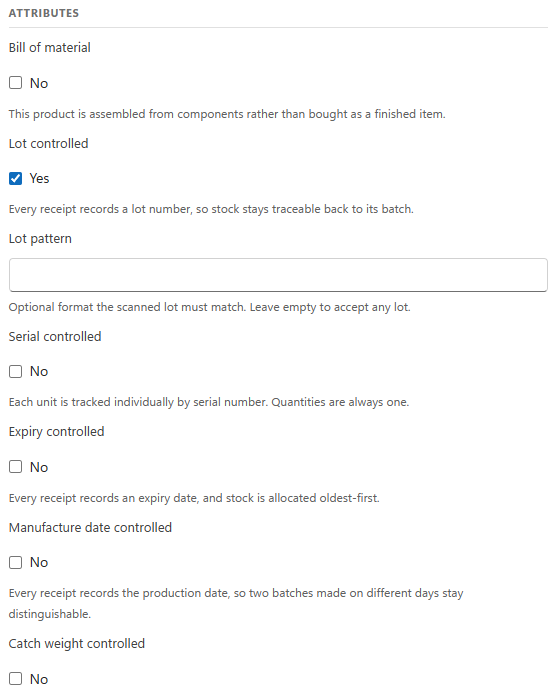
A lot-controlled product records a lot (batch) number on every receipt, and the stock keeps that lot number for its whole life in the Warehouse: in every bin, on every license plate, on every pick and on every shipment. Lot control is what lets you answer "which Customers received batch BB-210415?" and run a recall. Use it for food, beverages, chemicals, cosmetics, pharmaceuticals and anything a supplier or regulator can recall by batch.
This page explains how to configure a product with lot numbers, every field and setting involved, the rules LogisticaHQ enforces, and what changes on the floor.
Open the product (click its SKU), or click New to create it first (see Products).
In the Attributes section, set Lot controlled to Yes. The Lot pattern field appears below it.
Optional: type a Lot pattern (explained below), so a scan that is not a lot number of this product is refused at the Handheld. Leave it empty to accept any lot number.
If the batch also has an expiry date, set Expiry controlled to Yes too (see Expiry control). Lot control combines with every other attribute, including Serial control.
Save the product.
Decide before the first receipt
Stock on hand. While the product has any stock, changing lot control (or serial, expiry, manufacture date, packsize, catch weight or unit of measure control) is refused: "Cannot change lot, serial, expiry, manufacture date, packsize, catch weight or unit of measure control while [SKU] has inventory: [quantity] in [n] location(s). Move or consume the stock first, then change the setting." No setting lifts this lock: stock received without a lot could never be traced by lot afterwards.
Open orders. While the product is on an open purchase order, pick ticket, production order or customer return, the change is refused with "Attribute control cannot be changed. Product has open transactions", unless an administrator turns on Allow Attribute Change (Setup > System > Configuration, Business > Products; default No).
Fields
Field
Values
Default
What it does
Lot controlled
Yes / No
No
Every receipt records a lot number, so stock stays traceable back to its batch.
Lot pattern
Text
Empty
Shown only when Lot controlled is Yes. An optional format every lot number of this product must match. Empty accepts any lot number.
Lot pattern: how to write one
The pattern is compared with the whole lot number. _ stands for exactly one character, % for any number of characters (including none), and a comma separates alternatives (the lot is accepted when it matches any of them). Every other character must appear exactly as typed, and upper and lower case must match.
Pattern
Accepts
Refuses
BB-21____ (four underscores)
BB-210415, BB-211231
BB-21041, BB-2104150, bb-210415
L%
L1, L-2026-001
A serial number or date scanned into the lot prompt by mistake
A______,B______
A123456, B654321
C123456
A lot that does not match is refused with "Lot [value] does not match the lot pattern [pattern] of product [SKU]". The server checks it whenever a lot is recorded or moved in stock: Receiving, Adjustments, moves and counts.
After the product is scanned, the Handheld asks Enter/Scan lot. Once per line received; the quantity is asked after the lot (and after the expiry date, if the product is also expiry controlled).
An empty answer is refused: "Lot is required". On the server, a receipt without a lot is refused with "Lot number is missing for product [SKU]".
If the purchase order line names a lot, the lot received must match it: "Lot [received] mistmatch, [expected] expected".
With a GS1 barcode, the lot is filled in from the product scan (settings Default Barcode Standard and Udi Autofill, see Serial control).
Spaces before and after the lot are removed when Trim White Spaces From Lots is on (Business > Products; default Yes).
One lot or several per bin and license plate
A bin holds one lot of a product unless the bin allows more: on the Bin screen, section Product handling, Allow multiple Lots (Inherit, Yes, No); when the bin inherits, the zone decides (Zone screen, Allow multiple Lots per bin). When neither allows it, putting a second lot in the bin is refused: "Bin [bin] cannot contain multiple lots".
A license plate holds one lot unless Allow Multiple Lots is on (Setup > System > Configuration, Business > License Plates; default No): "LPN [lpn] cannot contain multiple lots".
Cycle counts are exempt from both rules, so a count always records what is really there.
Inherit: no lot order of its own; the general Allocation style decides.
Alphabetical: lowest lot number first.
MaxQtyFirst: the lot with the most available quantity first.
MinQtyFirst: the lot with the least available quantity first (clears small remainders).
For a product that is also expiry controlled, Expiry Allocation Precedence (same group) is applied after the lot style and wins when it is OldestFirst or NewestFirst.
Allow Partial Lots (same group; default Yes): when Yes, one order line can be filled from several lots. When No, a line is allocated only from a single lot in a single location that can cover the whole quantity.
The Handheld shows the lot that was allocated and asks the picker to scan the lot. A different lot is refused: "Invalid Lot [scanned], [allocated] expected". The picked lot stays on the shipment, so a recall can find every customer who received it.
Every move, adjustment and count asks for the lot. A move takes only from that lot and refuses a quantity larger than what is unallocated in it: "Not enough Unallocated quantity of [lot] in [bin]". A Cycle Count asks for each lot found in the bin, and each lot is counted separately.
Analytics > Inventory > Lot trace & recall: enter a lot number to see what was received (purchase order, vendor), what is on hand (bin, license plate, Warehouse, expiry) and what was shipped (pick ticket, customer, date), with the totals of each.
The Audit records every movement with its lot number (see Audit).
 P4 Software
/
logisticaHQ-en