 P4 Software
/
logisticaHQ-en
P4 Software
/
logisticaHQ-en
A serial-controlled product is tracked unit by unit: every single unit carries its own serial number, which LogisticaHQ records when the unit is received and asks for again every time that unit is moved, counted or picked. You always know which unit is in which bin and which customer received it. Use serial control for equipment, electronics, tools, medical devices and anything sold with a warranty or recalled by serial number.
This page explains how to configure a product with serial numbers, every field involved, the rules LogisticaHQ enforces, and what changes for the people on the floor when a product is serial controlled.
From the next receipt on, the Handheld asks for a serial number for every unit of this product.
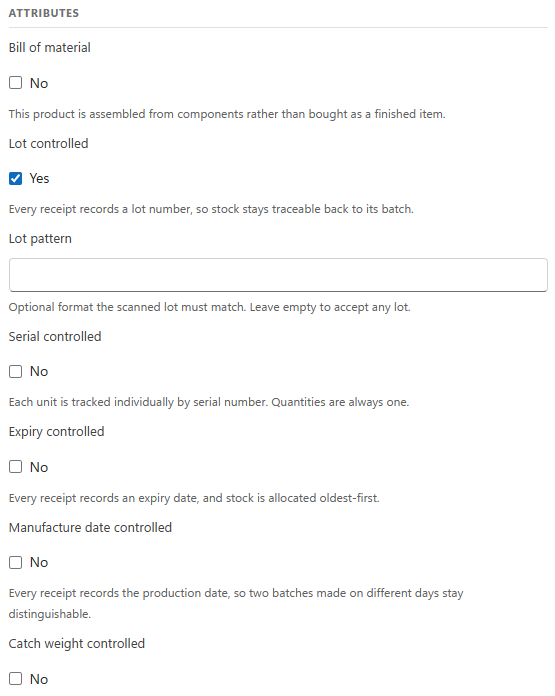
Serial control must be chosen before the product is received for the first time. LogisticaHQ protects the tracking of stock that already exists with two locks:
| Field | Values | Default | What it does |
| Serial controlled | Yes / No | No | Each unit is tracked individually by serial number. Quantities of this product are always one per serial. Hidden while Decimal controlled or Packsize controlled is Yes; when it is Yes, those two are hidden and saved as No. |
| Serial pattern | Text | Empty | Shown only when Serial controlled is Yes. An optional format every serial number of this product must match. Empty accepts any serial number. |
The pattern is compared with the whole serial number, letter by letter. Two characters have a special meaning; every other character must appear exactly as typed:
| Character | Meaning |
_ (underscore) | Exactly one character, any character. |
% (percent) | Any number of characters, including none. |
, (comma) | Separates alternatives: the serial number is accepted when it matches any one of them. |
Upper and lower case must match: DJ_____ refuses dj12345. A * or ? has no special meaning; it must appear literally.
| Pattern | Accepts | Refuses |
DJ_____ | DJ12345, DJA0B1C (DJ plus exactly five characters) | DJ1234, DJ123456, XJ12345 |
SN% | SN1, SN-000045, SN | A serial that does not start with SN, such as a lot number or a UPC scanned by mistake |
SN%,SER-% | SN000045, SER-77 | AB000045 |
A serial number that does not match is refused with "Serial [value] does not match the serial pattern [pattern] of product [SKU]", and the operator scans again. The check is made by the server whenever a serial number is recorded or moved in stock, so it applies to Receiving, Adjustments, moves and counts alike.
Rules applied to every serial number received:
When the product label is a GS1 barcode (a DataMatrix or GS1-128 that carries the GTIN, the lot, the expiry date and the serial number in one code), one scan at the product prompt also fills in the serial number, the lot and the expiry date, so the operator does not scan them separately. On the following units, scanning the next unit's GS1 barcode at the Scan serial... prompt takes the serial number out of it. This depends on three settings in Setup > System > Configuration:
An order does not reserve particular serial numbers. Allocation reserves a quantity of the product in a bin or on a license plate; the picker decides which units to take by scanning them.
Product moves, letdowns and Adjustments ask for the serial number of each unit, one unit at a time. A unit can only be taken from a bin or license plate that holds that serial number, and can only be added where the serial number is not already in stock.
The count replaces what the bin held: a serial number that was recorded in the bin but was not scanned is counted as missing, and a serial number scanned that was not recorded is added. When Require Approval is on (Setup > System > Configuration, Business > Cycle Counting; default No), the differences wait in Collaboration > Unapproved CCs until a supervisor approves them (see Cycle count approval).
All in Setup > System > Configuration; only administrators can change them.
| Group | Setting | Default | What it does |
| Business > Products | Allow Attribute Change | No | Lets serial, lot, expiry and the other tracking choices change while the product is on open orders. It never lifts the stock-on-hand lock. |
| Business > Products | Trim White Spaces From Serials | Yes | Removes spaces before and after scanned serial numbers. |
| Business > Products | Default Barcode Standard | Gs1 | How barcodes are read when a product does not set its own standard. Gs1 lets one scan fill GTIN, lot, expiry and serial. |
| Business > Products > Handheld | Udi Autofill | Yes | Fills the lot, expiry and serial prompts from a GS1/UDI barcode. |
| Business > Products > Handheld | Udi Confirm | No | Asks the operator to confirm values filled in from a GS1/UDI barcode. |
| Business > Cycle Counting | Require Approval | No | Cycle Count differences wait for a supervisor's approval before they change stock. |
| Message or symptom | Cause | What to do |
| The Serial controlled field is not on the product screen | Decimal controlled or Packsize controlled is Yes. | Set them to No first (only possible while the product has no stock). |
| Cannot change lot, serial, expiry ... while [SKU] has inventory | The product has stock. | Move or consume all its stock, change the setting, then receive again. |
| Attribute control cannot be changed. Product has open transactions | The product is on an open purchase order, pick ticket, production order or customer return. | Close those documents, or ask an administrator to turn on Allow Attribute Change. |
| Serial [x] does not match the serial pattern [p] of product [SKU] | The scan is not a serial number of the expected format; often the wrong barcode was scanned. | Scan the serial number barcode. If the pattern is wrong, correct it on the product. |
| Serial number already exists in [bin] | That serial number is already in stock for this product. | Check the unit's label; find the existing unit with Lot trace & recall. |
| Serial [x] number does not exist in [bin] | The unit is not in the bin or license plate being picked or moved from. | Pick a unit that is in that bin, or find where this one is with Lot trace & recall. |
| Serial is required | Enter was pressed on an empty serial prompt. | Scan the serial number, or tap No SN to finish. |
| Full pack picking is not supported for Serial controlled Products | Full pack picking cannot record serial numbers. | Use Pick & Pack or Wave picking. |
Was this page helpful?