 P4 Software
/
logisticaHQ-en
P4 Software
/
logisticaHQ-en
The Warehouse overview is LogisticaHQ's home screen: one page that shows today in the Warehouse at a glance. It tells you which orders are due to ship today and which are already late, what has shipped, which Purchase orders and Returns are expected, how open Pick tickets are spread across the stages of picking, what needs someone's attention, how full the Warehouse is, and who has been scanning on the Handhelds since midnight. Almost every number is a button: click it to open the list behind it.
This page explains every number on the screen: what it counts, where the count comes from, what clicking it opens, and who sees what.
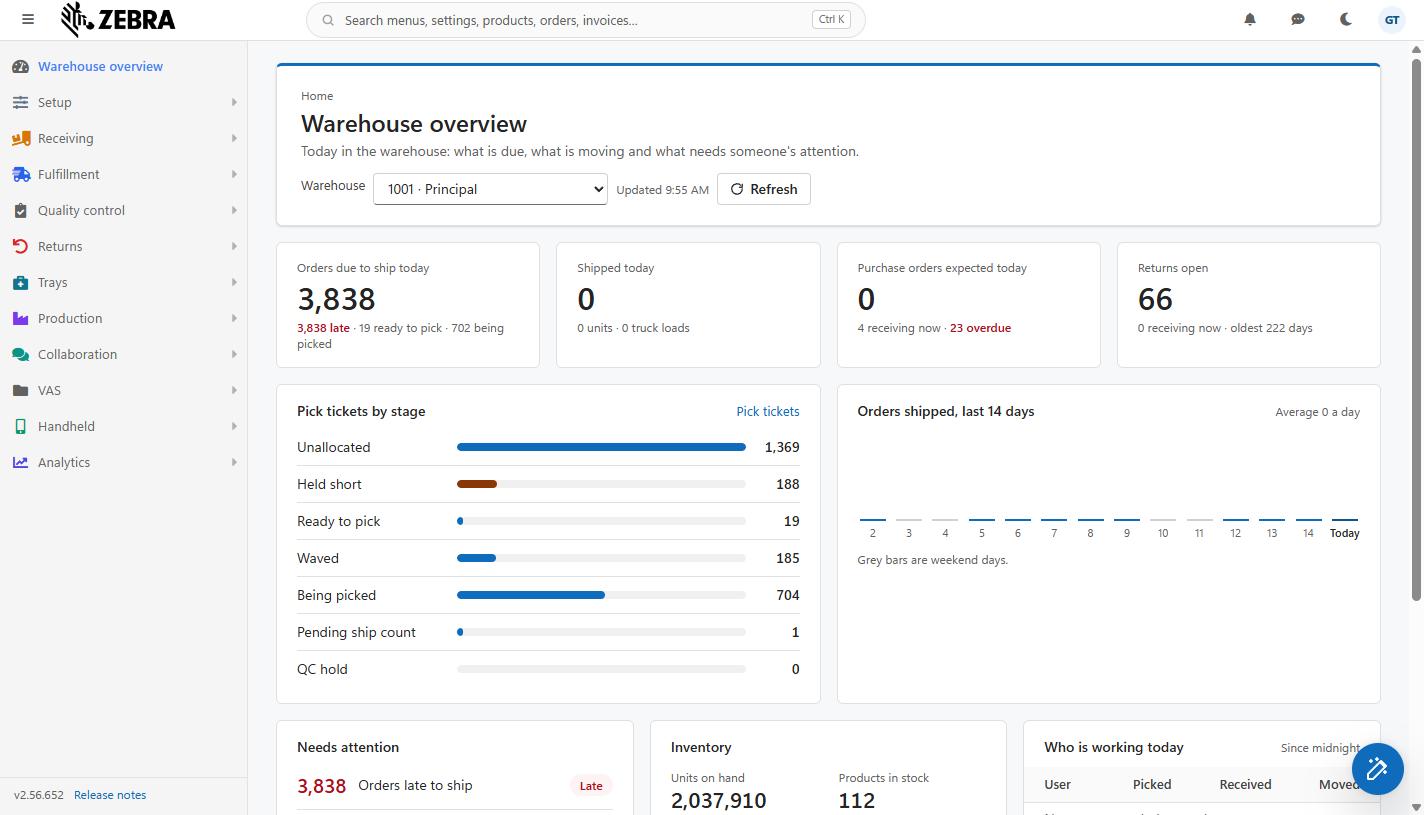
The Warehouse overview for one Warehouse: the four cards at the top and Pick tickets by stage and the shipped chart in the middle.
Every signed-in user of your company can open the Warehouse overview. It is not controlled by modules or permission profiles: LogisticaHQ adds Warehouse overview at the very top of every user's menu, whatever their module holds, so everyone always has a way back to it.
What each person sees on it depends on who they are. The rules are applied by LogisticaHQ before the numbers are sent to the browser, so a person never receives numbers they are not allowed to see:
| Kind of user | What they see |
| Administrator (a user whose Permissions are set to Administrator) | Everything on the page. In Who is working today they see every user who scanned today, the busiest first. |
| User | Everything on the page, except that Who is working today shows only their own row: their own picks, receipts and moves today. They do not see anyone else's numbers, nor how many people are working. |
| A user linked to a 3PL client (a user with a Client on their profile) | Only their own client's numbers: their client's Pick tickets, Purchase orders, Returns, Truck loads, stock, lots and cycle counts. The three bin numbers (Bins in use, Bins due a count and Bins below minimum) are left out, because Bins are shared by every client in the building. The Who is working today table is left out entirely. |
After you sign in, LogisticaHQ opens the screen chosen in the Default menu of your user profile. When your Default menu is empty, you land on the Warehouse overview. You also land on the Warehouse overview when your Default menu holds an older value that no longer opens any screen (for example an address typed by hand before the Default menu became a list); before this version such a user was left on the sign-in page.
An administrator chooses each user's Default menu in Setup > System > Users, on the user's profile. The choices are Warehouse overview (the default), Purchase orders, Pick tickets and Returns. See Users.
Click Warehouse overview, the first entry of the menu, at any time.
On the screen itself, the small heading reads Home, the title is Warehouse overview, and the line under it reads Today in the Warehouse: what is due, what is moving and what needs someone's attention.

The top of the screen with the Warehouse list, the "Updated" time and the Refresh button.
| Control | What it does |
| Warehouse | The Warehouse whose numbers the page shows. The list holds every Warehouse that is not discontinued, sorted by Warehouse code and shown as code and name, for example MAIN · Panama City, followed by All Warehouses at the end. When the page opens it starts on the Default Warehouse of your user profile. If your profile has no Default Warehouse, it starts on All Warehouses. Choosing another entry reloads every number on the page for that Warehouse, or for all Warehouses together. Your choice is not remembered: the next time you open the page it starts again on your Default Warehouse. Until the first numbers arrive, the list shows Loading... |
| Updated | The time the numbers were gathered, in your own time zone, for example Updated 8:42 AM. |
| Refresh | Gathers every number again, fresh from the database, for the Warehouse currently chosen. The button is greyed out while the numbers are loading. |
Many people open this page at the same time, for example a whole shift signing in at the start of the day. To keep the System fast, LogisticaHQ keeps the numbers it has gathered for about one minute and gives the same numbers to everyone who opens the same view during that minute. So when you open the page or change the Warehouse, the numbers can be up to a minute old; the Updated time tells you exactly when they were gathered. Clicking Refresh always skips the kept numbers and gathers new ones. The page does not refresh by itself: if you leave it open, click Refresh to bring it up to date.
"Today", "since midnight" and every daily count on the page use your Calendar day, in the Time zone set on your user profile. Two Users in different time Zones can therefore see different "today" numbers. A user with no time zone set uses Eastern Standard Time.
The outline of the page appears at once, with a dash (–) in place of each number, and the numbers fill in when they arrive. If they cannot be loaded, the message The Overview could not be loaded. Press Refresh to try again. appears under the top bar. Click Refresh.

The four cards: Orders due to ship today, Shipped today, Purchase orders expected today and Returns open.
Each card is a button: clicking anywhere on it opens the list behind it.
| Card | What it counts | Clicking it opens |
| Orders due to ship today | The big number is how many open Pick tickets have a Required date of today or earlier, so it includes the late ones. "Open" means released to the Warehouse and not yet shipped: every state after Draft and before Shipped. Drafts are not counted, and neither are Pick tickets that are shipped, waiting for a Delivery count or signature, or closed. A pick ticket without a Required date is never counted here. The line below gives three parts of that number: {n} late (the Required date is before today; shown in red when there is at least one), {n} ready to pick (in the Ready to pick stage) and {n} being picked (in the Being picked stage). | Fulfillment > Pick tickets (the open Pick tickets) |
| Shipped today | The big number is how many Pick tickets have a ship date of today, in your time zone. The line below adds {n} units, the total quantity of those Pick tickets, and {n} Truck loads, the number of Truck loads with a ship date of today. | Fulfillment > History > Pick tickets (the closed Pick tickets) |
| Purchase orders expected today | The big number is how many Purchase orders that are still expecting stock (state Not received or Partially received) have a Required date of today. Draft Purchase orders and fully received ones are not counted. The line below adds {n} Receiving now, open Purchase orders whose Receiving has started and not yet been completed (whatever their date), and {n} overdue, open Purchase orders whose Required date is before today (shown in red when there is at least one). | Receiving > Pending POs |
| Returns open | The big number is how many customer Returns (RMAs) are still expecting stock (state Not received or Partially received). The line below adds {n} Receiving now, open Returns whose Receiving has started and not yet been completed, and oldest {n} days, the age of the oldest open return, counted in days from the day it was released to the Warehouse (or from the day it was created, for a return never released). The age is left out when there are no open Returns. | Returns > Pending Returns |
The lists open in full. Clicking a number opens the whole list, not a list already filtered to that number or to the Warehouse chosen on the Overview. For example, clicking Orders due to ship today opens every open pick ticket: filter or sort the list by its Required column and by Warehouse to find the ones the card counted.
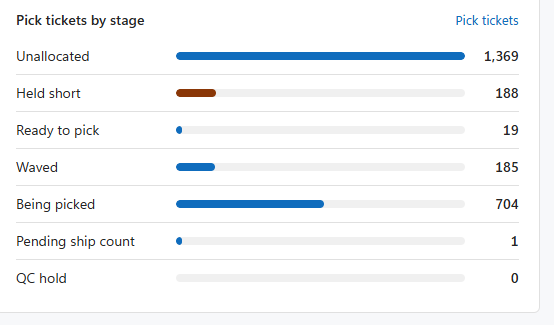
The Pick tickets by stage panel with its seven bars.
This panel shows how many open Pick tickets are in each stage of picking right now, whatever their Required date. The stages are listed in the order a pick ticket moves through them:
| Stage | Meaning |
| Unallocated | Released, but no stock has been allocated to it yet. |
| Held short | Held because there is not enough stock to fill it. Drawn in the warning colour (amber). |
| Ready to pick | Allocated and waiting for a picker. |
| Waved | Included in a wave. |
| Being picked | Picking has started. |
| Pending ship count | Picked and waiting for the ship count. |
| QC hold | Held by Quality control. Drawn in the warning colour (amber). |
Each bar's length is relative to the stage with the most Pick tickets, which fills the whole width. A stage with at least one pick ticket always shows a small sliver, so a small number is never mistaken for none. The number at the right of each row is the exact count. Open Pick tickets in other states (for example one waiting for a letdown) are not listed here, but they are counted in the cards and in Needs attention.
The Pick tickets link at the top right of the panel opens Fulfillment > Pick tickets. The rows themselves are not clickable.
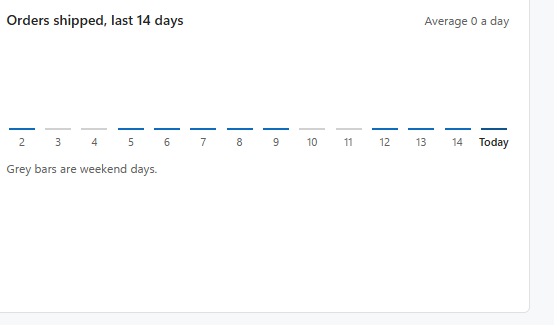
The Orders shipped chart for the last 14 days, with weekend bars in grey and Today at the right.
A bar chart with one bar per day for the last 14 days, today included, oldest on the left. Each bar is the number of Pick tickets shipped that day (by ship date, in your time zone). Days with no shipments are shown too, as a flat bar, so the chart never skips a day.
The chart is not clickable. A screen reader reads it out as the number shipped on each day.
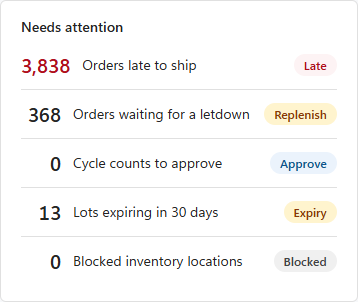
The Needs attention panel with its five rows and coloured tags.
Five things that usually need someone to act. Each row is a button that opens the list behind it.
| Row | Tag | What it counts | Clicking it opens |
| Orders late to ship | Late (red) | Open Pick tickets whose Required date is before today. The same number as {n} late on the first card. The number is shown in red when it is not zero. | Fulfillment > Pick tickets |
| Orders waiting for a letdown | Replenish (amber) | Open Pick tickets that cannot be picked until stock is let down from overstock to the pick location: those in the Pending letdown state or marked as waiting for a letdown. | Fulfillment > Pick tickets |
| Cycle counts to approve | Approve (blue) | Cycle counts done on the Handheld that are waiting for approval, in Bins of the chosen Warehouse. There are only counts waiting when your company requires Cycle count approval. See Cycle count approval. | Collaboration > Unapproved CCs |
| Lots expiring in 30 days | Expiry (amber) | Lots still in stock (quantity above zero) whose expiry date falls between today and 30 days from today, both included. Each product and lot number is counted once, however many Bins it is in. Lots that have already expired are not counted. | Analytics > Inventory > Expiry |
| Blocked inventory locations | Blocked (grey) | Inventory records (a product in a bin or on a license plate) that carry a block reason. | Analytics > Inventory > Inventory |
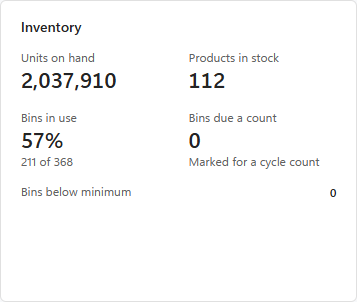
The Inventory panel with Units on hand, Products in stock, Bins in use, Bins due a count and Bins below minimum.
The stock in the chosen Warehouse right now. Stock belongs to the Warehouse of the bin it is in. A pallet (license plate) is counted once, in the Warehouse of the bin where it stands, even when the pallet's own Warehouse was not updated after a move. A pallet that is in no bin belongs to the Warehouse of the license plate.
| Number | What it counts |
| Units on hand | The total quantity of every product in stock, added together. |
| Products in stock | How many different Products have a quantity above zero. |
| Bins in use | The share of the Warehouse's Bins that hold stock, as a percentage, with {n} of {total} below it. The total is every bin in the Warehouse's Zones. Not shown to a 3PL client's user. |
| Bins due a count | Bins Marked for a Cycle Count (Count required), waiting for someone to count them on the Handheld. Not shown to a 3PL client's user. |
| Bins below minimum | Bins that have a minimum quantity set (above zero) and hold less than that minimum, counting all stock in the bin: the Bins due a refill. This number is a link: clicking it opens Analytics > Inventory > Bin min/max. Not shown to a 3PL client's user. |
Apart from Bins below minimum, the numbers in this panel are not clickable.
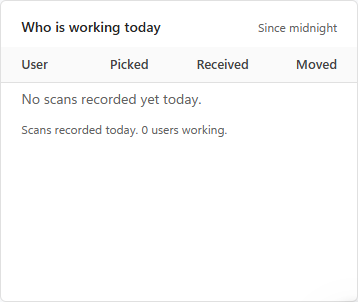
The Who is working today table, here before anyone has scanned today.
A table of the Handheld scans recorded today, Since midnight, by user. The scans are read from the history LogisticaHQ keeps of every transaction (the same history as History search). Each recorded scan counts once.
| Column | What it counts |
| User | The username of the person who scanned. |
| Picked | Pick scans: picking for Pick tickets and picking for Production orders. |
| Received | Receipt scans: Receiving Purchase orders, Receiving without a purchase order (Non-PO receiving), Receiving Returns (RMA receiving) and Receiving without an RMA (Non-RMA receiving). |
| Moved | Move scans: product moves, license plate (LPN) moves, full bin moves, Warehouse moves and letdowns. |
At the bottom of the page, the line Every number opens the list behind it. is a reminder that the cards, the Needs attention rows, the Pick tickets link and Bins below minimum open their lists.
| What you see | Why | What to do |
| A number has not changed after work was just done on the floor. | The numbers are kept for about a minute. | Click Refresh, then check the Updated time. |
| The list that opens has more rows than the number on the Overview. | Lists open in full, without the Overview's filter or Warehouse. | Filter the list by Warehouse and by its Required date column (or the column that matters). |
| Orders due to ship today is lower than expected. | Pick tickets without a Required date, and drafts not yet released, are not counted. | Give Pick tickets a Required date and release them to the Warehouse. |
| The page opens on the wrong Warehouse. | It starts on the Default Warehouse of your user profile, or on All Warehouses if none is set. | Ask an administrator to set your Default Warehouse in Setup > System > Users. |
| Who is working today shows only me. | Only administrators see everyone's scans. | This is by design. |
| Who is working today and the bin numbers are missing. | Your user is linked to a 3PL client. | This is by design: a client's user sees only their own client's orders and stock. |
| "Today" numbers look a day off. | "Today" is your own Calendar day, in the Time zone of your user profile. | Ask an administrator to check the Time zone on your user profile. |
| I want to land on another screen after signing in. | The Default menu on your user profile is empty. | Ask an administrator to choose your Default menu in Setup > System > Users. |
| The Overview could not be loaded. Press Refresh to try again. | The numbers could not be fetched, for example during a brief connection problem. | Click Refresh. If it keeps happening, contact Support. |
Was this page helpful?